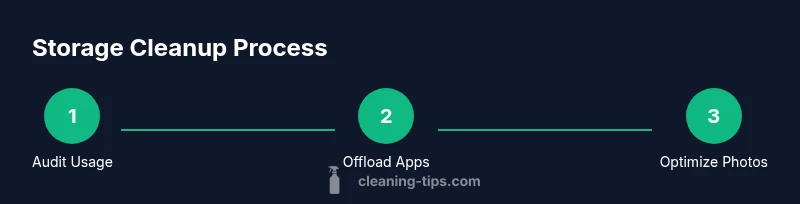
How to Clean iPhone Storage: A Practical Guide
Learn how to clean iPhone storage safely with a practical, step-by-step approach: offload unused apps, optimize Photos, trim Messages, manage mail attachments, and back up data with Cleaning Tips.


Learn how to clean iPhone storage by reclaiming space with safe, data-preserving steps. You’ll review usage, offload unused apps, optimize photos, manage Messages and attachments, and back up before cleanup. No hardware changes required—just your device settings and a few taps. Have a recent backup ready and an internet connection for syncing and iCloud options.
Why clean iPhone storage matters
Digital clutter can slow performance, drain battery life, and complicate backups. According to Cleaning Tips, keeping storage well managed helps maintain responsiveness and longevity of your device. The Cleaning Tips team found that when storage gets tight, apps launch slower, updates stall, and background tasks get throttled, leading to a less reliable experience. A lean, organized device not only runs more smoothly but also makes content more accessible and backups more reliable. You’ll save time, keep photos discoverable, and avoid the panic of sudden free-space prompts. This guide gives you a practical, data-safe workflow you can implement this weekend without risking data loss.
How to audit current storage
Begin by opening Settings → General → iPhone Storage. The screen shows a color-coded bar with used vs. available space and a list of apps ordered by how much space they occupy. At the top, Apple’s Recommendations offer one-tap actions to reclaim space; these are a quick first step you should consider. Take note of the biggest space consumers, then decide whether to offload or delete them. Don’t forget to check “Photos” and “Messages” sections for oversized content, as these often hide the bulk of storage.
Strategies to reclaim space
Below are proven approaches you can apply in sequence for maximum impact:
- Offload Unused Apps: Enable Offload Unused Apps to remove apps while keeping documents and data. This preserves your progress and login information for when you reinstall.
- Review Large Apps: Tap each large app to decide whether you need it or if you can free space by deleting or offloading.
- Optimize Photos: Turn on Optimize iPhone Storage or use iCloud Photos to keep full-resolution images in the cloud while storing lighter previews on-device.
- Manage Messages Attachments: Delete or export large conversations and attachments, especially old videos and PDFs, to reclaim substantial space.
- Tidy Mail Attachments: Remove large email attachments you no longer need and archive important messages.
- Back Up Before Cleanup: Create a backup to iCloud or a computer before major removals so you can restore if needed.
- Create a Maintenance Habit: Schedule a monthly review to prevent storage from creeping back up.
Safe cleanup workflow
Plan your cleanup like a mini-project: back up first, then delete non-essential data in a controlled order. Start with offloading apps you rarely use, then purge large videos or attachments from Messages and Mail. Next, optimize your Photos and enable cloud-backed storage if possible. Finally, confirm that your important data is accessible after cleanup and that backups completed successfully. Having a plan reduces the risk of accidentally losing something important.
Photos and Messages: optimization tips
Photos often dominate storage. Use iCloud Photos or the Optimize iPhone Storage option to minimize local copies without losing access to images. For Messages, keep only recent conversations or set a retention period (e.g., keep messages for 1 year or 30 days) to automatically remove older content. Regularly purge old media and export keepsakes to a cloud drive or computer for long-term preservation. These steps strike a balance between accessibility and space savings.
Backup, automation, and schedule
Back up your iPhone regularly before making big changes. Use iCloud Backup or a computer backup to safeguard your data, including photos, messages, and app data. Consider a lightweight automation habit: set a monthly reminder to review storage, enable essential options like Photo optimization, and reset the cycle if you add new large apps or media. Regular maintenance helps you avoid storage crises and keeps your device operating smoothly.
Troubleshooting and common pitfalls
If space doesn’t free up as expected, recheck any large attachments in Messages and persistent caches within apps. Some apps store data in their own folders; you may need to delete and reinstall certain apps to clear cached content fully. Ensure you have not disabled iCloud backups unintentionally and that backups complete successfully after changes. If you’re unsure about deleting data, export or archive key items to a secure cloud location before removal.
Tools & Materials
- iPhone with charging cable(Ensure battery is above 50% before major cleanup)
- Stable internet connection(Needed for iCloud sync and backups)
- iCloud account(Sign in to use iCloud Photos and backups)
- Computer with macOS Finder or iTunes(Useful for backups or manual data transfer)
- Latest iOS version(Updates may include improved storage recommendations)
Steps
Estimated time: 30-45 minutes
- 1
Open iPhone Storage settings
Open Settings > General > iPhone Storage. Review the space chart and identify the biggest space consumers. Note any recommendations Apple provides for freeing space.
Tip: Take a screenshot of the storage screen for reference before making changes. - 2
Enable Offload Unused Apps
In iPhone Storage, switch on Offload Unused Apps so apps you rarely use are removed automatically while preserving documents and data.
Tip: Pair with a quick audit of apps you never open to boost impact. - 3
Identify and manage large apps
Tap each large app to see its data usage. Decide whether to offload, delete, or archive the app content to save space.
Tip: Consider keeping essential apps and re-downloading only if you need them again. - 4
Optimize Photos
Enable Optimize iPhone Storage and, if possible, use iCloud Photos to keep full-resolution images in the cloud while storing lightweight previews on-device.
Tip: Regularly review your camera roll for duplicates and unnecessary screenshots. - 5
Trim Messages and attachments
Delete large conversations or export attachments you want to keep, reducing the size of the Messages app data.
Tip: Keep a few essential conversations and delete the rest in batches to avoid data loss. - 6
Back up before cleanup
Back up to iCloud or your computer so you can restore if needed after removing data.
Tip: Verify backups complete successfully before deleting content. - 7
Set a cleanup schedule
Create a monthly reminder to review storage and perform a light cleanup to prevent space issues.
Tip: Use a recurring reminder in your preferred task app to stay consistent.
Questions & Answers
What is the fastest way to free up space on iPhone storage?
Use the iPhone Storage recommendations, offload unused apps, and enable Photo optimization to reclaim space quickly. Deleting large attachments in Messages can add a quick boost.
Use the storage recommendations and offload apps to reclaim space quickly; then optimize Photos for bigger gains.
Does offloading delete data?
No. Offloading removes the app itself but preserves documents and data, so you can reinstall later and regain the app with its data intact.
Offloading removes the app but keeps your data, so you can reinstall later without losing information.
Will enabling Optimize iPhone Storage affect my photos?
Yes. Optimize storage keeps smaller previews on-device while full-resolution copies remain in iCloud, saving local space while preserving access.
Photos stay accessible with smaller previews on the device and full copies in the cloud.
How often should I clean my iPhone storage?
Set a regular cadence, such as monthly or quarterly, based on how quickly your usage grows. Adjust as needed after big photo or app additions.
Schedule a monthly or quarterly cleanup to stay ahead of space usage.
Is it risky to clean storage without backups?
Yes. Always back up first to avoid accidental data loss when removing items or apps.
Back up before you delete anything to prevent data loss.
What if I still run out of space after cleaning?
Consider moving large media to cloud storage, exporting and archiving, or performing a deeper review of apps with hidden data.
If space remains tight, move content to the cloud or archive it offline.
Watch Video
The Essentials
- Audit first to identify space hogs
- Offload apps and optimize photos
- Back up before deleting
- Set a recurring cleanup schedule
- Verify data accessibility after cleanup