How to Clean a Mac Screen Safely: A Streak-Free Guide
Learn how to clean a Mac screen safely with a microfiber cloth and gentle solutions. This guide from Cleaning Tips covers tools, step-by-step methods, and safety tips for streak-free results on MacBook and iMac displays.


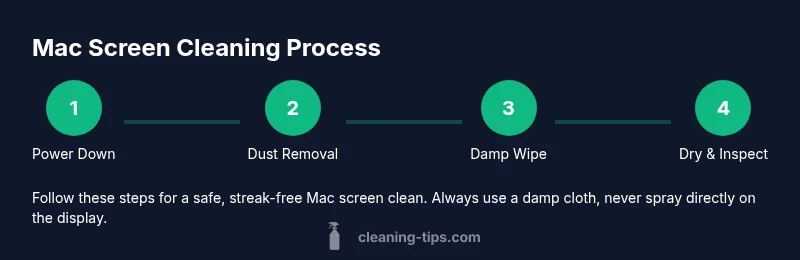
This guide shows you how to clean a Mac screen safely using a soft microfiber cloth, gentle moisture, and careful technique. You’ll learn what to use, what to avoid, and a step-by-step routine that minimizes streaks and liquid exposure. Always power down and unplug before cleaning to protect sensitive electronics.
Why Cleaning a Mac Screen Matters
Maintaining a clean Mac screen is essential for clear visibility and comfortable viewing, especially if you spend long hours in front of your computer. Oils from hands, dust, and fingerprint smudges can interfere with perceived contrast and color accuracy, making it harder to read text or edit photos. The goal is to remove grime without risking damage to the display layer or coatings. When you learn how to clean mac screen correctly, you reduce eye strain, preserve screen clarity, and extend the device’s life. According to Cleaning Tips, the safest approach uses a soft microfiber cloth and controlled moisture to avoid streaks or seepage. Start with a gentle touch and avoid aggressive scrubbing.
Taking a methodical approach—not a quick wipe—yields better results and minimizes the chance of accidentally rubbing grit into the screen or pushing liquid into gaps around the bezel. The clean routine should be quick enough for daily maintenance but thorough enough to remove smudges that affect color and brightness. With the right tools and steps, you can achieve a pristine, glare-free screen without compromising its longevity.
notesFlaggedForLength”:false},
bodyBlocksSectionTwo
Tools and Preparation for a Safe Clean
The safest mac screen cleaning setup centers on minimal moisture, soft materials, and precise technique. Before you start, collect essential tools and establish a clean, dust-free workspace. A high-quality microfiber cloth is non-negotiable: it traps oils without scratching the display surface. For most routines, distilled water is the preferred liquid to dampen your cloth, reducing mineral residues and the risk of streaks. If you encounter stubborn smudges or fingerprints, a small amount of 70% isopropyl alcohol can be used sparingly, but never pour or spray liquids directly onto the screen. Always apply liquid to the cloth, not the display.
Keep a few edge-cleaning tools handy, like cotton swabs for the bezel and a soft brush to lift loose dust from corners. Store tools in a clean container to prevent grime from transferring during cleaning. A dry, lint-free microfiber cloth should be nearby to dry the surface after refreshing with moisture. Establishing this setup ensures you’ll perform each step with confidence and consistency, even if you’ve never cleaned electronics before.
notesFlaggedForLength”:false},
,
,
bodyBlocksSectionThree
Step-by-Step Overview for Glare-Free Clarity
A careful, multi-stage approach yields the best results for both MacBook and iMac screens. Start with a quick inspection to identify how dirty the display is and where the grime concentrates. Then, prepare your cloth so it’s slightly damp, not wet, to avoid liquid pooling. Glide the cloth in gentle, even strokes that follow the natural grain of the screen (where applicable) to minimize noise and friction. After cleaning, use a dry microfiber cloth to remove any remaining dampness and restore a crisp surface. This overview frames the practical method you’ll implement in the detailed steps that follow.
Remember: the goal is to remove oils and fingerprints without risking liquid seepage into the device. If your Mac is equipped with a glossy screen, pay extra attention to avoid circular streaks. If you have a matte finish, use very light pressure and a microfiber cloth designed for delicate coatings. Small, deliberate motions help you maintain control and reduce the chance of damage.
notesFlaggedForLength”:false},
,
bodyBlocksSectionFour
Safe Cleaning Solutions and Techniques
You should favor water-based methods that reduce residue and avoid harsh chemicals. A damp microfiber cloth with distilled water is sufficient for most cleaning tasks. For tougher smudges, a tiny amount of isopropyl alcohol (70%) on the cloth can assist in lifting oils; never spray alcohol directly onto the screen. If you prefer a non-alcohol option, a small spray bottle of distilled water mist applied to the cloth works well. Always test a small, inconspicuous area first to ensure the coating on your display responds positively.
Never use ammonia, acetone, vinegar, or window cleaners on a Mac display, as these substances can degrade coatings and cause discoloration. After cleaning, pass a dry cloth across the surface to ensure no moisture remains. If your Mac has a sensitive anti-reflective coating, adopt ultra-gentle strokes and avoid circular rubbing that can wear down coatings over time.
By following these techniques, you can achieve a streak-free result while preserving the screen’s durability and brightness. Regular maintenance with the right tools makes future cleanings easier and faster.
notesFlaggedForLength”:false},
,
bodyBlocksSectionFive
Common Pitfalls and How to Avoid Them
Many users ruin the look of a Mac screen by applying liquid directly or using coarse fabrics. Do not spray liquids directly onto the screen; instead, mist the cloth lightly and wipe. Using paper towels or rough cloths can cause micro-scratches that accumulate over time. Pressure matters: excessive force can stress the display layers and coatings, especially around the edges where adhesives and sealants can be vulnerable. Another frequent mistake is neglecting the bezel and edges, where dust accumulates and can migrate onto the glass.
Preparation matters: lint-free cloths, small amounts of liquid, and a clean workstation reduce cross-contamination. If you’re cleaning a retina display, avoid circular motion and stay in straight, light strokes to prevent uneven wear. Finally, never clean a powered-on device with moisture approaching the ports; always power off and unplug first to minimize risk.
With awareness of these pitfalls, your routine becomes safer, faster, and more effective.
notesFlaggedForLength”:false},
,
bodyBlocksSectionSix
Maintenance Habits for Longevity and Clarity
Establish a simple maintenance routine to keep your Mac screen looking its best between deeper cleans. Wipe the screen briefly at the end of each day with a dry microfiber cloth to remove dust and fingerprints. Schedule a thorough clean every few weeks or monthly, depending on usage and environmental conditions such as dust levels and humidity. Keep your workspace free of sticky residues and avoid placing hot drinks near the display to minimize accidental spills.
In addition to cleaning, consider environmental factors that affect screen clarity, such as air quality and glare. Reducing dust with a regular desk wipe-down and using an anti-glare screen protector can prolong the life of the display and maintain legibility. By integrating these habits, you’ll preserve color accuracy, brightness, and viewing comfort over the long term.
notesFlaggedForLength”:false},
Tools & Materials
- Microfiber cloth (lint-free, soft)(Prefer a large, ultra-soft cloth for even coverage and minimal rubbing.)
- Distilled water(Use pure distilled water to avoid mineral spots.)
- Isopropyl alcohol (70%)(Only if needed for stubborn smudges; apply to cloth, not directly to screen.)
- Spray bottle (optional)(Light misting device to dampen cloth—do not spray on screen.)
- Cotton swabs (Q-tips)(Use for bezels and tight corners.)
- Soft brush(Gently lift dust from edges before wiping.)
Steps
Estimated time: 15-20 minutes
- 1
Power down and unplug
Always start by turning off your Mac and unplugging it from power. This reduces the risk of short circuits or moisture reaching internal components. Allow the screen to cool for a few minutes if it was recently used, so you don’t wipe while it’s hot. Pro tip: work in a clean, dust-free area to prevent debris from scratching the display.
Tip: Do not spray liquid near ports or openings. - 2
Clear loose debris
Gently brush away any loose dust with a soft brush or a dry microfiber cloth. This step prevents gritty particles from scratching the screen during wiping. Pay attention to the corners and around the webcam where dust tends to accumulate.
Tip: Hold the device steady to avoid bending or flexing the display. - 3
Prepare your damp cloth
Dampen the microfiber cloth with a small amount of distilled water or a 1:1 mist of distilled water if needed. The cloth should be damp, not dripping wet; excess moisture is a common source of liquid seepage. Wipe the cloth across the surface to create an even, light sheen.
Tip: Avoid leaving excess moisture in folds of the cloth. - 4
Wipe with even strokes
Using light, straight strokes, wipe the screen from top to bottom or side to side. Do not scrub in circles, which can create uneven wear or streaks. Focus on areas with visible smudges and fingerprints, applying slightly more pressure only where needed.
Tip: Maintain consistent pressure to prevent streaks. - 5
Tackle stubborn smudges
If fingerprints persist, dampen a small portion of the cloth with a touch of isopropyl alcohol and gently target the affected area. Never apply alcohol directly to the screen; keep it on the cloth. Rinse the cloth if the liquid becomes too damp and continue with light strokes.
Tip: Use minimal alcohol; proportionally less is more. - 6
Dry and inspect
Use a dry microfiber cloth to remove any remaining moisture and to buff the surface for a clear finish. Inspect under good lighting to ensure no residual streaks or moisture remain. If you see streaks, repeat the drying pass with a clean, dry section of the cloth.
Tip: A second dry pass can reveal missed spots. - 7
Clean the bezel and edges
Don’t neglect the bezel and edges where dust and oils gather. Use a cotton swab lightly moistened with distilled water to reach tight seams, then wipe away any moisture with the dry cloth. This prevents cross-contamination from the edges onto the screen.
Tip: Be gentle around coatings and seals. - 8
Final wipe and storage
Do a final wipe with a fresh dry cloth to ensure a pristine surface. Return cleaning supplies to their storage area, keeping them clean and ready for the next session. Power up the Mac only after the screen is completely dry.
Tip: Store liquids away from electronics. - 9
Routine maintenance
Set a regular cleaning cadence based on usage; daily quick dusting and a deeper clean every few weeks works well for most homes. Keeping to a schedule reduces the likelihood of stubborn buildup and makes each cleaning faster.
Tip: Consistency beats intensity over time.
Questions & Answers
Can I use window cleaner on a Mac screen?
No. Window cleaners and ammonia-based products can damage the display coatings. Stick to distilled water and a microfiber cloth, or a tiny amount of isopropyl alcohol if needed with caution.
Avoid window cleaners; use distilled water and a microfiber cloth, or a small amount of isopropyl alcohol if necessary.
Is it safe to use 70% isopropyl alcohol on the screen?
Only if used sparingly on the cloth and never sprayed directly onto the screen. Alcohol can help remove stubborn oils but may affect coatings if overused.
Use a little alcohol on the cloth, not on the screen.
Should I remove the power before cleaning?
Yes. Power down and unplug the device to reduce the risk of short circuits and moisture reaching internal components.
Yes, always power off and unplug before cleaning.
Can I use paper towels or rough fabrics?
No. Paper towels and rough fabrics can scratch coatings or leave lint behind. Use a clean microfiber cloth only.
Avoid paper towels; stick to microfiber cloths.
How often should I clean my Mac screen?
Clean as needed for visibility—daily light dusting and a more thorough clean every few weeks is a good rule of thumb.
Clean when you notice smudges or dust buildup.
Will cleaning remove fingerprints permanently?
Cleaning removes fingerprints temporarily; continued use will create new smudges. Regular, gentle cleaning keeps the screen looking clear.
Regular cleaning keeps fingerprints under control.
Watch Video
The Essentials
- Power off before cleaning to protect electronics
- Use distilled water and a microfiber cloth for best results
- Never spray liquids directly on the screen
- Be gentle and use minimal moisture to avoid damage
- Regular maintenance keeps displays clear and coatings intact