How to Stop Clean Up Ads on Android
Learn step-by-step how to stop clean up ads on Android, remove ad-heavy apps, tighten permissions, and protect your device with privacy-focused settings and trusted tools.


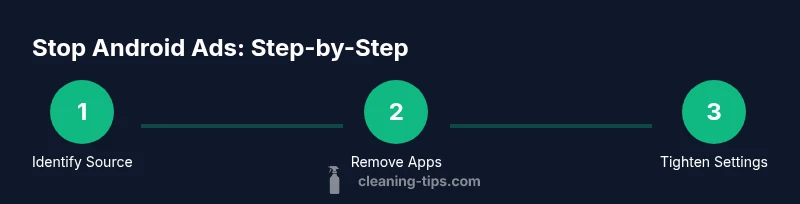
To stop clean up ads on Android, start by reviewing recently installed apps for ad-heavy or suspicious ones and uninstall them. Revoke intrusive permissions (overlay, notification, and usage access), enable Google Play Protect, and use a browser or launcher with built-in ad blocking. If ads persist, clear cache, reset ad personalization, and back up before considering a factory reset as a last resort.
Why stop clean up ads on Android and why they matter
If you’re wondering how to stop clean up ads on android, you’re not alone. Ads that push cleanup prompts typically come from ad-supported apps or those that display overlays. In some cases, ad networks embedded by free apps trigger intrusive messages. According to Cleaning Tips, the most reliable defense starts with identifying and removing the source apps, then tightening system controls. The goal is a smoother, less interrupted Android experience and reduced data usage. You’ll also reduce the risk of accidentally tapping harmful prompts that could download further software or compromise your information. Understanding the sequence helps you reclaim control over your device’s behavior and your time. By addressing the root cause, you lessen recurring interruptions and improve battery life and overall performance.
How to identify the culprits behind clean up ads
Start by inspecting your device for recently installed apps that might be driving ad prompts. Check the apps’ permissions, especially those requesting overlay, usage access, or notification control. Look for unusual battery drain or sudden spikes in data usage, which can signal ad networks at work. Examine your browser extensions and launcher apps, as some popular launchers can inadvertently overlay ads if they aren’t updated. If you spot a likely culprit, uninstall it, then reboot and test whether the ads recur. Finally, review your device’s accessibility settings to ensure nothing outside your control is capturing input in the background. This process reduces false positives and pinpoints the actual source.
The defense playbook: remove apps, tighten permissions, and reduce exposure
Begin with a clean sweep of apps that seem suspicious or were installed around the time you started seeing prompts. Uninstall or disable them, then review all other apps for overlay or usage permissions. Revoke any permission that isn’t essential to the app’s core function, especially Draw over other apps, Notifications access, and Usage statistics. After restricting permissions, enable Google Play Protect and run a security scan. Consider switching to a privacy-focused browser with built-in ad blocking and disabling any ad-supported extensions. Finally, clear app caches and data for apps that rely on ads, and test the experience again. This layered defense minimizes chances for future prompts.
Configure browser privacy and system settings to shield against ads
Use a browser with robust built-in blocking and enable Do Not Track where available. Turn on Block Pop-ups, and enable Safe Browsing to prevent malicious scripts from loading. In Android settings, limit ad personalization by turning off ad tracking in your Google account and resetting advertising IDs if prompted. Disable any ad-recommendation features in apps or launchers that repeatedly push sponsored content. Regularly clearing cache and cookies can also reduce targeted prompts. These steps don’t just combat ads; they improve overall privacy and performance.
Maintenance, backups, and when to seek help
Ongoing maintenance matters. Regularly review newly installed apps and permissions, especially after OS updates or new device features. Create a backup before performing more drastic actions like a factory reset, as that step will erase data. If ads persist even after a thorough cleanup, consider professional help or contacting your device manufacturer’s support. In some cases, persistent prompts indicate a more invasive form of adware, requiring a factory reset or device replacement. Keeping your system updated and staying vigilant with permissions dramatically reduces future disruptions.
Tools & Materials
- Android device (phone or tablet)(Running the latest stable Android version where possible.)
- Trusted ad blocker browser or app(Choose reputable options; avoid unknown tools.)
- Google account privacy controls access(Used to adjust ad personalization settings.)
- Backup option (cloud or computer)(Recommended before major changes.)
Steps
Estimated time: 25-40 minutes
- 1
Identify suspect apps
Review recently installed apps and note any that requested overlays or aggressive notifications. If something looks unfamiliar, consider uninstalling it and testing the device behavior afterward.
Tip: Use the system app list and sort by install date to spot recent changes. - 2
Uninstall or disable ad-heavy apps
Remove apps that display ads or have suspicious permission requests. Reboot the device to ensure changes take effect before testing for new prompts.
Tip: If you don’t want to lose data, disable the app first and observe if prompts stop. - 3
Tighten permissions
Revoke overlay, notification, and usage-access permissions from non-essential apps. Keep essential apps with minimum permissions to reduce attack surface.
Tip: Document which permissions you remove so you can re-enable only what’s necessary. - 4
Enable Play Protect and safety settings
Turn on Google Play Protect, run a safety check, and review security alerts. Ensure Safe Browsing is enabled in your browsers.
Tip: Schedule periodic checks to catch new threats early. - 5
Block ads in browsers and use privacy features
Select a browser with built-in ad blocking or install a reputable blocker extension. Enable Do Not Track and disable ad personalization in your Google account.
Tip: Avoid install of new extensions from untrusted sources. - 6
Monitor performance and reassess
After changes, monitor battery life, data usage, and ad prompts. Revisit permissions after OS updates and adjust as needed.
Tip: Keep a short notebook of changes for quick reference.
Questions & Answers
What are clean up ads on Android?
Clean up ads are intrusive prompts or overlays that encourage you to perform 'cleanup' actions. They often originate from ad-supported apps or ad networks and can degrade performance and privacy. Identifying the source and adjusting permissions typically resolves the issue.
Clean up ads on Android are intrusive prompts from ad-supported apps. Start by identifying the source and adjusting app permissions to stop them.
Why do I see them even after installing reputable apps?
Some legitimate apps may include ad networks or use overlays. If you notice new prompts after installing a particular app, that app is a likely contributor. Rechecking permissions and testing after removing the app helps confirm the source.
Even reputable apps can include ads. Remove or restrict permissions for suspect apps to confirm the source.
Can antivirus stop these ads?
Antivirus apps can detect some adware and suspicious overlays, but they’re not a guaranteed fix. Use them as a supplementary tool alongside removing offending apps and tightening permissions.
Antivirus software can catch some adware, but it isn't a guaranteed fix. Use it with app removal and permission tightening.
Will a factory reset remove all ads?
A factory reset can remove persistent adware, but it is a drastic step that erases personal data. Back up first, then perform the reset if the ads continue after all other steps.
A factory reset can remove stubborn adware, but back up first and only use this as a last resort.
How do I stop ads in Chrome on Android?
In Chrome, enable Block Pop-ups and use Chrome’s privacy settings to block ads and trackers. Consider using a privacy-focused extension or a browser with built-in ad blocking for more robust protection.
Turn on pop-up blocking and privacy settings in Chrome, or switch to a browser with built-in blockers.
Is ad personalization the same as ad tracking?
Ad personalization uses data to tailor ads to you, while ad tracking follows behavior across apps. You can disable ad personalization in Google settings to limit targeted ads, though some data collection may remain for security and functionality.
Ad personalization tailors ads; tracking follows behavior. You can disable personalization in Google settings to reduce targeted ads.
Watch Video
The Essentials
- Identify and remove ad-heavy apps promptly.
- Tighten permissions to limit overlays and data access.
- Enable built-in protections and privacy controls.
- Block ads in browsers and keep all software updated.
- Back up data before major changes and monitor device behavior.