What Clean iPad Screen With: Safe Methods & Tips
Learn safe ways to clean your iPad screen with a microfiber cloth, water, and gentle cleaners. This Cleaning Tips guide covers tools, steps, cautions, and maintenance for a pristine display.


To clean an iPad screen safely, use a soft microfiber cloth with a tiny amount of water or a 70% isopropyl wipe. Never spray liquids directly on the screen and avoid harsh cleaners. Power off the device, remove any case, and wipe—gentle, circular motions. The Cleaning Tips team emphasizes keeping moisture away from ports and speakers.
What to know before you clean: safety and intent
Cleaning an iPad screen requires care to protect the display coatings and sensitive sensors. When people search for what clean ipad screen with, they want practical, safe options that minimize moisture and avoid chemical damage. According to Cleaning Tips, starting with the device powered off and using a soft microfiber cloth is the most reliable foundation for a streak-free result. This approach reduces risk to the touchscreen and prolongs device life. Before you reach for cleaning products, understand the risks and set expectations: screens are designed to be cleaned, but moisture, abrasives, and harsh chemicals can weaken coatings, degrade anti-reflective layers, or seep into ports. Keep the iPad dry, use minimal moisture, and never scrub with excessive pressure. In this guide, you’ll learn the precise materials, the right sequence, and the subtle cues that tell you you’re done. You’ll also see how to adapt these steps if you’re cleaning around a sticky residue or a fingerprint-heavy display after a long workday.
Safe cleaning agents and why some cleaners are off-limits
Most modern iPad displays are coated with oleophobic layers that repel oil and fingerprints. Many household cleaners contain ammonia, vinegar, or acetone, which can strip coatings and reduce screen clarity over time. The safest bet is a soft microfiber cloth, optionally moistened with distilled water, or a manufacturer-approved wipe. If you must use a cleaner, choose a minimal amount on the cloth and avoid spraying. As Cleaning Tips notes, alcohol-based solutions can be acceptable when used sparingly on a cloth, but never apply directly to the screen or near edges. For stubborn residues, a very small amount of mild dish soap diluted in water can be used on the cloth, not directly on the screen. Always finish with a dry pass to remove any remaining moisture. Remember: consistency matters. A few quick passes are better than a harsh scrub that risks micro-scratches.
Using water and cloth: the right balance
Water is a friend when used correctly; too much water creates risks of moisture seeping into openings. The goal is a barely damp cloth that can lift grime without saturating the surface. Start by turning off the iPad and unplugging accessories; wipe the screen with a circular motion, applying light pressure only. If the cloth becomes damp with dirty residue, switch to a fresh section rather than re-wetting it. After a couple of passes, wipe with a dry microfiber to remove streaks. This method minimizes corrosion risks to the display and reduces dust attraction over time. For best results, keep the cloth clean as you work and avoid letting liquid pool along the edges of the display.
Tools and materials you’ll want on hand
Having the right tools helps you do the job quickly and safely. The core kit includes a clean microfiber cloth, a separate dry cloth, and optionally a bottle of distilled water for light dampening. Avoid household sprays and blotting liquids directly on the screen. Cotton swabs can help clean the tiny gaps around the home button, camera, and speaker grills, but only if you are very careful to avoid entry of moisture. A soft, lint-free cloth used consistently will outperform rough cloths or paper towels that can leave lint or scratch the surface. Remember to store the kit away from pets and kids to reduce accidental spills. If you’re cleaning on the go, a compact microfiber cloth and a small bottle of distilled water can fit in a laptop case or bag pocket for quick touch-ups.
Step-by-step overview: high-level flow
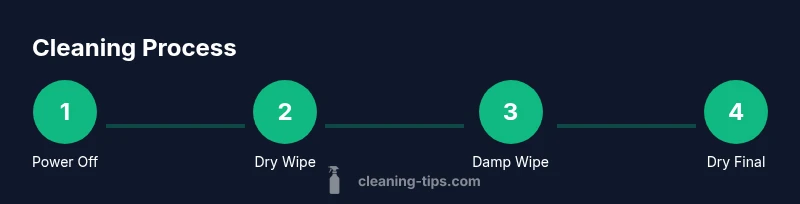
Here is the general sequence you’ll follow when cleaning an iPad screen with care: prepare the device by powering it off and removing any case; start with a dry wipe to remove surface dust; apply a barely damp cloth (not wet) to lift smudges; finish with a dry pass to remove moisture and restore clarity. Pause if you notice any moisture around ports or speakers, and avoid pressing too hard. This overview helps you understand why the steps matter and how each action serves to protect the display coatings while delivering a streak-free result. For those new to device cleaning, practice on a less-visible area of the case or a spare screen protector first to build confidence.
Common mistakes and how to avoid them
Common mistakes include spraying liquids directly on the screen, using abrasive cloths, applying too much pressure, and cleaning while the device is powered on. Sprays can seep into openings and loosen adhesives, while abrasive fabrics can scratch the glass. Always use a soft microfiber cloth and apply moisture only to the cloth, never to the screen. If you notice residue around the edges, switch to a fresh cloth section rather than re-wetting, and wipe diagonally to avoid streaks. Finally, never soak a cloth or leave moisture trapped in ports; moisture is the enemy of electronics and can cause corrosion or circuitry issues.
Cleaning in different scenarios: fingerprints vs sticky residues
Fingerprints are the most common dissatisfaction for iPad users and respond well to a light damp wipe and a dry finish. Sticky residues from spills or food may require a slightly dampened cloth with a touch of gentle soap and water, then a thorough dry. In both cases, avoid ammonia and other harsh solvents and limit contact with the screen’s edges and speaker grills. If you encounter stubborn residue near the camera or sensors, use a cotton swab dampened just enough to lift the spot, then immediately dry the area. Always check for streaks and re-wipe as needed.
Drying, finishing touches, and reassembly
After cleaning, allow the screen to air-dry for a few seconds before powering the device back on. A final pass with a dry microfiber ensures no moisture remains and leaves a pristine surface. Reattach any case or cover and inspect for lint or fibers that may have transferred during the process. If you notice persistent haze, repeat the light damp wipe with a fresh section of cloth rather than applying more liquid. Regularly performing this finishing step keeps your display bright and responsive.
Maintenance and long-term care for your iPad screen
To keep your iPad screen looking new, establish a gentle cleaning routine that matches how you use the device. Store a dedicated microfiber cloth in your bag or desk drawer and use it whenever fingerprints accumulate. Consider a screen protector that reduces direct contact with oils while remaining optically clear. Avoid touching the screen with dirty hands and clean in a well-lit area to spot smudges early. Finally, track the wear on coating by noting whether brightness and color appear uneven after cleaning sessions; if you notice degradation, revisit cleaning products and consult manufacturer guidance.
Tools & Materials
- microfiber cloth(lint-free, soft)
- distilled water(for dampening cloth; use only if needed; avoid drips)
- 70% isopropyl alcohol wipe(apply to cloth, not directly on screen; test first)
- cotton swabs(for edges and gaps; use sparingly)
Steps
Estimated time: 10-15 minutes
- 1
Power off and prep
Power off the iPad and disconnect accessories. Remove the case if it covers the screen edge to prevent moisture from getting behind the cover. This step reduces the risk of electrical shorts and helps you clean more precisely.
Tip: Hold the side button to bring up the power menu and choose 'Power Off'. - 2
Dust removal with dry microfiber
Use a dry microfiber cloth to wipe the screen gently and remove loose dust. Avoid pressing hard; let the cloth lift dust with slight friction. This prevents rubbing debris into the surface later.
Tip: Move in a circular pattern starting at the top-left corner. - 3
Dampen cloth lightly
If needed, dampen the cloth very slightly with distilled water or a manufacturer-approved solution. The cloth should be barely damp, not wet. Excess liquid increases moisture risk.
Tip: Wring out the cloth until no visible liquid drips. - 4
Wipe the screen in gentle motions
Wipe the display with small, circular motions, covering the entire surface. Keep moisture away from ports, speakers, and the buttons. Don’t press hard; let the moisture do the lifting.
Tip: Work in sections to avoid missing spots. - 5
Dry and inspect
Finish with a dry microfiber pass to remove any remaining moisture and restore clarity. Inspect for streaks or haze and re-wipe any areas as needed. Drying helps prevent water spots and ensures a crisp result.
Tip: Check under bright light for any missed smudges. - 6
Reassemble and test
Reattach the case if you removed it and power the iPad back on. Open an app with a white background to check for uniform brightness and any residue. If you notice issues, repeat the damp-wipe method on a fresh cloth section.
Tip: Test screen responsiveness after cleaning.
Questions & Answers
Can I use window cleaner on an iPad screen?
No. Window cleaners often contain ammonia or harsh solvents that can erode coatings. Use a microfiber cloth with water or a manufacturer-approved wipe instead.
Avoid window cleaners; use a microfiber cloth with water or a approved wipe.
Is it safe to use alcohol on the iPad display?
Alcohol can be used sparingly on a cloth if recommended by the manufacturer, but never apply it directly to the screen. Avoid frequent use to preserve coatings.
Alcohol is sometimes acceptable on cloth, never directly on the screen.
Should I spray liquid directly on the screen?
No. Spraying can cause liquid to seep into ports and cause damage. Always apply liquid to the cloth, not the screen.
Do not spray; apply liquid to the cloth only.
What if there’s sticky residue?
Dampen the cloth slightly with water and a tiny amount of mild soap, then wipe gently. Dry immediately to prevent moisture buildup.
If sticky, use a tiny amount of soap and water on the cloth, then dry quickly.
Can I clean a powered-on iPad?
Best practice is to power off before cleaning. Cleaning while on increases the risk of accidental taps and liquid exposure.
Power off before cleaning to stay safe.
How often should I clean the iPad screen?
Clean when fingerprints or smudges become noticeable. Regular light cleanings prevent buildup and maintain clarity.
Clean when you notice smudges to keep the screen clear.
Watch Video
The Essentials
- Power off before cleaning and use a soft microfiber cloth
- Avoid direct sprays on the screen and harsh chemicals
- Use barely damp cloths for lifting smudges; finish with a dry pass
- Check under light for streaks and re-wipe as needed
- Regular, gentle cleaning extends screen longevity