How to Clean Apps on Mac: A Practical Guide
Learn how to clean apps on Mac safely and efficiently with a step-by-step guide. Safe cleanup, performance tips, and macOS methods from Cleaning Tips.


This guide shows you how to clean apps on Mac safely, reclaim disk space, and speed up your system. You’ll identify unused apps, clear caches, manage startup items, and use built-in macOS tools without risking data. Follow the step-by-step process for reliable results.
Why Cleaning Apps on Mac Matters
According to Cleaning Tips, strategic app maintenance on a Mac isn't just about freeing space—it's about keeping a healthy, responsive system. A cluttered Applications folder and a long list of startup items can slow boot times, drain memory, and complicate updates. Regular cleaning helps protect privacy by reducing the surface area where apps store caches and residual data. It also makes it easier to locate the programs you actually use, which lowers the risk of accidentally removing something essential. In short, a clean app ecosystem supports better performance, lower energy use, and a calmer computing experience. This article focuses on practical, safe methods you can apply to any Mac—whether you own a modern MacBook Pro or an older iMac.
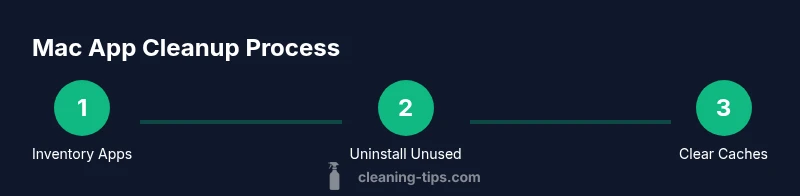
A broad cleanup plan starts with inventory: know what’s installed, what you actually run, and what can be archived or removed. Based on Cleaning Tips research, regular cleanup routines reduce junk and improve startup times, even if you don’t install new software. The goal is not to erase your digital life but to organize it so you can work faster and with less frustration. We'll walk through a safe, repeatable process that respects data and minimizes risk. You will learn how to identify redundant apps, uninstall them correctly, clear caches, and verify that essential tools are still available. Throughout, you’ll find practical tips and warnings to keep you on the right track.
Assess Your Current Mac App Footprint
To begin, take stock of what’s actually installed and how you use it. An accurate footprint helps prevent over-cleaning or removing tools you rely on daily. Start in the Applications folder and sort by size and last opened to find candidates for removal. Use Finder to identify apps that are rarely used, and check the Dock for long-ignored items. Activity Monitor can reveal which apps consume disproportionate memory or CPU time, guiding you toward safe cleanup targets. Based on Cleaning Tips research, many Macs carry apps that are rarely used, and those apps can quietly consume disk space and resources. The goal is to separate core tools from clutter and plan a removal path that preserves functionality. Keep a backup plan in place before removing software, so you can restore anything you remove inadvertently. Also consider cloud-based apps and browser extensions that may duplicate functionality across devices. Remember: the cleanliness of your app ecosystem contributes to faster launches, lower energy use, and easier maintenance over time.
Planning a Safe Cleanup Strategy
Before touching the system, decide what you want to achieve: more disk space, snappier startups, or a more organized app library. Create a simple, repeatable workflow that you can reuse every few months. This plan should define what to uninstall, how to verify removal, and how to document changes for future reference. The strategy should also include a backup step and a rollback plan in case you remove something you need. Decide whether to use built-in macOS tools or trusted third-party utilities, and set boundaries around what you will and won’t clean. It’s important to keep data safety and privacy in mind. By focusing on nonessential apps first, you reduce risk while maintaining access to core tools. A thoughtful plan improves results and reduces the chance of accidentally removing something critical. Finally, commit to a short maintenance routine—quarterly or semi-annually—that you can fit into your calendar with minimal friction. This consistency is the key to long-term performance gains.
Uninstall Unused Apps
Remove apps you no longer use, but do it carefully to avoid removing system or vendor apps that macOS relies on. Start with third-party apps that appear in the Applications folder but are rarely launched. Drag-and-drop removal is not always sufficient; use the built-in uninstaller when available, or follow vendor guidance to ensure leftover support files are removed safely. After uninstalling, rerun a quick check in Finder to confirm the app’s folder no longer sits in your system. If you rely on a cloud-based version of an application, consider signing out and deleting local caches to reclaim space. Keep a record of what you removed so you can reinstall if your needs change. Remember: this step should be done in a controlled sequence, not as a one-off mass delete.
Clear Caches, Logs, and Residual Data
Many apps leave behind caches, logs, and preference files that continue to take up space. Clearing these data elements can reclaim substantial storage and reduce clutter. Start with user-level caches in ~/Library/Caches and ~/Library/Logs, and then look at system-level caches if you have admin access. Note that some caches are designed to improve performance and should not be deleted blindly; target only nonessential entries and back up if possible. macOS provides built-in tools like Storage Management to help locate large files, but a targeted approach often yields better results. After cleaning, restart the machine to ensure changes propagate and to avoid lingering background processes.
Manage Startup Items and Background Processes
Startup programs extend boot time and drain memory, so trimming them can noticeably speed up your Mac. Open System Settings (or System Preferences) > Users & Groups > Login Items to see what launches automatically. Disable items you don’t need at startup, especially those from legacy apps or uncertain sources. For background processes, use Activity Monitor to identify processes that consume CPU or memory in idle periods. Quitting or disabling nonessential items reduces headroom used by background tasks. If you’re unsure about a specific item, search online for its function before disabling. This disciplined approach keeps essential services intact while improving startup speed and overall responsiveness.
Ongoing Maintenance and Privacy
Establish a lightweight maintenance ritual so your Mac stays clean over time. Schedule a quarterly review of apps, caches, and startup items, and run a quick performance check after any major cleanup. Consider keeping a simple log of changes to help you track what you removed or archived. Privacy is also a factor: disable or remove apps with broad data access if you no longer need them, and review browser extensions that may be collecting data. The key is consistency: small, repeatable actions beat infrequent, large cleanups. By adopting a steady, repeatable approach you’ll sustain improved performance and a tidier app environment.
Tools & Materials
- Backup storage (Time Machine drive or external disk)(Run a full backup before cleaning, in case you need to restore data)
- Mac with admin privileges(You may need admin access to uninstall apps and modify startup items)
- Internet connection(Optional for checking app sizes or cloud data)
- Notes or a simple spreadsheet(Document changes to reinstall if needed)
Steps
Estimated time: 45-60 minutes
- 1
Inventory your apps
Create a current list of installed applications and identify which you actually use. Open the Applications folder and sort by size and last opened to spot candidates. Use Finder and a note to mark apps you’re unsure about, so you can revisit later. This step sets a clear baseline before you delete anything.
Tip: Use a simple grid in a spreadsheet to track app name, purpose, and last used date. - 2
Uninstall unused apps
Remove apps you no longer use with the built-in uninstaller if available, or by dragging to Trash followed by removing leftovers in Library folders. Always confirm that vendor cleanup tools have removed residual files. After uninstalling, recheck the Applications folder to ensure the app is gone.
Tip: If unsure, keep a temporary backup of the installer for a short grace period. - 3
Clear caches and logs
Clear nonessential caches and logs from ~/Library/Caches and ~/Library/Logs, then app-specific folders if needed. Avoid deleting core system caches that improve performance. Reboot after clearing to ensure changes take effect.
Tip: Use a targeted approach and back up before deleting deeply nested files. - 4
Manage startup items
Review Login Items in System Settings and disable those you don’t need at startup. Keep essential or vendor-provided items enabled. This reduces boot time and memory usage.
Tip: Disable items one by one and test boot speed after each change. - 5
Archive data you rarely use
Move old project files, installers, and large data sets to an archive location or external drive. This keeps your active workspace lean while preserving access when needed.
Tip: Label archives clearly with dates and purposes for easy retrieval. - 6
Verify cleanup and performance
Run a quick check of system performance, disk space, and startup times after changes. Reassess what’s left to ensure you didn’t remove anything essential. If performance is still below target, repeat a focused pass on heavy apps or caches.
Tip: Retain a short post-clean checklist to confirm all goals are met.
Questions & Answers
What does cleaning apps on Mac mean?
Cleaning apps on a Mac means removing unused software, clearing temporary data, and managing startup items to improve performance and reclaim disk space. It emphasizes safe, non-destructive steps and data privacy.
Cleaning apps on a Mac means removing unused software, clearing temporary data, and managing startup items to improve performance and reclaim disk space. It's about safe, non-destructive steps.
Is it safe to uninstall apps on macOS?
Yes, you can safely uninstall apps by using the built-in uninstaller if available or following vendor guidance. Always back up before major deletions and verify that essential tools remain functional.
Yes, you can safely uninstall apps with the built-in uninstaller, but back up first and make sure essential tools stay intact.
Are third-party cleaners safe to use?
Third-party cleaners can help, but choose reputable tools and read reviews. Prefer built-in macOS tools or vendor-provided uninstallers to minimize risks.
Third-party cleaners can help, but pick reputable tools and use built-in options first to avoid risks.
How often should I clean my Mac?
A lightweight cleanup every few months, with a fuller sweep annually, keeps clutter in check. Adjust frequency based on how much software you install and how often you upgrade your OS.
Clean every few months, with a deeper cleanup once a year or when you notice slower performance.
Will cleaning delete my data?
If you follow best practices, cleaning apps will not delete personal data. Back up first, avoid removing critical system components, and verify data before and after changes.
Cleaning apps should not delete your data if you back up first and avoid removing essential components.
What built-in tools help with cleanup?
macOS offers tools like Storage Management and the Uninstaller when available. Use Finder, System Settings, and Activity Monitor to guide your cleanup instead of third-party utilities alone.
macOS has built-in tools like Storage Management and System Settings to guide cleanup, with Activity Monitor for background processes.
Watch Video
The Essentials
- Back up before cleaning to prevent data loss.
- Uninstall unused apps first, then clear caches.
- Review startup items to speed up booting.
- Archive old data to keep the active workspace lean.
- Establish a simple maintenance rhythm for ongoing cleanliness.