How to Clean iCloud: Free Up Space & Organize Data
A practical, step-by-step guide to cleaning iCloud storage, removing junk backups, trimming Photos, organizing Drive, and preventing future clutter for a healthier, cost-efficient setup.


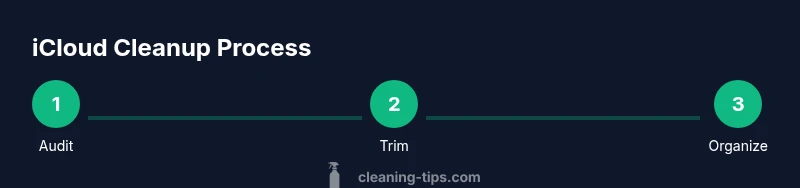
This guide shows you how to clean iCloud by auditing storage, deleting unused backups, trimming Photos, and organizing Drive files. Start with a quick audit, then remove old backups and large unwanted files, and finish by adjusting sync settings to prevent future clutter. According to Cleaning Tips, regular reviews keep iCloud lean and cost-efficient.
Why Cleaning
Understand
Step 1: Audit Your
Step 2: Trim Photos and Videos
Step 3: Manage
Step 4: Tidy Messages and Attachments
Attachments in Messages can accumulate across conversations, taking up space in
Step 5: Optimize Settings to Prevent Future Clutter
Turn off
Advanced Tips: Automation and Safety
Automate where possible without sacrificing important data. Create Shortcuts or automations that move old files from
Tools & Materials
- Device with internet access(iPhone, iPad, or Mac connected to iCloud)
- Apple ID login credentials(Needed to access iCloud settings)
- Recent backup copy of important data(Have a safe backup before deletion)
- Web browser or iCloud.com access(Review storage breakdown and manage backups)
- External storage option(Optional for local backups of photos/docs)
- Charged device(Keep device charged during cleanup to avoid interruptions)
Steps
Estimated time: 60-90 minutes
- 1
Audit Backups
Open Settings and navigate to iCloud > Manage Storage > Backups. List each device’s backup status and delete those you no longer need. Keep a local copy if required, but avoid duplicating cloud backups. This step reduces large, historical backups that consume space.
Tip: Double-check that you won’t need any data from deleted backups before removing them. - 2
Review Photos
Check iCloud Photos settings and decide between 'Optimize iPhone Storage' and 'Download and Keep Originals'. Delete duplicates and old video files. Empty the Recently Deleted folder, and consider exporting favorites to external storage to preserve memories while freeing iCloud space.
Tip: Back up essential memories to another location before mass deletions. - 3
Clean iCloud Drive
Open iCloud Drive review large files and duplicates. Delete what’s unnecessary and turn off iCloud Drive for apps that don’t need cloud storage. On Mac, enable 'Optimize Mac Storage' to keep only recent items on-device.
Tip: Use a one-click sort by size to identify the biggest culprits first. - 4
Tidy Messages
Evaluate attachments in Messages and set Keep Messages to 1 year or 30 days. Delete or export large attachments and prune old conversations. Ensure you retain critical messages elsewhere if needed before deletion.
Tip: Consider archiving important chats to a local note or drive before cleaning. - 5
Adjust Settings for Longevity
Review overall iCloud settings. Disable Drive for unused apps, enable storage alerts, and keep Photo settings aligned with your needs. Create a quarterly reminder to repeat the cleanup and prevent future buildup.
Tip: Set a recurring calendar reminder every 3 months to re-check usage. - 6
Automate Where Possible
Use Shortcuts or automation to move older files to local storage on a schedule, and set up periodic backups. Automations reduce manual effort and help maintain a lean iCloud.
Tip: Test automations on a small subset before wide rollout. - 7
Safety Check
Before major deletions, verify you have at least two safe copies of critical data. Do not delete items you’re unsure about yet. Keep a rollback plan in case something important gets removed unintentionally.
Tip: Keep a recent export of essential data in a separate location. - 8
Finalize and Review
Revisit the iCloud storage breakdown, confirm the freed space, and update backup settings as needed. Document any changes you made for future reference.
Tip: Share the plan with household members to align expectations.
Questions & Answers
What happens to data when I delete an iCloud backup?
Deleting an iCloud backup removes the stored snapshot of your device data from iCloud. It does not affect data on your device, but you should ensure you have an alternative backup elsewhere if you might need it in the future.
Deleting an iCloud backup removes that stored snapshot from iCloud; make sure you have another backup if you’ll need it later.
How much iCloud storage do I need for a typical household?
Storage needs vary by the number of devices, photo volume, and how much Drive data you keep. Start with a plan that provides enough headroom for several months of data growth and adjust as your usage trends change.
Storage needs depend on your devices and data. Start with a plan that gives headroom and adjust as you grow.
Can I recover deleted photos or files from iCloud?
Deleted items typically go to a Recently Deleted area for a limited time. If you acted quickly, you may recover them from that folder or via a local backup. If not, recovery may be limited.
You can often recover deleted items from Recently Deleted or a local backup if you act fast.
Is it safe to turn off iCloud Drive for certain apps?
Turning off iCloud Drive for specific apps is generally safe if those apps store data locally or on another service. Do so only after confirming that you won’t need automatic syncing for those apps.
Yes, you can disable iCloud Drive for apps you don’t need syncing, but verify you won’t lose important data.
How often should I clean iCloud storage?
A quarterly quick clean-up combined with a monthly quick-check of storage can keep iCloud under control. Adjust frequency based on data growth and family usage.
A quarterly deep clean with monthly quick checks usually works well; adjust as needed.
Watch Video
The Essentials
- Audit first: identify the biggest storage hogs.
- Delete only what you don’t need or can safely replace.
- Balance cloud storage with robust local backups.
- Set up regular reviews to prevent clutter from building up.
- Automate where possible to maintain long-term cleanliness.