Can You Clean Up an iPhone 14? A Practical Guide
Learn how to clean up your iPhone 14, reclaim storage, speed up performance, and extend battery life with a practical, step-by-step approach and safety tips.


Can you clean up an iPhone 14? Yes. You can reclaim storage, speed up performance, and extend battery life by auditing storage, offloading unused apps, deleting large videos, clearing caches, and updating iOS. This guide walks you through a clear, step-by-step cleanup, with safe backup reminders and maintenance tips.
Why clean up an iPhone 14 matters
According to Cleaning Tips, keeping your iPhone 14 tidy—storage-wise and performance-wise—helps apps launch faster, reduces lags, and extends battery life. The Cleaning Tips team found that regular, practical cleanup routines prevent small issues from becoming bigger problems, especially on devices with limited space. In 2026, 'clean up' means reclaiming storage, trimming clutter, and maintaining data health. Understanding these concepts sets the stage for a safe, effective cleanup that preserves important information and keeps your iPhone 14 running smoothly.
Assessing storage and performance indicators
A healthy iPhone 14 doesn’t just feel fast; it shows concrete signs when cleanup is needed. Look for: reduced available storage (Settings > General > iPhone Storage), frequent app reloads, and unexpectedly high battery drain after routine use. Cleaning Tips analysis highlights that surge storage usage often stems from large photos/videos, unused apps, cached data, and offline media. Before you start deleting, back up important items, note apps that drain storage, and flag videos you want to keep. This baseline helps you measure progress after cleanup and prevents accidental data loss.
Step-by-step cleanup workflow for iPhone 14
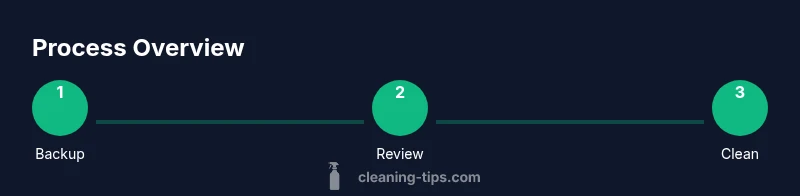
The actual cleanup should be systematic and reversible where possible. Start by freeing up space with a backup, then prune data you don’t need. This section provides a practical workflow to reclaim storage while keeping essential information intact. We’ll cover backup options, de-duplication ideas, and decisions about offloading vs deleting. Whether you use iCloud, a computer, or both, you’ll follow a safe, repeatable process. By the end, you’ll have a leaner device profile and clearer insights into what each app uses.
Offload vs delete: making smart choices
Offloading apps preserves data and re-downloads quickly when you need them, while deleting apps reduces footprint and frees space immediately. For apps you rarely use but want to keep data for, offloading is often the best compromise. If you rely on an app daily, consider whether its data can stay local or should be backed up to the cloud. This section compares scenarios and helps you decide which approach yields the most reliable, long-term results without compromising access to key information.
Cleaning photos, videos, and media files
Media often accounts for the lion’s share of iPhone storage. Start by reviewing large albums, duplicate videos, and low-quality screenshots. Use the built-in Tools in Photos to identify 'Large Attachments' and 'Recently Deleted' items. Consider enabling iCloud Photos with Optimize Storage to keep a lightweight local library while maintaining access to full-resolution versions in the cloud. We’ll outline a practical plan for trimming media without losing precious memories.
Safari caches, app caches, and system data
Clearing caches can recover significant space without harming your data. In Safari, disable or prune website data, then clear history and website data. For apps, go to Settings > General > iPhone Storage and review large apps; you can offload them or delete data-heavy caches. Note that some apps store important data on their servers, so clearing caches generally won’t erase essential information but may reset preferences. This section emphasizes caution and gradual cleanup to avoid unintended consequences.
Keep iOS up to date and perform light maintenance
Software updates often include performance and storage optimizations. After cleanup, ensure your iPhone 14 runs the latest stable iOS version supported by your device. Enable automatic updates and perform occasional reboots to refresh system resources. The long-term payoff is smoother operation, better battery management, and a reduced risk of software-related slowdowns. We close this section with a reminder to establish a monthly cleanup rhythm.
Authority sources and safety notes
For readers who want to dig deeper, reference official guides and reputable publications that discuss iPhone maintenance, data backup, and safety considerations. Always back up before making major changes, and avoid deleting system-critical data or corrupting backups. The information here synthesizes best practices from Cleaning Tips and widely accepted tech guidance to support responsible device cleanup. Can you get clean up on iphone 14? The answer is practical and safe when you follow the steps above.
Tools & Materials
- iPhone 14 with charged battery(Ensure battery can run throughout the cleanup without power interruption)
- Backup method (iCloud or computer)(Back up before deleting or offloading data)
- Stable Wi-Fi connection(Needed for backups and media syncing)
- Important data checklist(Optional list of data you don’t want to lose)
- Charging cable(Keep device powered during steps)
Steps
Estimated time: 30-60 minutes
- 1
Back up your iPhone data
Begin by backing up to iCloud or a computer to protect photos, messages, and app data before you start deleting or offloading.
Tip: A recent backup reduces risk of permanent data loss. - 2
Review storage usage
Check Settings > General > iPhone Storage to identify large apps, media, and caches draining space.
Tip: Sort items by size to target biggest culprits first. - 3
Offload or delete unused apps
Offload apps you rarely use to free space without losing data, or delete apps with little or no data.
Tip: Offloading preserves data locally for quick reinstallation. - 4
Clean up photos and videos
Review large media; delete duplicates, convert to iCloud Photos with Optimize Storage if desired.
Tip: Enable Optimize Storage to save local space. - 5
Clear caches and website data
Clear Safari caches and review app caches via Settings > General > iPhone Storage; offload or delete large caches as needed.
Tip: Clearing caches is usually safe but can reset in-app preferences. - 6
Update iOS and do a final check
Install the latest stable iOS update supported by your device and reboot to finalize cleanup.
Tip: Post-update cleanup helps ensure stability.
Questions & Answers
Can cleaning up my iPhone 14 improve performance?
Yes. Reclaiming storage and removing unnecessary data reduces background processing and helps apps launch faster. Regular cleanup helps prevent slowdowns.
Yes. Clearing space and removing unneeded data can make your iPhone 14 run more smoothly.
Is offloading apps enough or should I delete them?
Offloading preserves app data and can be reversed easily, making it a good first step for infrequently used apps. Delete only if data is not needed and you have backups.
Offload first to keep data, delete if you don’t need the app or data is backed up.
Will clearing caches delete important data?
Clearing caches usually frees space without harming personal data, but some app preferences may reset. Always back up before major cache cleaning.
Clearing caches can free space and usually won’t delete your files, but some settings may reset.
How often should I clean up my iPhone 14?
Aim for a monthly or quarterly cleanup depending on usage and storage pressure. Regular checks help prevent buildup and slowdowns.
Often monthly or every few months, especially if you store a lot of media.
Watch Video
The Essentials
- Back up before cleanup and review storage regularly.
- Prioritize large media and unused apps for maximum space savings.
- Offload apps when possible to preserve data without losing access.
- Clear caches cautiously to avoid resetting essential settings.
- Keep iOS up to date for ongoing performance improvements.