Disk Cleanup Windows: Free Up Space Fast
Learn to reclaim disk space on Windows using built-in tools, step-by-step instructions, and best practices to boost performance and maintain a healthy drive.


By following this guide, you’ll learn how to perform disk clean up windows on a Windows PC to reclaim space, boost performance, and avoid accidental data loss. We cover built-in tools, best practices, backup strategies, and a safe, step-by-step process that works for Windows 10 and Windows 11, with tips for homeowners and renters. This quick plan helps you start reclaiming storage today.
Why disk cleanup matters on Windows
If your PC feels slow or space is running tight, a disk clean up windows can reclaim space and improve responsiveness. According to Cleaning Tips, routine cleanup helps maintain healthier systems and reduces the risk of performance bottlenecks caused by nearly full drives. In modern Windows environments, free space improves paging behavior, reduces the time needed to load apps, and minimizes the chance of accidental data loss when the system needs to create temporary files. This section explains why regular cleanup matters for both beginners and power users, and how a small, consistent routine can keep a device running smoothly for years.
- Space efficiency: More free space means faster updates, smoother installations, and less drive wear on SSDs.
- Performance gains: When drive usage dips below critical thresholds, system processes run more efficiently.
- Data safety: Regular cleanup with backups helps prevent data loss from accidental deletions or corrupted caches.
Quick assessment: identify what is taking space
Before you delete anything, get a clear picture of what’s consuming space. Windows provides built-in tools to visualize disk usage, including Storage settings and drive usage reports. Start by opening Settings > System > Storage to see a breakdown by category (apps, documents, temporary files, and more). For deeper insights, use the Disk Usage feature in Storage Sense or third-party analyzers to scan large folders. The goal is not just to delete files but to identify space hogs and determine safe targets for cleanup. As you review, prioritize items that you no longer need, such as outdated installation files, large temporary caches, and duplicate downloads. A mindful approach reduces the risk of removing something essential and helps you plan a longer-term storage strategy.
Built-in Windows tools for disk cleanup
Windows ships with several built-in tools designed to reclaim space safely. The Disk Cleanup utility (cleanmgr) lets you remove temporary files, system caches, and other non-essential items. For more aggressive cleaning, you can run Disk Cleanup with the option to clean up system files, which includes Windows Update leftovers and older restore points. Storage Sense is a good companion feature that can automatically free up space by removing temporary files and managing locally available cloud content. Windows Settings also offers guidance on choose what to delete and how to set automatic cleanup schedules to keep the drive tidy without manual intervention.
How to distinguish safe deletions from risky ones
Not all files are expendable. When cleaning, prioritize items that are clearly non-essential: temporary internet files, cache thumbnails, old update files, and files in the Recycle Bin that you have already reviewed. Be cautious with large folders you do not recognize, such as program installation directories or system files. If you’re unsure about a file, move it to an external backup location before deletion, or consult a quick guide. For renters and homeowners, it’s wise to separate personal data from system files and keep a small, regular backup routine to avoid data loss. Cleaning Tips emphasizes backing up before major cleanup tasks to protect important data.
Strategies to prevent future buildup
Prevention beats cleanup. Establish a routine: schedule periodic reviews of Downloads, Documents, and Desktop, and set up Storage Sense to run automatically when disk space dips to a threshold you specify. Move large media files to external storage or cloud storage to keep your main drive lean. Consider programs’ data storage behavior—some apps cache data aggressively, so configure or disable caching where possible. Regularly review installed apps and uninstall those you no longer use. A lightweight maintenance habit now reduces the time spent on large cleanup later and supports consistent PC performance.
When to consider third-party tools or professional help
For some users, third-party disk cleanup tools offer a more granular view of disk usage and easier one-click cleanup options. If you are managing a complex setup with server features, large data archives, or critical data, professional guidance may be warranted. Always verify the legitimacy of any tool before installing it, and ensure you have a clean backup strategy. In general, built-in Windows tools are sufficient for typical home use when used with a clear plan and backups.
Tools & Materials
- Windows PC (Windows 10 or Windows 11)(Admin rights recommended for uninstalling apps and deleting system files.)
- Backup storage (external drive or cloud storage)(Create a backup before moving or deleting large files.)
- Internet access(Helpful for downloading elevated cleanup tools or uploading backups.)
- External USB drive (optional)(Useful for offloading large media collections.)
Steps
Estimated time: 30-60 minutes
- 1
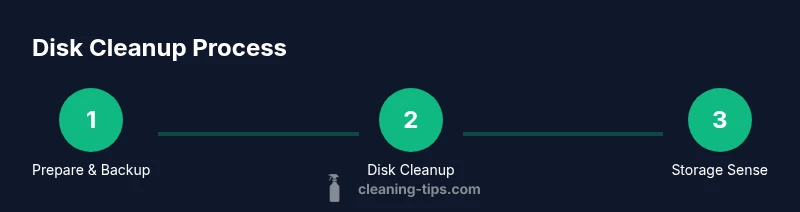
Prepare and back up
Verify you have admin access and back up important data. Create a system restore point if possible so you can revert changes if something goes wrong. This reduces risk and gives you a quick recovery option.
Tip: Pro tip: Schedule backups before cleanup so you always have a restore point in case of accidental deletions. - 2
Open Disk Cleanup
Open the Start menu, type 'Disk Cleanup', and select the tool for your OS drive (usually C:). If available, choose 'Clean up system files' to include Windows Update cleanup and previous installations.
Tip: Pro tip: Run Disk Cleanup as Administrator to access more cleanup categories. - 3
Choose what to delete
In Disk Cleanup, review and select categories such as Temporary Internet Files, Recycle Bin, Thumbnails, and Delivery Optimization Files. If you opt to clean system files, you’ll see additional options like Windows Update Cleanup and Previous Windows Installations.
Tip: Pro tip: Deselect user-created data like documents; focus on non-essential system and cache files. - 4
Run the cleanup
Click OK to run the cleanup and confirm when prompted. Allow the tool to finish; this may take several minutes depending on your drive size and selected categories.
Tip: Pro tip: If the cleanup pauses or slows, let it complete in the background and avoid interrupting the process. - 5
Uninstall unused apps
Go to Settings > Apps > Apps & features and remove programs you no longer use. Focus on large, rarely used applications that contribute to space usage.
Tip: Pro tip: Sort applications by size to quickly spot space hogs and consider re-installing only if needed. - 6
Move large files
Transfer large media files, installers, and documents to an external drive or cloud storage. This keeps your OS drive lean and improves system responsiveness.
Tip: Pro tip: Keep a dedicated folder for archived files to track what was moved and where it is stored. - 7
Enable Storage Sense
In Settings > System > Storage, enable Storage Sense to automate cleanup of temporary files and unused cloud content. Configure a cleanup schedule that suits your usage pattern.
Tip: Pro tip: Set a threshold (e.g., 85% usage) to trigger automatic cleanup and maintain headroom for updates. - 8
Create restore point and verify
Create a system restore point and verify there is now ample free space. Review results and ensure critical data remains intact. This creates a safety net for future maintenance.
Tip: Pro tip: Document the cleanup steps you took so you can repeat the process efficiently next time.
Questions & Answers
What is disk cleanup Windows?
Disk cleanup Windows refers to built-in tools that remove unnecessary files from your drive to reclaim space and improve performance. These tools help you safely delete caches, temporary files, and old installations.
Disk cleanup helps reclaim space by removing unnecessary files and caches from your drive.
How do I run Disk Cleanup on Windows 10 or 11?
Open the Start menu, search for Disk Cleanup, select the OS drive, and choose categories to delete. For deeper cleanup, select 'Clean up system files' to include system caches and Windows Update leftovers.
Open Disk Cleanup from the Start menu, pick the drive, and select what to delete.
Can I delete Windows.old or previous Windows installations?
You can delete Windows.old if you no longer need to revert to a previous version. Do not delete it if you might want to roll back the upgrade in the near term.
You can remove Windows.old if you don’t need to revert to an older Windows version.
What files are safe to delete?
Safe deletions include temporary files, Recycle Bin contents, thumbnails, and cache data. Always review categories before deleting to avoid removing important data.
Temporary files and caches are usually safe to delete, but review categories first.
Will cleaning up space automatically speed up my PC?
Freeing space can improve startup times and app load, but gains vary depending on overall system health and usage. It is one part of a broader maintenance plan.
You may notice faster performance after cleanup, but results vary.
Watch Video
The Essentials
- Plan cleanup with a backup first
- Use Disk Cleanup and Storage Sense for safe, ongoing space management
- Target temporary files and caches before personal data
- Uninstall unused apps to reclaim space
- Create a restore point after cleanup