Windows Disk Cleanup: A Practical Step-by-Step Guide
Learn how to run Windows Disk Cleanup to reclaim disk space, remove temporary files, and boost performance. Follow our step-by-step guide with safety tips and maintenance ideas for ongoing storage health.


By the end of this guide, you will know how to perform a safe windows clean up disk using built-in tools, reclaim space, and maintain performance. The Cleaning Tips team tested the process on Windows 10 and 11, and found that regular cleanup reduces clutter and speeds up routine tasks. Follow these steps to complete the task confidently and avoid deleting personal data.
What is Windows Disk Cleanup and why use it
Windows Disk Cleanup is a built-in utility that helps you reclaim disk space by removing temporary files, cached data, thumbnails, and other items Windows no longer needs. This small but powerful tool is especially useful on devices with limited storage, such as small SSDs or older laptops where free space directly impacts performance. If you're wondering how to perform a safe windows clean up disk, this guide will walk you through the process and explain what to delete and what to leave behind. According to Cleaning Tips, regular cleanup reduces clutter and can help your PC boot faster and run smoother by freeing space for essential system processes. The tool is available in Windows 10 and Windows 11, and for most users, it offers a safe, low-risk way to manage storage without third-party software. In this section we outline what Disk Cleanup can do, how it interacts with other storage features, and common misconceptions that support teams see every day. Throughout, prioritize preserving personal files while removing redundant caches that clog performance.
The guidance here emphasizes a practical approach you can apply on a typical home computer, whether you’re cleaning a desktop in a home office or a laptop used for daily errands. With patience and a clear plan, you can reclaim space without risking your important data.
Before you start: prerequisites and safety
Before you launch Disk Cleanup, take a moment to prepare and protect your data. Close heavy applications to ensure you’re not cleaning files that are currently in use, and consider saving any work in progress. If you have important files, back them up to an external drive or cloud storage; while Disk Cleanup is safe, a precaution beats regret. The Cleaning Tips team found that creating a quick restore point and reviewing what you’re about to delete reduces risk and clarifies what to target. Decide whether you want a quick cleanup of temporary files or a deeper purge of system caches by selecting the appropriate options. This preparation helps you avoid accidentally removing data you’ll regret later and keeps your system stable during the process.
Additionally, check the Recycle Bin to ensure there aren’t any recently deleted items you actually need. A backup plan is a small insurance policy against unintended deletions, especially when you plan to use the more aggressive options available in Disk Cleanup.
What files can Disk Cleanup remove and what are the limits
Disk Cleanup can remove many kinds of nonessential data, including temporary internet files, downloaded program files, thumbnails, Recycle Bin contents, and cached updates. It can also purge Delivery Optimization files and the Windows Update Cleanup if you’ve recently upgraded or installed major updates. Personal documents, photos, and other user data are not targeted by default, so you can preserve your files. When you click 'Clean up system files,' you gain access to deeper categories like Previous Windows installations and Windows Update cache; these items can reclaim substantial space but require extra caution. Understanding the types of files cleaned helps you tailor the cleanup to your needs and minimize risk. In practice, most users will start with basic cleanups and only then consider deeper system file deletion when storage pressure is high.
How to access Disk Cleanup on Windows 10 and Windows 11
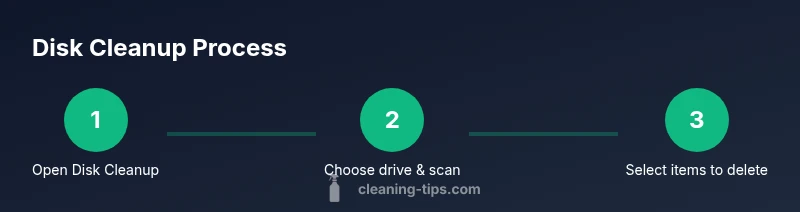
Accessing Disk Cleanup is straightforward across recent Windows versions. Open the Start menu, type Disk Cleanup, and select the Disk Cleanup app. Choose the drive you want to clean (usually C:) and click OK. The tool will present a list of file types you can remove; check or uncheck categories based on your goals. For a deeper sweep, click 'Clean up system files' (you’ll need administrator privileges) and reselect the drive. After the scan completes, review the list again and choose the categories that free space while protecting important data.
If you’re using a secondary drive, consider whether you want to clean up that drive as well; Disk Cleanup allows you to tackle multiple locations over time.
Advanced cleanup options and settings
Advanced options give you more control over what Disk Cleanup can remove. The 'Clean up system files' option adds categories like Previous Windows installations and Windows Update Cleanup, which can free large amounts of space but may delete older restore points or upgrade leftovers. You can also delete thumbnails, temporary files, and DirectX shader caches. When removing system files, confirm you are willing to remove previous installations, because this step is not reversible. If you still need space after the basic cleanup, consider toggling the Delivery Optimization Files and other system caches, but review each item carefully to avoid removing data you need later. Finally, remember that some enterprise or school devices may have additional restrictions; follow your IT policy if applicable.
After cleanup: maintenance tasks to keep space
After you free disk space, establish a simple maintenance routine to keep it from creeping up again. Enable Storage Sense to automate cleanup of temporary files and old content on a schedule that fits your usage. Move large media and documents to an external drive or cloud storage and re-check your Recycle Bin size periodically. Consider archiving seldom-used files and removing unused apps to maintain healthy free space. Pair Disk Cleanup with a longer-term strategy, such as periodic reviews every 30–60 days, to sustain performance over time.
Storage habits make a big difference; small, repeatable actions are more effective than one-off cleans.
Troubleshooting common issues
Sometimes Disk Cleanup doesn’t free as much space as expected, or you might encounter a 'Disk Cleanup service not running' message. If that happens, restart your computer and run the tool again, ensuring you run as an administrator when selecting 'Clean up system files.' If you’re cleaning a drive with lots of large files, perform a manual search for old downloads and large media that Disk Cleanup may not catch. In cases of stubborn space issues, consider a dedicated disk usage analysis tool to identify the largest culprits and craft a targeted cleanup plan.
Tools & Materials
- Windows PC running Windows 10 or Windows 11(Ensure you have access to an account with appropriate permissions to run cleanup.)
- Backup storage (external drive or cloud storage)(Recommended before performing aggressive cleanup that touches system caches.)
- Administrative privileges(Needed if you plan to run 'Clean up system files' for deeper cleanup.)
- External storage for large files(Optional if you plan to move large files off C: before cleaning.)
Steps
Estimated time: 25-45 minutes
- 1
Open Disk Cleanup
Open the Start menu, type 'Disk Cleanup', and select the Disk Cleanup app. This starts the scanning process for the selected drive.
Tip: If Disk Cleanup doesn’t appear, try searching under System Tools or run it from File Explorer's search box. - 2
Choose the drive
Select the drive you want to clean, usually the OS drive (C:), then click OK to begin the scan.
Tip: For mult-drive systems, start with the largest drive to maximize space savings. - 3
Review file types to delete
In the list, check the categories you want to delete (temporary files, thumbnails, Recycle Bin) and uncheck anything you want to keep.
Tip: Sort categories by size if available to focus on the biggest space wasters first. - 4
Clean up system files (optional)
Click 'Clean up system files' to access deeper options like Previous Windows installations and Windows Update Cleanup.
Tip: Only use this if you understand the implications of removing previous installations or update caches. - 5
Run cleanup and review results
Click OK to run the cleanup and then review the results to confirm space has been freed and no unwanted categories were selected.
Tip: If space is still tight, re-run with a different set of categories or consider Storage Sense for ongoing cleanup. - 6
Empty the Recycle Bin
If you have items in the Recycle Bin, empty it after the cleanup to reclaim that space immediately.
Tip: Make sure you truly don’t need any item in the bin before emptying; once emptied, recovery is difficult. - 7
Enable Storage Sense (optional but recommended)
Turn on Storage Sense to automate temporary file cleanup on a schedule that fits your usage pattern.
Tip: Choose a cadence that matches how often you install updates or download media to keep space steady. - 8
Schedule periodic cleanup
Set a monthly reminder or automatic schedule to run Disk Cleanup or Storage Sense so space stays manageable.
Tip: Consistency beats big, one-off cleanups; small, regular cleanups prevent space pressure.
Questions & Answers
What does Disk Cleanup remove by default?
Disk Cleanup removes temporary files, caches, thumbnails, and items in the Recycle Bin. It does not delete personal documents unless you explicitly select a category that would do so.
Disk Cleanup removes temporary files and caches by default, and won’t touch your documents unless you choose to delete them.
Is it safe to run Disk Cleanup on a busy computer?
Yes, running Disk Cleanup is generally safe even on busy machines. To minimize disruption, close applications first and run the cleanup during a calm moment. Review the categories before deletion to avoid removing something important.
Yes, it’s usually safe, just review what you delete and try to run it when you’re not actively using the PC.
Should I always run 'Clean up system files'?
The 'Clean up system files' option frees more space but can remove upgrade leftovers and older restore points. Use it when you need substantial space and you understand the consequences.
Only use it if you need more space and you’re okay with potentially deleting older system data.
How long does Disk Cleanup take?
The duration depends on drive size and the number of files. Expect several minutes to a half-hour for a thorough cleanup, especially if you choose system file cleanup.
A cleanup usually takes several minutes to about thirty minutes, depending on your drive and options.
Can Disk Cleanup help on SSDs?
Yes. Disk Cleanup works on SSDs, freeing space without harming drive health. Pair it with Storage Sense for ongoing maintenance and avoid excessive writes from unnecessary caching.
Yes, it works on SSDs and helps reclaim space safely when used with Storage Sense.
What if Disk Cleanup misses large files?
If large files remain after cleanup, use File Explorer to locate and manage them. Consider moving media to external storage or using a dedicated disk usage tool for deeper analysis.
If it misses large files, search for them in File Explorer and move or delete as needed.
Watch Video
The Essentials
- Run Disk Cleanup regularly to reclaim space.
- Review each category before deleting to avoid data loss.
- Enable Storage Sense to automate future cleanup.
- Use 'Clean up system files' only when you understand the consequences.