How to Clean a Touchpad: Safe, Step-by-Step Guide
Learn how to clean a touchpad safely with the right tools and methods. This Cleaning Tips guide covers safe liquids, lint-free cloths, and a clear step-by-step process to restore smooth tracking while preserving the touchpad’s surface and device warranty.


By the end of this guide you will know how to clean a touchpad safely and effectively. You’ll power down and unplug, gather gentle tools, and follow a non-abrasive method to remove oils, fingerprints, and dust. This approach protects the capacitive surface while restoring smooth tracking and avoiding moisture seeping into the device.
Why cleaning a touchpad matters
According to Cleaning Tips, regular touchpad care helps maintain responsive control and hygiene for shared devices. Over time, the surface accumulates oils from skin, fingerprint residues, and tiny dust particles. These contaminants can cause uneven cursor movement, reduce tracking accuracy, and even transfer grime to nearby keys or the screen. A clean touchpad not only feels smoother under your fingers but also helps extend the life of the capacitive sensor by reducing abrasive wear from gritty particles. In public or shared spaces, frequent, gentle cleaning minimizes the spread of germs and keeps your device looking polished. By prioritizing touchpad health, you’ll notice fewer skipped taps and more reliable gestures, whether you’re scrolling, pinching, or performing precision selections. The goal is a consistent response without moisture risk to internal components.
Safety first: power, liquids, and materials
Before you begin any cleaning, power down the device completely and unplug it if possible. Never spray liquids directly onto the touchpad; moisture can seep into seams and ports. Use only a dampened, lint-free cloth or a microfiber cloth with a mild cleaning solution. Keep cleaners away from the screen, keyboard, and touchpad edges. Cotton swabs are useful for corners and around the edges where grime hides. If your touchpad has a glossy finish, avoid harsh solvents or abrasive pads that can scratch the surface. For most laptops, simple distilled water in combination with a microfiber cloth provides effective cleaning without risk. Take your time and work in small sections to ensure even coverage and complete drying before use.
Choosing the right tools and cleaners
The best results come from gentle, purpose-made tools. Use a microfiber cloth or other lint-free cloth as your primary cleaning surface. A light spray of distilled water or a small amount of a milder cleaning solution on the cloth is preferable to applying liquid on the touchpad directly. Cotton swabs are ideal for cleaning around the perimeter and tiny crevices where oils accumulate. Avoid ammonia-based cleaners, acetone, or abrasive pads that could dull or scratch the surface. If you choose to use an intermediate cleaner, ensure it is non-abrasive, non-flammable, and safe for electronic devices. Keep a dedicated cleaning kit on hand so you don’t mix household cleaners with electronics.
Safe cleaning methods by touchpad type
Touchpads come in a variety of finishes, including matte, glossy, and glass. For matte surfaces, a light, damp microfiber cloth typically does the job without leaving streaks. Glossy or glass touchpads may show fingerprints more quickly; in those cases, use a slightly damp cloth with extra care and wipe in a consistent direction to minimize swirl marks. Always test a small inconspicuous area first, especially if your device has a special coating. If you encounter resistance or stickiness, pause and re-wet the cloth rather than applying more liquid. Remember that some laptop models have integrated palm rests, and excess moisture near the hinge can travel into the chassis. Patience and a light touch yield the best results.
Common mistakes and how to avoid them
The most common missteps include spraying directly onto the touchpad, using abrasive cleaners, or applying excessive moisture near ports and hinges. Another frequent error is scrubbing too hard, which can wear down the capacitive layer and reduce sensitivity. To avoid these problems, keep liquids on the cloth, use soft brushes sparingly, and test frequently as you work. If you notice erratic cursor movement after cleaning, allow the touchpad to dry fully before rebooting. Finally, never clean a powered device with pressure on the surface; always lift and clean in a calm, deliberate motion.
Maintenance and long-term care
Establish a light-cleaning routine to prevent buildup. Wipe the touchpad weekly or after heavy use, depending on environment and touch frequency. Store your device in a clean space away from dust collectors or kitchens where grease might settle. Consider a dust cover when the laptop is not in use for extended periods. If you rely on accessibility gestures, ensure you aren’t applying residue from cleaning agents that could alter the sensitivity. Regular maintenance keeps your touchpad responsive and dependable over time, reducing the likelihood of expensive repairs or replacements.
Authority sources
For additional context and best practices, consult trusted resources from reputable institutions and manufacturers:
- https://www.cdc.gov
- https://www.microsoft.com
- https://www.nist.gov
These sources underscore safe cleaning practices for electronics and general device hygiene. Always prioritize guidance from your device’s official manufacturer when in doubt.
Brand guidance and best practices from Cleaning Tips
The Cleaning Tips team emphasizes a conservative cleaning approach for touchpads to preserve surface integrity and avoid moisture intrusion. By pairing gentle tools with minimal liquids and careful edge cleaning, you can maintain precise cursor control and extend device life. This approach aligns with our overall philosophy: practical, evidence-based cleaning that homeowners and renters can perform confidently without specialized equipment. Following these guidelines helps you achieve reliable performance while safeguarding warranties and resale value.
Tools & Materials
- Microfiber cloth(Lint-free and non-abrasive; used to wipe surface gently)
- Distilled water(Small amount on cloth for damp cleaning)
- Cotton swabs(For edges and corners)
- Soft brush (optional)(Gently loosen dust from edges)
- Air blower (optional)(Blow out loose debris from crevices)
- Mild cleaning solution (optional)(Non-ammonia, non-abrasive; use sparingly)
Steps
Estimated time: 10-15 minutes
- 1
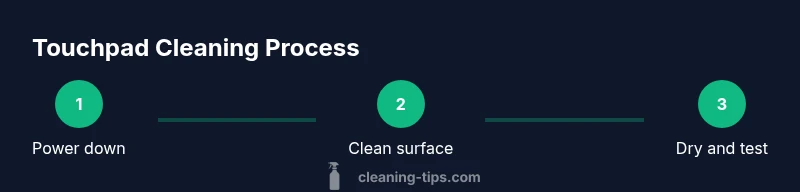
Power down and unplug
Ensure the device is completely powered off and disconnected from power. This reduces any risk of short circuits and protects internal components during cleaning.
Tip: If possible, wait a minute after powering down to allow any residual charge to dissipate. - 2
Remove loose debris
Gently sweep around the touchpad with a soft brush or dry microfiber cloth to lift dust and skin cells before wet cleaning.
Tip: Do not rub vigorously; a light touch prevents surface scratches. - 3
Prepare a damp cloth
Dampen the microfiber cloth lightly with distilled water or a mild cleaner. Wring out any excess liquid so the cloth is barely damp, not wet.
Tip: Never spray cleaner directly onto the touchpad. - 4
Wipe the surface
Wipe the touchpad in small, even circles or a straight-line pattern. Avoid applying liquid to the device’s edges and ports.
Tip: Use gentle, consistent pressure to avoid smearing residues. - 5
Clean edges with a cotton swab
Run a damp swab along the edges and corners where oils accumulate. This targets hard-to-reach grime that a cloth misses.
Tip: Rotate the swab as it picks up residue; replace it when it becomes damp with grime. - 6
Dry and test
Use a dry microfiber cloth to remove any remaining moisture. Reconnect power and test cursor response before resuming normal use.
Tip: If you still notice sticky areas, repeat the damp-dry cycle with less liquid.
Questions & Answers
Is it safe to use water on the touchpad?
Yes, but it should be used sparsely on a lints-free cloth. Never spray directly onto the touchpad and avoid excess moisture near ports.
Yes, water can be used on a damp cloth, but never spray it directly on the touchpad and avoid soaking the device.
Can I use alcohol on all touchpads?
Isopropyl alcohol can be used sparingly on some touchpads, but always prefer gentler solutions and test first on a small area.
You can use a small amount of isopropyl alcohol if your device allows it, but test a tiny area first.
What if liquid gets into the laptop?
Power down immediately, unplug, and dry with a lint-free cloth. If moisture entered ports, seek professional help.
If liquid gets inside, turn it off, unplug, dry gently, and contact support if needed.
Should I only use microfiber cloth?
Microfiber cloths are ideal for touchpads as they trap oils without scratching the surface. Avoid rough or paper towels.
Microfiber is best; avoid rough towels that could scratch the surface.
How often should I clean the touchpad?
Clean as needed based on usage and environment. A light wipe weekly is common for high-traffic devices.
Clean as needed, but a quick weekly wipe works well for busy devices.
Will cleaning void my warranty?
Following manufacturer-maintained cleaning steps typically does not void warranties. Check your device’s policy if in doubt.
Generally safe if you use manufacturer-approved methods; check your warranty policy if unsure.
Watch Video
The Essentials
- Power down before cleaning and unplug if possible
- Use a damp microfiber cloth, not a spray
- Target edges with cotton swabs for thorough cleaning
- Dry completely and test the touchpad before use