How to Clean a Laptop Touchpad
Learn a practical, step-by-step method to safely clean your laptop touchpad using common household items, preserving tracking accuracy and hygiene. Includes tools, tips, and maintenance for long-term touchpad care.


To clean a laptop touchpad safely, power off and unplug the laptop, then remove surface debris with a microfiber cloth. Use a damp (not wet) microfiber or 70% isopropyl alcohol on a cloth, pad the edges, never spray liquid directly, and avoid harsh cleaners. Dry completely before resuming use. This quick routine reduces smudges and preserves touch sensitivity.
Why cleaning a laptop touchpad matters\nOver time, skin oils, sweat, dust, and fingerprints build up on the touchpad, making gestures less accurate and increasing cursor drift. A clean surface helps ensure reliable scrolling and tapping, especially if you rely on multitouch gestures. According to Cleaning Tips, regular touchpad care improves grip accuracy and hygiene, and it can help maintain overall device feel. Keeping the touchpad clean also reduces the transfer of oils to nearby surfaces like the keyboard and palm rest, which can contribute to quicker grime buildup on adjacent areas. For most users, a quick weekly wipe with a microfiber cloth is enough to maintain a smooth experience without disassembly. Start simple, and escalate only if you still notice residue or tracking issues.
Safety-first: what not to do and why\nLiquids should never be sprayed directly onto the touchpad or into device ports. Avoid abrasive cleaners, acetone, ammonia, or harsh solvents, which can damage coatings or sensors. Power down the laptop completely and unplug from power before cleaning, and if possible, remove the battery or reseat connections after the device has dried. Be mindful of static electricity and work on a dry, non-carpeted surface. If the touchpad becomes unusually unresponsive after cleaning, do not retry cleaning with more liquid; instead, proceed to a safer method and consider a calibration check or professional help. By following these precautions, you minimize risk and protect internal components.
Pre-cleaning checks and workspace setup\nBefore you begin, shut down the laptop, disconnect any peripherals, and move the device to a clean, dry surface. Gather your tools in a small tray or on a lint-free mat so nothing spills. Dim lighting helps you spot streaks or moisture more easily. If your environment is humid or dusty, wait for a dry day or move to a controlled area. A tidy workspace reduces the chance of accidental spills and makes the process smoother and faster.
Tools and materials you’ll want on hand\nYou’ll typically need a soft, lint-free microfiber cloth, a small amount of 70% isopropyl alcohol, distilled water for dilution if needed, cotton swabs for corners, and a can of compressed air for crevices. Optional but helpful tools include a soft brush and a second dry microfiber for finishing. Keep liquids away from the edges and ports, and ensure your cloth is damp, not soaking wet. Using proper materials protects screen coatings and touch-sensor surfaces while delivering effective cleaning.
Understanding touchpad surfaces and why some require gentler care\nTouchpads can have glass or plastic surfaces with varying coatings that affect how residue adheres. Some coatings are more prone to micro-scratches when rubbed aggressively or with rough materials. Always prioritize gentle, circular motions and minimal moisture. If your touchpad has a premium coating, prefer the gentlest cleaning method that removes grime without friction. Cleaning Tips notes that electronics-safe cleaners and soft cloths are typically enough for most surfaces without causing damage.
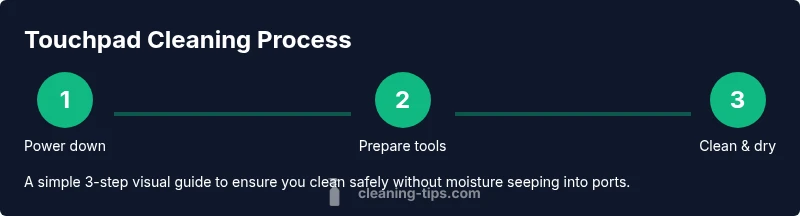
Step-by-step cleaning process (overview)\nThink of cleaning as a three-part routine: surface wipe, edge targeting, and drying. Begin with a damp microfiber cloth to lift the majority of oils and smudges. Then switch to a dry portion of the cloth or a clean microfiber to buff any streaks. Finally, use a cotton swab moistened lightly with cleaner for hard-to-reach corners, and finish with a dry wipe to ensure complete dryness. Avoid saturating any area and keep liquids away from seams.
Clean edges and corners: reaching tight spaces\nEdges and corners accumulate oils more quickly due to finger contact. Use a lightly dampened cotton swab to circle the edges and gently sweep into corners. Do not press hard into seams, which could push liquid inward. Use a fresh swab as soon as it collects residue, and rotate frequently to keep the surface clean. A small, padded tool can help reach tight crevices without applying excessive pressure.
Drying and verification: ensure no moisture remains\nAfter cleaning, wipe the surface with a dry microfiber and inspect for any moisture or streaks. Let the touchpad air-dry completely before powering the device back on; this can take several minutes depending on ambient humidity. Once dry, perform basic gestures—tap, scroll, pinch—to confirm the surface responds accurately and consistently. If you notice any lag, repeat the dry pass with a clean microfiber and re-test.
Long-term maintenance: keep it clean longer\nEstablish a simple maintenance habit, such as wiping the touchpad after meals or coffee breaks, and keeping fingers clean before use. Store your device away from dusty areas and avoid using the touchpad as a makeshift tissue to wipe other surfaces. A regular 1–2 minute wipe can prevent stubborn buildup and maintain a smooth feel over time.
Troubleshooting: what to do if it still acts up after cleaning\nIf you still experience lag or inaccurate tracking after cleaning, calibrate the touchpad in the operating system settings, update drivers, or run a hardware diagnostic. If problems persist, a professional inspection may be needed to rule out hardware wear or sensor faults. Cleaning Tips suggests documenting the steps you’ve taken to assist support interactions.
When to seek professional help\nIf moisture entered the device, the touchpad behaves erratically after cleaning, or you notice persistent lag despite a thorough dry, contact the manufacturer support or a qualified technician. Do not attempt risky disassembly at home. A professional can assess sensor integrity, coating wear, or potential short circuits that could affect the touchpad.
Quick test to ensure responsiveness after cleaning\nReboot the laptop and test basic gestures: single tap to click, two-finger scrolling, and pinch-to-zoom if supported. Ensure the cursor tracks your finger smoothly and no phantom taps occur. If the touchpad remains unresponsive or overly sensitive, you may need a calibration or driver update. A quick test ensures you’re confident to resume work.
Tools & Materials
- microfiber cloth(Lint-free, soft)
- isopropyl alcohol 70%(Pour onto cloth; do not spray directly)
- distilled water(For dilution if needed)
- cotton swabs(For edges and corners)
- compressed air can(For dust in crevices)
- soft brush(Gentle dusting around edges)
Steps
Estimated time: 15-25 minutes
- 1
Power down and unplug
Shut down the laptop completely and unplug from power. If possible, remove any USB devices to minimize risk of short circuits during cleaning. This protects internal components and ensures your safety while handling liquids.
Tip: If you routinely forget to unplug, set a short timer to remind you before starting cleaning. - 2
Prepare workspace and tools
Move to a clean, dry surface. Gather your microfiber cloth, alcohol, cotton swabs, and optional compressed air. Lay a soft mat or towel to cushion the laptop and prevent accidental spills.
Tip: Keep a small tray to catch any drips and prevent spills on nearby items. - 3
Dampen the cloth, not the touchpad
Moisten the microfiber cloth with a small amount of 70% isopropyl alcohol or a mild cleaning solution. The cloth should be damp, not soaking wet, to prevent liquid from seeping into ports or keyboard seams.
Tip: Never spray cleaner directly onto the touchpad. - 4
Wipe the touchpad surface
Gently wipe the surface with circular motions, applying light pressure to lift oils and fingerprints. Focus on smudged areas and test different angles to remove stubborn residue without scratching.
Tip: Use a fresh section of the cloth if you see new streaks forming. - 5
Clean edges and corners
Dampen a cotton swab slightly and run it along the edges and corners where residue collects. Be careful near the attachment points to avoid moisture intrusion.
Tip: Rotate the swab to expose a clean side as you work. - 6
Dry and verify
Wipe away any remaining moisture with a dry microfiber cloth. Let the touchpad air-dry completely for several minutes in a well-ventilated area before powering the device back on.
Tip: If you used distilled water, ensure complete dryness before reuse.
Questions & Answers
Is it safe to use water on a laptop touchpad?
Water can be used sparingly if it is distilled and the cloth is just damp, not wet. Avoid moisture near ports and the underside. Do not pour water directly on the touchpad.
Water can be used very sparingly if the cloth is just damp and kept away from ports. Do not spray or pour water directly on the touchpad.
Can I use vinegar or other cleaners on a touchpad?
Most cleaners designed for electronics are safe when used on the surface only. Avoid abrasive or solvent cleaners like acetone as they can damage coatings. Always test on a small area first.
Avoid strong solvents on electronics; use electronics-safe cleaners and a damp microfiber.
What should I do if liquid spills inside the laptop?
Power off immediately and unplug. Do not turn it back on until a professional inspects it. Remove the battery if possible and allow thorough drying time before testing.
If liquid spills inside, power off immediately and seek professional help. Do not turn it on until inspected.
How often should I clean the touchpad?
Clean when you notice smudges or reduced tracking, typically every few weeks for heavy users, or monthly as part of routine maintenance.
Clean whenever you notice fingerprints or reduced tracking, usually every few weeks or monthly for heavy use.
Will cleaning void my warranty?
Normal maintenance cleaning with electronics-safe products does not void standard warranties. Check your manufacturer terms if you suspect liquid exposure.
Routine cleaning with electronics-safe products generally won’t void your warranty, but check terms if there’s any concern about liquid exposure.
What if the touchpad still doesn’t work after cleaning?
If sensitivity issues persist, recalibrate the touchpad in the settings or contact support for hardware diagnostics.
If problems persist after cleaning, recalibrate in settings or contact support for diagnostics.
Watch Video
The Essentials
- Power down and unplug before cleaning
- Use a damp microfiber cloth; avoid direct liquids
- Target edges with cotton swabs for thorough cleaning
- Dry completely before reuse and test gestures
- Regular light cleaning prevents buildup