How to Clean Install Windows 11: A Step-by-Step Guide
Learn how to clean install Windows 11 safely with a clear, step-by-step process from Cleaning Tips. This guide covers backups, media creation, BIOS prep, installation, and post-install updates.


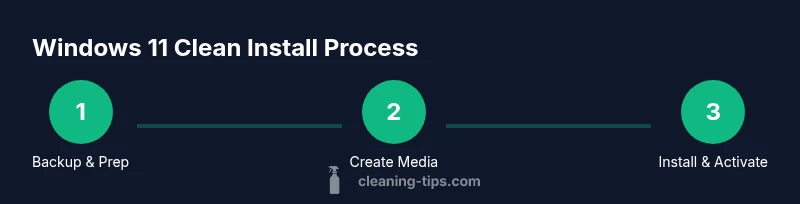
This guide explains how to clean install Windows 11, starting from a full backup and media creation to BIOS prep, installation, activation, and post-install updates. You’ll learn the exact sequence and best practices to minimize risk and maximize a smooth, stable setup.
Why a clean install of Windows 11 can be a smart move
A clean install of Windows 11 gives you a fresh start, eliminates clutter, and can improve performance and stability compared with in-place upgrades. According to Cleaning Tips, a well-planned clean install reduces upgrade errors and helps you customize settings from scratch, which can be especially valuable on older hardware or devices that have accumulated bloatware. A clean install also provides a predictable baseline for drivers and updates, making it easier to troubleshoot issues that might have plagued an upgrade path. By starting fresh, you can manage disk partitions more precisely, control privacy settings from the outset, and ensure your data is protected by a solid backup strategy. The goal is a reliable, fast system you can rely on for daily tasks, gaming, or work.
Pre-Install Backups and Data Safety
Before you touch Windows 11, back up your personal files and applications. Create a full system image if possible, and verify that you can restore from it. Store backups on an external drive or in a trusted cloud service, and document any license keys or product activations you may need after reinstall. As you prepare, confirm your device has a digital license for Windows 11 or a valid product key, and ensure you have access to any essential drivers or software installers. A backup plan reduces stress and helps you recover quickly if something goes wrong during the process.
Choosing Installation Media: USB Drive vs ISO
Choose your installation media carefully. A USB flash drive (at least 8 GB) is the most common option for a clean install, but an ISO file you download from the official source can also be used with a bootable tool. Cleaning Tips recommends using the official Windows 11 download page to obtain the ISO or USB media to minimize the risk of tampered files. If you use an ISO, you’ll need a tool to create a bootable drive, and you should verify the ISO's integrity (hash check) when available. Planning media in advance helps avoid mid-installation interruptions.
Hardware and BIOS Prerequisites: TPM, Secure Boot, and Compatibility
A smooth Windows 11 install relies on compatible hardware and BIOS settings. Verify TPM 2.0 is enabled in BIOS/UEFI and that Secure Boot is turned on, as these features are often required for Windows 11. Check CPU compatibility and available RAM, storage space, and graphics capabilities. If your device doesn’t meet these requirements, consider upgrading hardware or using Windows 10 as a fallback. A properly configured system reduces installation errors and post-install issues.
What Happens During a Clean Install: A High-Level Overview
A clean install typically involves booting from installation media, formatting or resizing the target drive, and installing Windows 11 files in a fresh partition. During setup you’ll choose language, region, and keyboard layout, then sign in with a Microsoft account or local account. After the files are copied, Windows will go through first-time setup, including privacy choices and basic personalization. Understanding this flow can help you anticipate prompts and save time during the process.
Common Issues and How to Avoid Them
Some of the most frequent problems include TPM/Secure Boot not detected, missing drive letters, driver conflicts after install, and activation errors. To avoid these, ensure TPM and Secure Boot are enabled, select the correct drive partition during setup, and install essential drivers from the manufacturer or via Windows Update. If activation fails, verify your license status and consider reactivating with a digital license tied to your Microsoft account. Planning ahead reduces friction during installation.
After Installation: Drivers, Updates, and Personalization
Once Windows 11 is installed, run Windows Update to pull the latest features and security patches. Install essential drivers from the device manufacturer or through Windows Update, and customize privacy and personalization settings according to your needs. Create a fresh backup once you’re satisfied with the setup. Regular maintenance, including periodic backups and driver checks, helps maintain performance and security over time.
Authoritative sources and further reading
- Official Windows 11 download and install overview: https://www.microsoft.com/en-us/software-download/windows11
- Windows hardware compatibility and requirements overview: https://learn.microsoft.com/en-us/windows-hardware
- Popular step-by-step guide: https://www.cnet.com/tech/services-and-software/how-to-clean-install-windows-11/
These sources provide additional context and official guidance to supplement this article.
Tools & Materials
- USB flash drive (8 GB minimum)(New or wiped; labeled for Windows 11 installation medium)
- Windows 11 ISO or installation media(Download from official source (Microsoft) to ensure integrity)
- A second storage backup(External drive or cloud backup with verified restore)
- A functioning PC with TPM 2.0 and Secure Boot(Check BIOS/UEFI settings before starting)
- Internet connection(For activation checks and updates during/after install)
- Product key or digital license (if applicable)(Many newer devices auto-activate with a digital license)
Steps
Estimated time: 45-90 minutes
- 1
Prepare backups and gather keys
Create a full backup of all personal data and a system image if possible. Note your Windows license status and secure any product keys you may need after reinstall. This step reduces risk by ensuring you can recover data if something goes wrong.
Tip: Double-check that the backup completed successfully before proceeding. - 2
Download and create installation media
Download Windows 11 from the official source and create a bootable USB drive or prepare an ISO for your installation tool. Verify the media integrity (hash check if available) to prevent corrupted files from causing install failures.
Tip: Use a USB 3.0 drive for faster installation and reliability. - 3
Configure BIOS/UEFI settings
Enter BIOS/UEFI and enable TPM 2.0 and Secure Boot if they aren’t already enabled. Set the boot order to prioritize the installation media. This ensures the system boots from your USB drive rather than the existing OS.
Tip: If you see a TPM option disabled, consult your motherboard manual or the vendor’s site for specific steps. - 4
Boot from installation media and start Windows 11
Restart the PC and boot from the USB drive or mounted ISO. Follow the on-screen prompts to select language, region, and keyboard layout, then click Install. Choose Custom: Install Windows only (advanced) to perform a clean install.
Tip: If you don't see the drive, return to BIOS to re-check SATA/NVMe settings. - 5
Partition the drive and initiate installation
Delete the existing system partitions or format the target drive to ensure a truly clean install. Let Windows create the required partitions automatically if you’re unsure. The installer will copy files and reboot multiple times during this phase.
Tip: Avoid creating multiple partitions unless you have a specific data layout plan; a single primary partition is often simplest. - 6
Complete setup and activation
Go through the initial setup (account sign-in, preferences, privacy settings). If prompted, enter your product key or sign in with a Microsoft account for activation. Post-setup, check activation status and ensure Windows 11 is fully updated.
Tip: Keep your account connected for easier license management and future activations.
Questions & Answers
What is a clean install, and why should I consider it for Windows 11?
A clean install replaces the existing OS with a fresh Windows 11 copy, removing old files and clutter. It can improve performance, fix stubborn upgrade issues, and give you a fresh start for a stable environment.
A clean install puts Windows 11 on a fresh slate, which can boost performance and reliability. It's worth considering if your current system is slow or glitchy.
Do I need a product key for Windows 11 when doing a clean install?
Many modern devices use a digital license tied to your Microsoft account, which activates automatically after reinstall. If you have a retail key or a separate license, keep it handy in case activation requests arise.
Most new devices auto-activate with a digital license after reinstall. If asked, use your key or sign in with your Microsoft account.
Can I install Windows 11 on any PC?
Windows 11 requires specific hardware like TPM 2.0 and Secure Boot. If your PC doesn’t meet these requirements, you may not be able to install or may encounter stability issues, so check the official system requirements first.
Check TPM 2.0 and other requirements before starting to avoid installation failures.
What should I do if Windows 11 won’t activate after clean install?
Verify your license status, ensure you’re signed in with the correct Microsoft account, and check for a digital license linked to your device. If needed, contact Microsoft Support for activation assistance.
If activation fails, verify your account and license linkage, then try again or contact support.
Is it faster to upgrade or perform a clean install?
A clean install generally provides better long-term stability and performance than an upgrade, especially on older hardware or systems with software bloat. It also gives you a fresh configuration from the start.
Most users see better stability with a clean install, especially on older devices.
How soon should I install Windows 11 after a new device purchase?
It's best to install Windows 11 after you’ve backed up data and confirmed hardware compatibility, and once you’re ready to install updates. Delaying installation can leave you exposed to vulnerabilities if the device ships with older software.
Install after backup and compatibility checks, then update regularly.
Watch Video
The Essentials
- Back up first to prevent data loss
- Use official media sources for Windows 11
- Enable TPM 2.0 and Secure Boot for compatibility
- Post-install updates and drivers finalize stability