How to Clean a QD-OLED Monitor: Safe Methods and Tips
Learn a safe, proven method to clean your QD-OLED monitor using distilled water and a microfiber cloth. Avoid direct sprays, protect coatings, and maintain display clarity with our expert, practical steps.


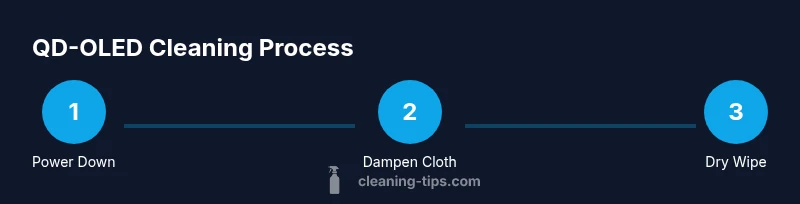
This guide shows you how to clean a QD-OLED monitor safely. Start by powering down and unplugging, then use a lightly damp microfiber cloth with distilled water. Never spray liquids directly on the screen, and avoid harsh cleaners. Wipe the display gently in circular motions, then dry and inspect for streaks before reconnecting.
What makes QD-OLED monitors unique and why gentle cleaning matters
QD-OLED monitors blend quantum dot color with OLED pixels, delivering high contrast and precise color. This combination also means a delicate coating stack on the display surface that can be damaged by aggressive cleaners or excessive moisture. If you search for how to clean qd oled monitor, you’ll see how many owners worry about streaks or coating wear. According to Cleaning Tips, the safest approach is to start with the basics: power down, unplug, and use only a damp microfiber cloth. These displays are not meant to tolerate ammonia-based cleaners or tap water sprayed directly onto the glass, as residual moisture can creep into the bezel and cause fogging or patches. By following gentle techniques, you protect the panel’s protective layers and ensure long-term clarity.
The Cleaning Tips team emphasizes that clean, dry air and a controlled environment reduce dust and static cling. With OLED layers, even minor residue can alter perceived contrast or cause uneven light. In practice, this means opting for minimal liquids and soft materials. As you plan your cleaning, remember that the goal is to refresh the surface without penetrating seams or vent gaps.
Safety first: electrical safety and screen care
Always power down the monitor and unplug it before touching any part of the device. OLED coatings are designed to be resilient, but moisture around the edges can seep into bezels and circuitry. Static discharge can occur if you rub the screen with dry hands in a dry room, so handle with clean, dry hands or wear non‑static gloves. Cleaning Tips notes that avoidance of direct sprays and harsh solvents minimizes risk to the display’s protective layers. If you notice buzzing or unusual heat while cleaning, stop immediately and unplug the unit until you can inspect for moisture intrusion.
Preparation: workspace, lighting, and preparing the cleaning area
Choose a clean, dust-free surface with good lighting to spot smudges clearly. Place the monitor on a soft, stable mat to avoid pressure points during cleaning. Turn off all nearby devices to prevent distractions and collect your materials in one place before you begin. A calm environment reduces stray fibers and debris that could scratch the screen. According to Cleaning Tips analysis, a controlled space helps maintain the integrity of the OLED surface throughout the cleaning process.
Tools and materials: what you’ll need
- Microfiber cleaning cloth (essential, lint-free, non-abrasive)
- Distilled water (essential, for dampening the cloth)
- Spray bottle (optional, for misting distilled water)
- Cotton swabs (optional, for corners and ports)
- Soft-bristled brush (optional, to brush away dust from bezel gaps)
- Non-abrasive screen cleaner (optional, ensure compatibility with OLED coatings)
Notes: Do not use tap water, ammonia-based cleaners, or any solvent that dries quickly on the surface. The goal is a damp, not wet, cloth to avoid liquid seeping into seams.
Choosing safe cleaners: what works and what to avoid
Stick to the safest option: a damp microfiber cloth with distilled water. If you choose a commercial cleaner, verify it is labeled safe for LCD/OLED screens and free of alcohol, ammonia, or harsh solvents. Alcohol-based solutions can strip coatings and cause micro-scratches over time. Avoid household cleaners, vinegar, and window sprays—these can leave residues or react with the display’s coatings. Cleaning Tips recommends testing any cleaner on a small, inconspicuous area first if you must use a product beyond distilled water.
Cleaning the screen surface: technique and sequence
Start with a dry pass using a lint-free microfiber to remove loose dust. Lightly dampen the cloth with distilled water (or use a mist from a spray bottle), then wipe the screen in gentle, evenly spaced circular motions. Do not press hard; let the cloth do the work. If streaks appear, re-wipe with a fresh section of cloth. For stubborn smudges, rotate to a clean area of the cloth and work in small sections.
Cleaning bezels, chassis, and ports without moisture intrusion
Moisture can creep into bezels and vent gaps, so use a barely damp cloth for the edges and a dry cloth for the bezels themselves. For crevices, a cotton swab lightly moistened with distilled water can help without soaking. Be particularly careful near speakers, ports, and sensor areas—do not allow liquid to pool. If you must use a liquid near these areas, apply it to the cloth, not directly to the surface.
Dealing with fingerprints and oily residues
Fingerprints on OLED panels can be stubborn. Apply a small amount of distilled water to your cloth and work in tight, circular motions over the affected areas. For persistent marks, use a fresh corner of the cloth and a slightly longer, gentler stroke. Avoid scrubbing or using abrasive pads, which can scratch or dull the coating.
Drying, inspection, and avoiding streaks
After cleaning, dry the screen with a clean, dry microfiber cloth to remove any lingering moisture. Inspect the surface under bright lighting; you should see even reflections with minimal haze. If streaks remain, wipe again with a dry part of the cloth or a new cloth square. Give the screen a final once-over to ensure the frame and screen edges are pristine, with no moisture visible at the seams.
Maintenance habits for long-lasting clarity
Create a regular cleaning routine, such as once every 2–4 weeks, depending on usage and environment. Keep the cleaning area free of dust, and consider using a microfiber cloth dedicated to screens to avoid cross-contamination. Dust with a dry brush before wiping to reduce the amount of liquid needed. Regular gentle cleaning preserves contrast and color accuracy on QD-OLED displays, ensuring you get the best viewing experience over time.
Troubleshooting: when to contact support
If you notice persistent haze, discoloration, flickering, or moisture around the edges after cleaning, stop and unplug the monitor. Contact the manufacturer or a certified service center if moisture appears inside the bezel or if performance changes. OLED screens have precise layer structures; abnormal symptoms may indicate deeper issues that require professional assessment. Cleaning Tips suggests documenting symptoms and dates of cleaning to help with any service inquiries.
Tools & Materials
- Microfiber cleaning cloth(Lint-free, non-abrasive; blue or white works best)
- Distilled water(Used to dampen cloth; avoid tap water with minerals)
- Isopropyl alcohol (70%)(Optional; use sparingly and never directly on screen)
- Spray bottle(For misting distilled water onto cloth, not directly on screen)
- Cotton swabs(For corners and ports with minimal liquid)
- Soft-bristled brush(Gently remove dust from bezel gaps)
- Non-abrasive screen cleaner(Ensure product is OLED-friendly if used)
Steps
Estimated time: 15-25 minutes
- 1
Power down and unplug
Turn off the monitor completely and unplug from the wall. This minimizes electrical risk and helps prevent moisture from circulating into internal components. Allow the screen to cool for a few minutes if it was recently used.
Tip: Never touch the screen while it’s powered; wait until it is fully off and cool. - 2
Disconnect cables and peripherals
Unplug any HDMI/DisplayPort cables and USB connections. Moving the monitor slightly reduces the chance of moisture migration into edge seals during cleaning.
Tip: Place cables aside to avoid yanking them during cleaning. - 3
Inspect the surface for damage
Look for scratches, cracks, or moisture ingress around the bezel. Do not clean if you detect a crack or swollen area; moisture exposure could worsen the issue.
Tip: If you see damage, stop and seek professional advice before cleaning further. - 4
Dry-dusting with a microfiber cloth
Begin with a dry pass to remove loose dust. Use a gentle, even motion and avoid applying pressure that could scratch the screen.
Tip: Always use a clean section of the cloth for fresh dust removal. - 5
Dampen the cloth with distilled water
Lightly mist a corner of the cloth with distilled water (or use a small amount on the cloth). Never spray liquids directly onto the screen. Ensure the cloth is damp, not wet.
Tip: If your cloth feels damp or dripping, wring it out further. - 6
Wipe the screen surface in gentle circular motions
Move across the screen in small sections, using light pressure. Overlap strokes to avoid misses and work from top to bottom to catch all residues.
Tip: Rotate the cloth often to avoid re-depositing dirt. - 7
Tackle corners and ports with care
Use a cotton swab lightly moistened with distilled water for stubborn marks near edges. Do not allow liquid to pool around ports or sensors.
Tip: Dry-swab after to prevent moisture buildup in tight spaces. - 8
Dry the screen and inspect for streaks
Use a dry microfiber to remove any remaining moisture and check for streaks under bright light. If streaks persist, re-wipe with a fresh cloth section.
Tip: Ensure the screen is completely dry before reassembly. - 9
Reconnect power and test the display
Reconnect cables and power. Turn the monitor on and observe for consistent brightness and color. If issues appear, consult the manufacturer support.
Tip: Keep a log of cleaning steps in case you notice changes later. - 10
Maintain a light cleaning routine
Set a regular schedule (e.g., every 2–4 weeks) to prevent heavy buildup. Store cleaning supplies in a cool, dry place away from direct sunlight.
Tip: Consistency reduces the effort needed for future cleanings.
Questions & Answers
Can I clean a QD-OLED monitor while it’s powered on?
No. Cleaning should be done with the device off and unplugged to avoid electrical shock and moisture-related issues. If you notice any unusual behavior after cleaning, power down again and check connections.
Do not clean while it’s powered on. Always turn the monitor off and unplug it before cleaning.
What cleaners are safe for QD-OLED screens?
Stick to distilled water on a microfiber cloth. Avoid alcohol, ammonia, vinegar, or window cleaners that can damage coatings. If you must use a cleaner, choose a product labeled for LCD/OLED screens and test on a small area first.
Use distilled water on a microfiber cloth; avoid harsh cleaners unless they’re explicitly OLED-safe.
How often should I clean a QD-OLED monitor?
Clean as needed to remove dust and fingerprints, typically every 2–4 weeks depending on usage and environment. Regular maintenance reduces the chance of streaks and buildup.
Clean when you see fingerprints or dust, usually every few weeks.
Will cleaning void my warranty?
Routine, gentle cleaning with safe materials is generally acceptable; avoid liquid intrusion into bezels or ports. If you suspect internal moisture or damage, contact customer support for guidance.
Gentle cleaning with proper materials is usually fine, but avoid liquids near the edges.
What should I do if I see streaks after cleaning?
Recheck moisture levels and re-wipe with a clean, dry microfiber cloth using light, circular motions. If stubborn streaks persist, allow the screen to dry fully and try again with a fresh cloth section.
If streaks appear, wipe gently again with a dry cloth and refresh the cloth.
Can I use a microfiber cloth that's slightly rough?
Only use a soft, lint-free microfiber cloth. Rough or dirty cloths can scratch the surface and leave residues.
Always use a clean, soft microfiber cloth.
Watch Video
The Essentials
- Power down before cleaning
- Use distilled water with a microfiber cloth
- Avoid direct liquid on screen; wipe with cloth instead
- Be gentle and avoid pressure on coatings
- Inspect for streaks and moisture after cleaning