How to Clean a Laptop Safely: The Complete Step-by-Step Guide
Learn to safely clean a laptop with a comprehensive, step-by-step guide covering screen, keyboard, exterior, ports, and routine maintenance. Safe tools, practical tips, and maintenance routines from Cleaning Tips.


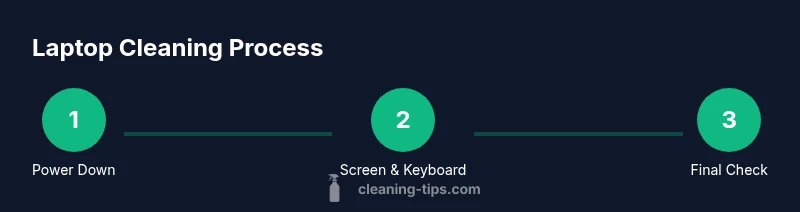
You will learn how to safely clean a laptop, including the screen, keyboard, and exterior surfaces. You’ll need a microfiber cloth, 70% isopropyl alcohol (or distilled water for damp cloth), a can of compressed air, and a soft brush. The steps cover safety, tools, and a practical, maintenance-focused approach for a durable, clean device.
Safety First: Power Down and Prepare
Before you begin a laptop clean, power down the device completely and unplug the charger. If the battery is removable, take it out to reduce the risk of short circuits while you work. Store the laptop on a dry, stable surface away from liquids. Keep a steady, well-lit workspace to prevent accidents. According to Cleaning Tips, starting with a powered-down setup minimizes the risk of electrical shock or component damage during a careful laptop clean. This preliminary step also gives you a clear view of all surfaces that need attention, making your subsequent actions more effective. Make sure you won’t have to move the laptop while you clean, and avoid cleaning while the device is hot or warm, as residual heat can make moisture form inside the chassis. With safety squared away, you’re ready to gather your tools and begin the process of a proper laptop clean.
Tools and Materials You'll Need
Gathering the right tools before you start is essential for a controlled laptop clean. The essentials include a microfiber cloth, a can of compressed air, a soft brush, and a bottle of isopropyl alcohol (70%—or distilled water for a damp cloth). These items minimize abrasion and moisture risk while effectively removing dust and grime. Distilled water is optional but useful if you don’t have alcohol on hand. Keep cotton swabs handy for tight corners. Optional accessories like an anti-static wrist strap can help with steady precision, though a properly grounded workspace is usually enough. Remember: never spray liquids directly onto the laptop; apply liquid to the cloth or use bursts of air to move debris.
Screen Cleaning: Avoiding Scratches and Streaks
Cleaning a laptop screen requires gentleness and the right materials to avoid scratching coatings or leaving smudges. Power down, disconnect power, and use a clean, dry microfiber cloth to wipe the screen in gentle, circular motions. For tougher smudges, dampen the cloth slightly with distilled water or a screen-safe cleaner recommended by manufacturers, then wipe again with a dry section of the cloth. Do not apply liquids directly to the display or allow liquid to pool around the edges. The goal is a spotless, clear view without risk to the display coatings. Regular, careful screen care also reduces the need for aggressive scrubbing, which can degrade anti-reflective coatings over time. A careful laptop clean of the screen helps maintain visual quality and prolongs longevity.
Keyboard Cleaning: Debris and Key Safety
The keyboard collects dust, grime, and crumbs more than many users realize. Start with a light, vertical tilt of the laptop and use compressed air in short bursts to loosen debris from between keys. Follow with a soft brush to lift particles from the key tops and crevices. If you spot sticky residue, lightly dampen a microfiber cloth with isopropyl alcohol and wipe the keys in a single direction. Avoid pouring liquids on the keyboard, and never spray into the hinge area or ports. After cleaning, give the keyboard a moment to dry before closing the lid or reattaching any removable accessories. Regular, gentle cleaning keeps the typing experience responsive and reduces long-term wear.
Exterior Casing Care: Plastics and Metals
Exterior surfaces—whether plastic or metal—need a gentle touch to stay looking new. Wipe the chassis with a microfiber cloth lightly dampened with isopropyl alcohol or distilled water, ensuring you do not saturate any seam. Move across the surface in broad, even strokes, taking care around the screen bezel and USB ports. For stubborn smudges, apply a tiny amount of cleaner to the cloth (never directly to the laptop) and wipe away. Dry with a clean cloth to avoid streaks. This careful approach keeps finishes intact and reduces the risk of moisture seeping into internal components.
Ports, Vents, and Fans: Gentle Deep Cleaning
Dust tends to accumulate around ports and vents, which can impede cooling. Use compressed air in short bursts from a safe distance to dislodge loose dust rather than forcing it deeper into the chassis. A soft brush can help remove stubborn debris from vents, but avoid touching the fan blades directly. If you notice buildup around the speakers or airflow areas, wipe with a slightly damp cloth and finish with a dry section. Allow any residual moisture to evaporate before powering the laptop back on. This step improves cooling and performance, contributing to a true laptop clean.
Cleaning Routine: Weekly and Monthly Practices
A sustainable laptop clean habit reduces grime and prolongs performance. Implement a lightweight weekly routine: a quick screen wipe and keyboard dusting to keep surfaces looking fresh. Complement with a deeper monthly clean that includes the interior as needed, focusing on vents and fans while the device is powered off. A proactive approach also helps you spot issues such as loose connectors or unusual fan noise early. Consistency matters more than intensity, so schedule brief sessions that fit your routine.
Common Mistakes and How to Avoid Them
Even experienced users make missteps during a laptop clean. Avoid spraying cleaners directly on the device, which can seep into gaps or damage coatings. Don’t use ammonia-based products on screens or coatings, and never attempt to remove keys if you’re unsure of their attachment. Avoid applying too much liquid; the cloth should be only lightly damp. Do not clean a hot laptop; heat can drive moisture into sensitive areas. If you’re unsure about a particular surface, test on a small, inconspicuous area first.
Caring for Screen Protectors and Anti-Glare Surfaces
If your laptop uses a screen protector or anti-glare coating, special care is required. Remove the protector if it’s visibly scratched or peeling, following manufacturer guidance. Clean the screen underneath using a gentle, damp cloth and reapply the protector if needed. Use a soft cloth to prevent micro-scratches, and avoid sharp tools that could scratch the coating. Regular maintenance reduces wear and preserves clarity and touch sensitivity.
Drying, Reassembly, and Post-Clean Checks
After finishing the cleaning, allow all components to dry completely before powering the device back on. Reconnect any cables or batteries only when the laptop is dry to prevent short circuits. Inspect all ports and vents for any lingering dust and re-run a brief air purge if necessary. Check the keyboard for sticky keys or misalignment, and test the trackpad and keyboard with a light typing session to confirm proper function. A thorough post-clean check ensures your laptop remains reliable.
Long-Term Laptop Health: Preventive Habits
To keep your device in peak condition, adopt preventive habits that align with a regular laptop clean routine. Store the device in a cool, dry place away from direct sunlight and moisture. Elevate the back slightly when cleaning or using the laptop, which reduces heat buildup. Schedule routine maintenance checks, and keep the software updated to improve thermals and performance. While a good routine reduces grime, it also protects the device’s internal components and extends its usable life. A thoughtful approach to a laptop clean will pay off in reliability and longevity.
Tools & Materials
- microfiber cloth (lint-free)(Soft, non-abrasive; use on screens and surfaces)
- compressed air can(Short bursts; keep can upright)
- soft brush(For dust between keys and vents)
- isopropyl alcohol 70%(Dilute with distilled water if needed; apply to cloth, not directly to laptop)
- distilled water(Optional for dampening cloth when alcohol isn’t available)
- cotton swabs(For tight spaces and edges)
Steps
Estimated time: 40-60 minutes
- 1
Power down and unplug
Power down completely and unplug the charger. If the battery is removable, take it out to remove residual power. Place the laptop on a dry, stable surface away from liquids and ensure the workspace is well-lit.
Tip: Pro tip: Remove the battery if possible and avoid powering on until all components are dry. - 2
Disconnect peripherals
Detach any connected devices such as mice, external drives, and USB hubs. This prevents accidental damage and makes it easier to access all surfaces during the clean.
Tip: Pro tip: Use a labeled tray or bag to keep cables organized for reassembly. - 3
Clean the screen
Wipe the screen with a dry microfiber cloth using gentle, circular motions. If smudges persist, lightly dampen the cloth with distilled water or a screen-safe cleaner and wipe again, then dry with a separate section of the cloth.
Tip: Pro tip: Always apply liquid to the cloth, never directly to the screen. - 4
Tackle the keyboard
Use compressed air to dislodge debris between keys, then brush away loose particles. For sticky areas, wipe keys with a cloth lightly dampened with isopropyl alcohol in one direction.
Tip: Pro tip: Tilt the laptop slightly to prevent liquid from seeping under the keys. - 5
Wipe the exterior
Gently wipe the chassis with a microfiber cloth dampened with alcohol or distilled water. Move in broad strokes and avoid saturating seams or vents.
Tip: Pro tip: Dry with a separate cloth to prevent streaks and moisture behind edges. - 6
Clean ports and vents
Use short bursts of compressed air from a safe distance to remove dust from ports and vents. If dust persists, use a soft brush and avoid touching fan blades directly.
Tip: Pro tip: Do not insert tools into ports; you can cause damage or push debris inward. - 7
Dry, reassemble, and test
Let all parts dry completely before reconnecting cables or powering on. Reinsert the battery if removed, then power up and test the keyboard, touchpad, and display.
Tip: Pro tip: Run a quick usability check after power-on to confirm everything functions as expected.
Questions & Answers
Is it safe to use water on a laptop screen?
Water can be used sparingly on a cloth for screen cleaning, but never spray directly on the display. Use distilled water or a manufacturer-approved screen cleaner and test on a small area first.
Water can be used sparingly on a cloth, never directly on the screen. Test a small area first.
How often should I clean a laptop?
Clean as part of a regular routine: quick weekly wipes for screens and keyboards, with a deeper cleaning as needed based on dust exposure and usage.
Clean regularly—quick weekly wipes and deeper cleans as needed based on dust and usage.
Can I remove keys to clean the keyboard?
Do not remove keys unless the manufacturer instructs you to. Use compressed air and a gentle brush to dislodge debris instead.
Avoid removing keys; use air and a brush to clean between keys.
Will cleaning void the warranty?
Safe cleaning methods typically don’t void warranties, but always follow the manufacturer’s guidelines and avoid liquids entering ports.
Generally safe if you follow official guidelines and avoid liquids near ports.
What should I do if liquid spills inside the laptop?
Power down immediately, unplug, and remove the battery if possible. Dry the exterior and seek professional service if needed.
Power down immediately and seek professional help if needed.
Is it okay to use alcohol on the screen?
Use isopropyl alcohol in combination with distilled water on a cloth; avoid acetone and never spray directly on the screen.
Use diluted isopropyl on a cloth, never directly on the screen.
Watch Video
The Essentials
- Power down and unplug before starting
- Use a microfiber cloth and gentle solvents
- Avoid direct liquids on the device
- Dry thoroughly before reassembly
- Maintain a regular cleaning schedule