How to Clean Up iPhone Space: A Practical Guide
A practical, step-by-step guide to reclaim iPhone storage. Learn safe methods to offload apps, optimize photos, manage messages, clear caches, and use iCloud to keep your device fast and clutter-free.


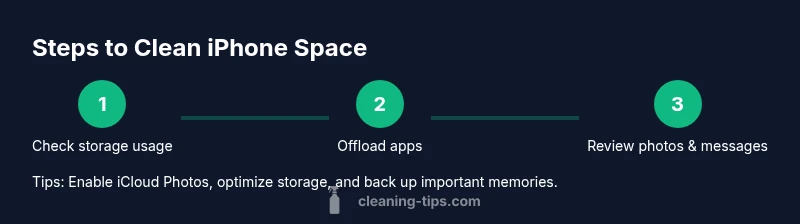
Goal: reclaim iPhone space by quickly auditing storage, offloading unused data, clearing caches, and optimizing photos and messages. Begin in Settings > General > iPhone Storage to see what’s using space, then act on large apps, media, and conversations. The steps below provide a safe, practical plan to free up storage while preserving essential data.
Why Free Space on iPhone Improves Performance and Usability
A device with ample free storage generally runs faster, updates install smoothly, and feels more responsive during everyday tasks. When your iPhone storage is nearly full, apps can lag, automatic backups fail, and you may miss out on new features that require available space. Keeping space available also reduces the risk of unexpected app crashes or slow Wi-Fi syncing during backups. The goal is not to delete precious memories or essential data, but to create a balance where you retain what you need and remove what you don’t. The Cleaning Tips team notes that a thoughtful cleanup can improve overall device reliability and prolong the useful life of your iPhone by ensuring system processes have room to operate efficiently. Regular, gentle maintenance helps you avoid large one-time cleanups and keeps daily use smooth.
Quick Audit: Where Is My Space Going?
Before you start deleting, take a quick inventory of what actually occupies storage. Open Settings, then General, and choose iPhone Storage. Here you’ll see a color-coded breakdown by app, photos, messages, and system data. Large apps and media tend to dominate space; messages with attachments and cached website data can accumulate over time. Use the sort-by-size option (where available) to identify big culprits. This audit sets the foundation for targeted cleanup, and it helps you decide which items to offload, delete, or move to the cloud. Cleaning Tips emphasizes that a focused audit saves time and reduces the risk of removing items you’ll need later.
Offload Unused Apps Without Losing Data
Offloading removes the app from your device but keeps its documents and data, so you can reinstall later without losing your place. This is ideal for apps you rarely use but don’t want to delete entirely. In iPhone Storage, you can enable offloading for unused apps automatically, freeing space while preserving essential data. If you actively rely on an app, you can delete it completely to reclaim space, but remember that you’ll need to re-download and set up the app again. The goal is to reclaim space with minimal disruption to your workflows. Cleaning Tips notes that offloading is a safe, reversible option for sustainable storage management.
Photos: How to Keep Memories Without the Bulk
Photos typically take up a sizable portion of space. Enabling Optimize iPhone Storage lets the device keep small, device-optimized previews while the full-resolution originals reside in iCloud. If you use iCloud Photos, you can choose to keep originals in the cloud and free up local space. Regularly review large photo and video files, duplicated shots, and long videos. Don’t forget to check the Recently Deleted album; photos there remain for 30 days before permanent removal. The Cleaning Tips team highlights that photo management is often the fastest way to reclaim meaningful space without sacrificing memories.
Messages and Attachments: Clean Up Conversations Thoughtfully
Attachments in Messages—photos, videos, and PDFs—can silently consume space. In Settings > Messages, you can set how long to keep messages and review large attachments within conversations. Deleting old conversations with heavy media can reclaim substantial space, but be mindful of items you want to preserve or forward. If you rely on message history for references, export important chats before cleanup. Cleaning Tips suggests a staged approach: review, archive, then delete, to avoid losing critical data.
Safari and App Caches: Clear Clutter Safely
Safari data and cached files accumulate over time and can take up valuable space. Clearing history and website data can free space without impacting essential data, though you may need to re-enter logins on frequently visited sites. Within apps, cached data can also hide in Settings > General > iPhone Storage under individual apps. Clearing caches reduces space usage and can speed up browsing. The process is safe if you avoid deleting app documents that you still need.
Managing Large Apps and Data: A Targeted Approach
Some apps store documents and data that aren’t obvious at a glance. In iPhone Storage, tap individual apps to see their Documents & Data and delete unnecessary files, or offload the app to keep the data but reclaim space. This approach helps you target space hogs like video editing apps, offline maps, or games with heavy saved data. You don’t need to clear every item at once; a staged plan lets you verify that essential functions still work and that you’re not deleting something you’ll regret losing.
iCloud Integration: Outsource Storage Wisely
If you have or plan to use iCloud, enabling iCloud Photos with Optimize iPhone Storage can dramatically reduce on-device space usage. You can also back up to iCloud or a computer, ensuring you never lose important data while freeing space. The key is to balance cloud storage capacity with your on-device needs. Cleaning Tips recommends verifying your iCloud plan and confirming that critical data will be accessible when offline if you rely on local copies for work or daily tasks.
Long-Term Habits: Make Space Maintenance Routine
Set a weekly or monthly reminder toReview storage and run a quick cleanup. Keeping a lightweight, repeatable process reduces the risk of crunches when you need space fast (for software updates or large downloads). A routine makes it easier to maintain a healthy balance between on-device data and cloud backups. Cleaning Tips emphasizes that consistency beats one-off cleanups, especially when you manage multiple devices or family accounts.
Final Thought: Keep Data Safe While Staying Clutter-Free
The aim is to free space without compromising important photos, documents, or app data. Regular backups to iCloud or a computer ensure that you can restore items if something gets deleted by mistake. With a little planning, you’ll keep your iPhone responsive and ready for updates, new apps, and new memories.
Tools & Materials
- iPhone with current iOS(Ensure device is updated to the latest stable iOS version before starting cleanup)
- Apple ID with cloud access(Needed to enable iCloud Photos and backup)
- Stable internet connection(Required for iCloud syncing and backup)
- External backup option (optional)(Computer with Finder/iTunes or a secondary cloud service for backups)
- Camera roll backup plan(Optional: plan to export or save selected memories)
Steps
Estimated time: 60-120 minutes
- 1
Open Settings and review storage
Open the Settings app, tap General, then iPhone Storage. Note the top categories and which apps are using the most space. This first step gives you a snapshot and helps prioritize actions.
Tip: Tap an app to see its data size and the option to Offload or Delete. - 2
Offload unused apps automatically
Enable Offload Unused Apps to reclaim space without losing documents and data. The system removes the app but keeps its data, so you can reinstall later without setup. This is a safe first move when space is tight.
Tip: Review the list of offloaded apps to ensure essential apps aren’t affected. - 3
Review large attachments in Messages
Check Messages for conversations with large media. Delete or save off important attachments to a cloud storage before removing them from the chat. This typically frees a surprising amount of space.
Tip: Use the search in Messages to locate attachments by type (photos, videos). - 4
Enable Optimize iPhone Storage for Photos
If you use iCloud Photos, enable Optimize iPhone Storage so device keeps smaller previews and stores originals in iCloud. Review the Recently Deleted album to permanently remove items you no longer need.
Tip: Make sure your iCloud plan has enough storage for originals if you rely on the cloud. - 5
Clear Safari data and caches
Go to Settings > Safari and clear History and Website Data. This frees space and can speed up browsing, but you may need to re-enter passwords for sites you visit often.
Tip: If you use many saved passwords, consider exporting or noting them before clearing data. - 6
Delete or offload apps with large documents
For apps that store a lot of data (offline maps, video editors, big games), review Documents & Data and delete or offload specific items. This reduces space while preserving app functionality.
Tip: If you delete an app, re-download later to regain access, not the data stored in the app’s own cloud service. - 7
Enable iCloud Photos and manage backups
Use iCloud Photos with 'Optimize iPhone Storage' and ensure backups occur to iCloud or your computer. You’ll free space on-device while maintaining access to memories and work files.
Tip: Check your iCloud storage usage and upgrade if needed to prevent storage limits from blocking backups. - 8
Establish a maintenance habit
Set a recurring reminder to review storage and perform a light cleanup. Regular maintenance avoids large, daunting cleanups and keeps your device running smoothly.
Tip: Keep a short checklist for quick, weekly assessments to save time later.
Questions & Answers
What happens when you offload apps on iPhone?
Offloading removes the app from your device but preserves its documents and data, so you can reinstall later without losing your progress. If you delete the app completely, you’ll need to set it up again and may lose local data tied to the app.
Offload apps keep data, delete the app itself. You can reinstall later without losing progress.
How can I tell which apps use the most space?
Go to Settings > General > iPhone Storage. The page lists apps by size and shows recommendations to optimize storage. This helps you target the biggest space users first.
Check iPhone Storage in Settings to see which apps take up the most space.
Will cleaning up space delete photos or documents?
Cleaning up space can involve deleting data you no longer need, but you should back up important photos and documents first. Use Archive or iCloud backups to avoid permanent loss.
If you back up first, cleaning space won’t erase needed photos or documents.
Should I enable iCloud Photos to save space on my device?
Yes. iCloud Photos with 'Optimize iPhone Storage' stores full-resolution copies in iCloud and lightweight previews on your device, freeing space while keeping memories accessible.
Enabling iCloud Photos with optimization is a common way to save space.
Is it safe to clear Safari data and caches?
Clearing Safari history and data is safe and can free space, but you may need to re-enter passwords on sites you frequently visit.
Clearing Safari data frees space; you may need to log in again on sites.
Do I need a computer to clean up iPhone space?
No. You can clean up space directly on the iPhone. A computer backup is optional but helpful for safety and long-term archiving.
A computer backup is optional but can be useful for safety.
Watch Video
The Essentials
- Audit first to identify space hogs.
- Offload apps to preserve data with minimal disruption.
- Prioritize photos and attachments; back up before deleting.
- Enable cloud storage options to reduce on-device space.
- Establish a recurring cleanup routine.