How to Clean a Flat Screen TV
Learn how to safely clean a flat screen TV with electronics-safe cleaners, microfiber cloths, and a simple step-by-step routine to remove dust, fingerprints, and smudges without streaks.


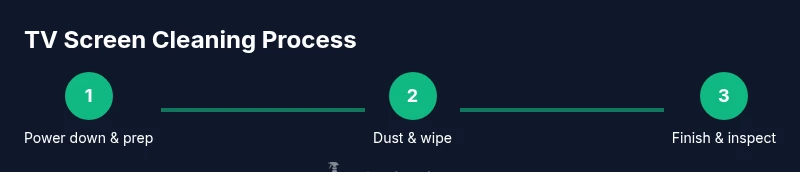
By following this guide, you will safely clean a flat screen TV without damaging the display, using gentle methods that protect coatings and electronics. You’ll learn the right cleaners, proper dusting technique, how to clean TV bezels and screens, and how to avoid moisture, static buildup, and streaks. This step-by-step approach works for LCD, LED, and OLED panels.
Why cleaning a flat screen TV matters
A clean screen not only looks better, it helps you enjoy sharper images and accurate colors. Dust, fingerprints, and cooking vapors can settle on the glass and coatings over time, causing glare or uneven brightness. Regular cleaning also reduces the risk of abrasive particles scratching the screen during use, especially if you frequently adjust brightness or view from close ranges. From a health and hygiene standpoint, a dust-free screen and cabinet surfaces contribute to a healthier living space, especially in households with children or allergy sufferers. According to Cleaning Tips, using gentle, electronics-safe cleaners and soft cloths minimizes the risk of damage to sensitive coatings like anti-reflective or oleophobic finishes. When you keep to a routine, you avoid the temptation to scrub hard, which can cause micro-scratches and pixel discoloration. This section outlines why a thoughtful approach matters and how to plan your cleaning session so you protect the device while maintaining a pristine viewing area.
Safe cleaning basics for flat screens
Cleaning a flat screen TV is not the same as cleaning glass, mirrors, or windows. The goal is to remove dust and fingerprints without saturating the panel or seeping moisture into seams. Start with a gentle approach: use a soft microfiber cloth that is clean and free of fabric softeners. Do not spray cleaner directly onto the screen; always apply to the cloth first. Choose an electronics-safe cleaner labeled for screens, or a mild solution recommended by the manufacturer. A small amount of distilled water can be used to moisten the cloth if you don’t have a dedicated cleaner, but never drench the surface. Keep liquids away from ports, speakers, and power cords. Wipe in smooth, straight passes to minimize streaks and to preserve coating integrity. After cleaning, use a dry microfiber cloth to buff the screen and remove any remaining dampness. If you notice streaks, switch to a fresh area of the cloth and re-wipe with a light touch.
Understanding screen coatings and cleaners
Flat screens have protective coatings that can be damaged by harsh chemicals. Anti-reflective, oleophobic, and anti-smudge layers reduce glare and fingerprints, but they require careful cleaning. Avoid ammonia-based cleaners, window cleaners, acetone, or vinegar, as these can degrade coatings over time. Instead, opt for cleaners specifically labeled safe for electronics or a mild, alcohol-free solution. Always test any cleaner in a small, inconspicuous corner of the screen before applying it widely. If your display is new, consult the user manual for approved products and recommended cloth types. Remember that coatings vary by brand and model, so what works on one TV screen might not be suitable for another.
Preparation: power down, unplug, and test
Safety first. Before you touch the screen, power down the TV and unplug it from the outlet. This reduces the risk of electrical shock and protects sensitive components like the motherboard and speakers from moisture. Wait for any residual demonstrations to finish, typically a minute or two, and then inspect the screen for loose dust or particles. If you see stubborn smudges, perform a small-area test on a corner using the damp cloth technique. Keep your cleaning routine consistent with a gentle touch; aggressive scrubbing can cause micro-scratches that are hard to remove and may affect image quality over time.
Clean the screen: dusting, wiping, and drying
Begin with a dry, lint-free microfiber cloth to remove loose dust. If dust persists, lightly dampen the cloth with a cleaner or distilled water and wipe the screen in straight, horizontal or vertical strokes. Avoid circular motions that can trap moisture and leave rings. Do not spray liquids directly onto the glass; apply only to the cloth. After wiping, dry the surface with a clean, dry microfiber cloth to remove any remaining moisture and to minimize streaks. Finally, examine the screen under bright light to ensure even appearance and to spot any missed smudges.
Cleaning bezels, ports, and remotes
The frame around your screen (bezels) and nearby ports can accumulate dust and oils. Use a slightly damp cloth to wipe the bezels, being careful near speaker grilles and ventilation slots. For ports or recessed areas, use a cotton swab lightly moistened with cleaner or distilled water, then gently roll it along crevices without forcing liquid inside. Do not allow liquid to pool near openings. Remote controls often collect oils from hands; wipe them with a damp cloth and dry promptly. If the remote has gummy residue, a minimal amount of cleaner on a cloth can help remove it, followed by a dry wipe.
Maintenance, safety, and troubleshooting
Establish a routine cleaning schedule that fits your viewing habits, typically every few weeks for busy homes or monthly for lighter use. Store cleaners in a cool, dry place away from sunlight. If you notice persistent streaks, swap to a fresh microfiber cloth and re-wipe with a lighter touch. If moisture seeps into seams or speakers, stop cleaning and seek professional service. Always follow the manufacturer’s guidelines for your specific model, and avoid any liquids in the cabinet or on the screen edges.
Authority sources and further reading
For additional guidance on safe electronics cleaning, refer to reputable sources that provide consumer electronics maintenance recommendations. These sources discuss general safety practices and the importance of using appropriate cleaners and tools. You can explore related material from recognized health and standards publications to understand best practices for cleaning sensitive devices like TVs.
Tools & Materials
- Microfiber cleaning cloth(Lint-free; use dry for dusting, then dampen slightly if needed)
- Electronics-safe cleaner or mild screen cleaner(Labelled safe for electronics; do not spray directly on screen)
- Distilled water(Use only to dampen cloth if a dedicated cleaner is not available)
- Soft brush or microfiber brush(For dust in corners or around bezels)
- Cotton swabs (Q-tips)(For tight spots near ports and edges)
- Dry second microfiber cloth(Pat dry to prevent streaks)
Steps
Estimated time: 15-25 minutes
- 1
Power down and unplug
Turn off the TV and unplug from the outlet. Wait a moment for capacitors to settle and moisture to evaporate. This reduces shock risk and protects internal components while you clean.
Tip: Never spray cleaner directly onto the screen; apply to the cloth instead. - 2
Remove loose dust with a dry cloth
Gently wipe the screen with a dry microfiber cloth to lift loose dust. Use light, even pressure and avoid circular scrubbing that can push dirt into edges.
Tip: Keep the cloth flat against the screen to minimize pressure on any one point. - 3
Apply cleaner to cloth, not the screen
Lightly dampen your cleaning cloth with the electronics-safe cleaner or distilled water. Wipe the screen using straight strokes, moving from top to bottom. Do not saturate the cloth or let liquid pool near edges.
Tip: Test a small corner first to verify that the cleaner does not cause any glow or haze. - 4
Wipe bezels and edges separately
Use a slightly damp cloth to clean bezels, leaving ports and speaker grills untouched. For crevices, use a cotton swab moistened lightly with cleaner, then dry with a fresh cloth.
Tip: Avoid applying moisture near the ports or any venting areas. - 5
Dry and inspect for streaks
Finish with a dry microfiber cloth to remove any residual moisture and prevent streaks. Check under bright light and re-wipe any stubborn spots with a fresh portion of cloth.
Tip: If streaks persist, switch to a dry section of the cloth and work in a different direction. - 6
Reassemble and test
Plug the TV back in and power it on to ensure everything works after cleaning. Keep the area clean to avoid reaccumulation of dust over time.
Tip: Consider placing the TV in a location with less direct dust exposure to reduce cleaning frequency.
Questions & Answers
Can I spray cleaner directly on the TV screen?
No. Spray cleaner directly on the screen can seep into edges and damage electronics. Always apply cleaner to a microfiber cloth first and wipe gently.
Don't spray cleaners directly on the screen; apply to a cloth and wipe gently.
What cleaners are safe for flat screens?
Use cleaners labeled safe for electronics or a mild screen-cleaning solution. Avoid ammonia, acetone, and window cleaners. Test in a corner first to verify no adverse effects.
Choose electronics-safe cleaners and test a tiny area before full use.
Is distilled water enough for most screens?
Distilled water can be used sparingly with a microfiber cloth for light cleaning. Do not apply water directly to the screen; dampen the cloth instead.
A damp microfiber cloth with distilled water is fine for light cleaning, never spray water on the screen.
Will cleaning void my warranty?
Proper cleaning with approved products and gentle methods should not void a warranty. Always follow the manufacturer’s cleaning guidelines in the user manual.
Follow the manual and use electronics-safe cleaners to avoid warranty issues.
How often should I clean a TV screen?
Dust weekly or as needed for your environment; deeper clean every few months or when fingerprints build up. Adjust based on viewing habits and air quality.
Dust weekly and wipe fingerprints as they appear.
Watch Video
The Essentials
- Use electronics-safe cleaners only.
- Never spray directly onto the screen.
- Wipe with smooth, straight strokes and dry thoroughly.
- Protect ports and bezels during cleaning.