How to Clean Mac from Malware: A Practical Guide
Learn a practical, step-by-step method to remove malware from your Mac, protect data, and prevent future infections with trusted, minimal-risk techniques.


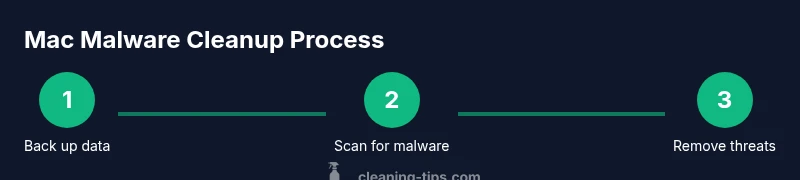
To clean Mac from malware, follow a safe, step-by-step approach: back up data, update macOS, boot in Safe Mode, run a reputable malware scan, remove suspicious apps and extensions, reset browser settings, and monitor your Mac for signs of re-infection. This format minimizes risk while preserving important files and ensures you can recover quickly.
Why Mac malware cleanup matters
Mac computers are not immune to malware, and knowing how to clean mac from malware is essential for preserving privacy and performance. Cleanup matters because infections can slow performance, drain battery, or silently steal data. The Cleaning Tips team emphasizes that a clean Mac reduces risk and protects privacy. Common signs include unexpected pop-ups, redirects in Safari or Chrome, new extensions, or unusually high fan noise. According to Cleaning Tips analysis, preventive hygiene—regular software updates, careful app installations, and scheduled scans—dramatically reduces infection risk. In practice, a regular cleanup routine keeps your system snappy and minimizes downtime. Start by backing up critical files, then isolate the device from networks when you suspect malware. The goal is not panic but methodical action: identify symptoms, confirm with trusted scans, and remove suspicious items safely. A clean Mac not only runs faster; it also lowers the risk of data breaches that could affect finances, identity, and home networks. By adopting a consistent cleaning rhythm, you can detect threats early and limit potential damage before it spreads across devices and accounts. In short, proactive maintenance is cheaper and less painful than remediation after a malware outbreak.
How malware typically infects Macs
Even with built-in protections, Macs can be compromised. Infections often arrive via downloaded apps, malicious installers, drive-by downloads, or compromised browser extensions. Users may bypass Gatekeeper or install software from unofficial sources, enabling malware to run. Phishing emails and fake system alerts remain common vectors. The Cleaning Tips team notes that phishing and social engineering often lead to unsafe clicks that install malware or grant hidden permissions. Regular updates of macOS and apps, plus cautious download habits, reduce exposure. USB drives from unknown sources can also harbor malware. Even legitimate-looking installers can hide payloads if a system is not kept up to date. Because macOS security features are not perfect, retired settings or weak passwords can become an entry point for attackers. Keeping a tight control on admin privileges, enabling automatic updates, and using trusted sources for software dramatically lowers risk. When in doubt, pause and verify before granting permissions or installing new software.
Pre-cleanup checklist and safety cautions
Before you start, prepare by backing up data, updating macOS, and ensuring recovery options. Connect to a trusted network; turn on Airplane mode if you’re connecting a removable drive. The Cleaning Tips approach is simple: have a backup, a reputable scanner, and time set aside for this task. Disable remote access temporarily if you suspect active compromise. Ensure you know your admin password and can reinstall the OS if needed. Verify that Time Machine backups are recent and accessible, and consider offline backups to protect from ransomware. Detach external drives during cleanup to prevent malware from propagating to backups, then reattach after verifying that the system is clean. Clear a dedicated workspace, free of distractions, and keep a log of actions so you can undo if something goes wrong. Remember, safety first: if you’re unsure, pause and consult official guidance rather than proceeding with risky experiments.
What to expect during a malware scan and removal
During a malware scan, expect the tool to identify suspicious files, extensions, startup items, and possibly network connections. Quarantine or remove confirmed threats, then review system extensions, login items, and browser extensions. After removal, reset browser settings and clear caches, including saved passwords if they were compromised. Re-scan to ensure the system is clean. If the OS or apps restrict updates or removal, boot into Safe Mode or Recovery Mode to bypass problematic extensions. The Cleaning Tips team recommends verifying critical system files and ensuring Time Machine backups remain intact as you proceed. If you notice persistent symptoms after a scan, document the indicators and plan a deeper investigation, which may include re-installing macOS or using an offline backup restore. Finally, perform a reboot and monitor for unusual behavior over the next 24-72 hours to confirm you’ve removed the threat and restored normal operation.
Authority sources
- https://www.cisa.gov/remediating-malware
- https://www.apple.com/support/mac-security/
- https://www.wired.com/category/security/
After cleanup: maintenance and prevention
To prevent recurrence, implement ongoing hygiene: enable automatic software updates, run monthly scans, avoid questionable downloads, use a password manager, and review browser extensions periodically. Keep your defenses current by enabling macOS Gatekeeper and XProtect updates, and configure ad and tracker blockers where appropriate. Replace any weak passwords exposed during the incident, and monitor for signs of new infections. Maintain a routine backup schedule, and periodically verify the integrity of your Time Machine backups. Training the household on safe browsing practices reduces the risk of future infections and protects family accounts. The Cleaning Tips team recommends documenting the cleanup steps and revisiting your security plan quarterly to adapt to evolving threats.
Tools & Materials
- Mac computer with admin access(Ensure you can install updates and run scans)
- External backup drive(For a full data backup before cleanup)
- Stable internet connection(Needed for updates and downloads)
- Reputable malware scanning software(Choose a well-reviewed Mac malware scanner)
- Apple Support access(Useful if you encounter OS-level issues)
- Password manager(For securing and rotating credentials after cleanup)
Steps
Estimated time: 30-60 minutes
- 1
Back up your data
Connect your external drive and create a complete backup. Verify the backup by attempting a file restore of a sample item. This protects your files if something goes wrong during cleanup.
Tip: Use Time Machine or a trusted backup tool and confirm that recent files are included. - 2
Update macOS and apps
Install the latest macOS update and ensure all installed apps are up to date. Updates often include security patches that close gaps malware can exploit.
Tip: Enable automatic updates to reduce future risk. - 3
Boot into Safe Mode
Restart your Mac and hold the Shift key to enter Safe Mode. This limits startup items and helps prevent malware from loading during cleanup.
Tip: Safe Mode also prevents many browser extensions from auto-launching. - 4
Run a malware scan
Launch your trusted scanner and perform a full system scan. Review results, quarantine or remove confirmed threats, and document any items you disable.
Tip: If scans flag many items, focus on high-risk categories first (startup items, browser extensions, unknown apps). - 5
Clean up browser and extensions
Remove suspicious extensions, reset browser settings, and clear caches and saved passwords if needed. This helps prevent re-infection via malicious add-ons.
Tip: Reinstall browsers if necessary, and only restore passwords from a trusted manager. - 6
Reboot & monitor
Exit Safe Mode and restart normally. Monitor system behavior for 24–72 hours, watching for unusual CPU usage, pop-ups, or new extensions.
Tip: Keep a log of observed issues to share with support if needed.
Questions & Answers
What are common signs that a Mac has malware?
Common signs include sudden browser redirects, new or unknown extensions, unexpected pop-ups, slow performance, and unusual fan noise. If you notice these, start a thorough scan and review recently installed software.
Watch for redirects, new extensions, or unexpected pop-ups, then run a scan and review recent installs.
Can I use free tools to clean my Mac?
Free tools can help, but choose reputable options with good reviews. Avoid shady utilities that promise instant miracles; they can themselves be unsafe or ineffective.
Use reputable free tools and avoid questionable ones that claim to be miracle cures.
Should I reinstall macOS if I suspect a deep infection?
Reinstalling macOS can help if malware persists after cleaning attempts. Back up first, then use macOS Recovery to reinstall without erasing data. If problems continue, a full OS reinstall may be necessary.
If problems persist after cleaning, consider reinstalling macOS from Recovery mode after backing up.
Can malware hide in browser extensions on Mac?
Yes. Malicious extensions can track data or redirect traffic. Remove unknown extensions, reset browser settings, and consider using extension whitelists.
Malicious extensions can hide in browsers—remove unknown ones and reset settings.
How often should I scan my Mac for malware?
Run a full malware scan after major software updates and at least monthly for ongoing protection. Increase frequency if you notice symptoms.
Scan after updates and at least monthly, more often if you suspect issues.
What if I’m unsure about a file or app?
When unsure, quarantine the file and research it first. If it’s essential, verify its origin and digital signatures before you allow it to run.
If unsure, quarantine and research before running to avoid reinfection.
Watch Video
The Essentials
- Back up before starting cleanup
- Update macOS and apps to close security gaps
- Use trusted scanners and quarantine threats
- Reset browser data and monitor for signs of reinfection