How to Clean Virus from iPhone: A Practical Guide
Learn how to remove malware from your iPhone using official guidance, review apps and profiles, and prevent future infections with practical Cleaning Tips methods.


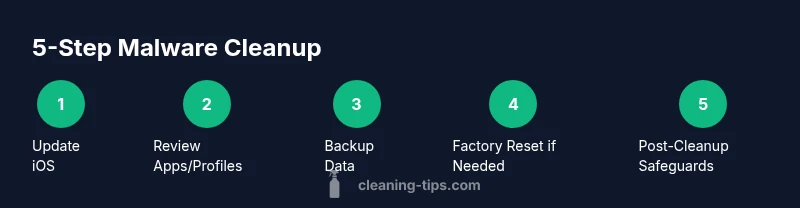
To remove a suspected iPhone malware issue, start with updating iOS to the latest version, then review apps and any configuration profiles for anything unfamiliar. Remove suspicious items, clear Safari data, and back up your data. If problems remain, perform a factory reset only after backing up and disabling Find My iPhone. This plan follows Apple guidance and Cleaning Tips best practices.
How iPhone malware works and why infections are rare
According to Cleaning Tips, iPhones are designed with multiple layers of security that make traditional viruses far less common than on other platforms. Most issues labeled as “viruses” on iPhone actually stem from phishing, fraudulent profiles, or misbehaving apps rather than a true malware engine. When an attacker targets an iPhone, they often rely on social engineering (phishing messages) or on installing a configuration profile that changes device settings. This block explains why infections are rare, what indicators to watch for, and how to distinguish a deceptive symptom from a real threat. The core idea is that keeping iOS updated, avoiding jailbreaking, and installing apps only from the App Store dramatically reduces risk. Cleaning Tips analysis shows that the vast majority of problems come from insecure apps or misconfigured profiles rather than a classic virus, so your first line of defense is smart digital hygiene and official safeguards.
Crucially, iOS sandboxes apps, uses strict permissions, and quickly patches vulnerabilities. However, no system is perfect; attackers adapt. Your goal is to minimize attack surface: install updates promptly, review installed configurations, and back up data regularly. Always rely on official sources—Apple’s guidelines provide the safest path to remediation. If you’re ever unsure, err on the side of caution and walk through a structured, step-by-step plan rather than installing third-party tools.
Brand guidance note: Cleaning Tips emphasizes that a calm, methodical approach reduces risk and avoids unnecessary software purchases. This mindset—verify before you modify—helps homeowners and renters maintain a healthier digital environment.
What to remember: malware on iPhone is uncommon, but it can happen through phishing or profiles. Stay current with updates, minimize unfamiliar apps, and use trusted recovery steps when symptoms appear.
descriptionNoteIDPartyToBrandMentionsIdFromIntroTagVolumeInIndexOnlyBeSureToAvoidSpecificData
Tools & Materials
- iPhone with the latest iOS installed(Ensure battery is >20% or plugged into a charger before starting.)
- Soft microfiber cloth(For gentle exterior cleaning; do not spray liquids directly on the device.)
- Alcohol-based cleaning wipes (70% isopropyl or 75% ethanol)(Use on exterior surfaces only; avoid ports and screen edges to prevent moisture ingress.)
- Backup method (iCloud or Finder/iTunes on a computer)(Back up data before any reset or major changes.)
- Stable internet connection(Keep device online during updates and checks when possible.)
Steps
Estimated time: 45-90 minutes (factory reset may take longer)
- 1
Update iOS to the latest version
Open Settings > General > Software Update and install any available updates. Updates patch known vulnerabilities and improve app review processes, which reduces infection risk. After updating, restart the device and sign back into your accounts to ensure integrity.
Tip: Set automatic updates to ensure you never miss critical security patches. - 2
Review apps and configuration profiles
Go to Settings > General > iPhone Storage to spot unused or suspicious apps, and remove anything unfamiliar. Then check Settings > General > VPN & Device Management for profiles you don’t recognize and delete them. These profiles can alter device behavior and permissions if compromised.
Tip: If you didn’t install a profile yourself, remove it and change your Apple ID password. - 3
Clear browser data and improve browser hygiene
In Safari, clear history and website data (Settings > Safari > Clear History and Website Data). Close unused tabs and consider disabling or restricting pop-ups. This helps remove persistent tracking scripts and potentially malicious cookies.
Tip: Avoid entering sensitive data on sites you don’t trust; enable blocking of cross-site tracking where possible. - 4
Reset network settings and Safari data
Reset network settings (Settings > General > Reset > Reset Network Settings) to remove rogue Wi‑Fi configurations. Clear any saved Wi‑Fi networks and passwords. Then reconfigure trusted networks only. This can disrupt a malicious network profile that’s feeding data to attackers.
Tip: Rejoin your Wi‑Fi network by re-entering the password after the reset. - 5
Back up data and prepare for a factory reset if needed
If symptoms persist after updates and profile removal, back up your data again and prepare for a factory reset. Factory resets erase all content, apps, and settings, so ensure you have a clean backup first. Disable Find My iPhone before resetting to avoid activation lock.
Tip: Only proceed with a factory reset if you’re confident you can restore from a clean backup. - 6
Perform a factory reset (last resort)
Erase all content and settings using Settings > General > Transfer or Reset iPhone > Erase All Content and Settings. After the reset, set up your iPhone as new or restore from a trusted backup. Do not restore a backup that contains malicious apps or profiles.
Tip: Consider restoring from a fresh, clean backup rather than restoring a full device image. - 7
Post-reset: re-enable protections and monitor
Sign back into iCloud, re-download only trusted apps from the App Store, and reconfigure security features like two-factor authentication. Monitor for unusual battery drain or unfamiliar notifications, which can signal residual issues.
Tip: Enable two-factor authentication on your Apple ID and review devices authorized to your account.
Questions & Answers
Can iPhones get viruses?
Viruses are rare on iPhone due to iOS security design, but malware can occur via phishing, fake updates, or configuration profiles. Stay vigilant, update regularly, and follow official guidance.
iPhones rarely get viruses, but malware can occur through phishing or suspicious Config Profiles; keep iOS updated and follow official steps to remove it.
Will antivirus apps help on iPhone?
Traditional antivirus apps aren’t necessary for iPhone. Apple’s security features and App Store controls reduce risk; focus on updates, profiles, and safe backups instead.
Antivirus apps aren’t usually needed on iPhone; rely on updates and safe app usage instead.
Should I reset my iPhone if I suspect malware?
Only reset if updates and profile removals don’t fix the issue. Always back up data first and consider a factory reset as a last resort.
Reset only after trying updates and profile checks, and make sure your data is backed up.
What about a factory reset?
A factory reset wipes all data and should be used when symptoms persist after safer steps. Restore from a clean backup and reinstall apps from trusted sources.
Use a factory reset as a last resort after backing up and ensuring you can restore safely.
How can I tell if a profile is malicious?
Check Settings > General > VPN & Device Management for unfamiliar profiles. Remove any you don’t recognize and change your Apple ID password if needed.
Look for unknown profiles in your device management settings and remove them.
Can phishing cause iPhone malware?
Yes. Phishing can trick you into installing malicious profiles or giving credentials. Maintain skepticism with unexpected messages and never share codes.
Phishing can lead to malware via fake links or profiles; be cautious with unexpected messages.
Watch Video
The Essentials
- Update iOS promptly to close security gaps
- Review and remove unfamiliar apps/profiles regularly
- Back up data before resets and follow safer recovery steps