How to Clean the iPhone: Safe, Simple Step-by-Step Guide
Learn safe, practical steps to clean the iPhone without damage. This Cleaning Tips guide covers approved materials, step-by-step actions, and safety tips for a sanitary, functional device.


This guide shows how to clean the iPhone safely, including the screen, chassis, ports, and speakers, using approved tools and minimal moisture. You’ll learn how to choose the right cleaning solutions, how to apply them, and how to dry and inspect the device to avoid water damage. By following these steps, you’ll maintain hygiene and device performance.
Why Cleaning the iPhone Matters
Keeping your iPhone clean isn’t just about aesthetics. Dirt, oils, and fingerprints accumulate on the touchscreen and around ports, potentially affecting touch responsiveness and sensor accuracy. A clean device is easier to use and more hygienic, reducing germs you may transfer between screens and hands. For anyone wondering how to clean the iphone, this guide emphasizes gentle methods that preserve coatings, water resistance, and battery health. According to Cleaning Tips, regular, careful cleaning can help prevent grime from seeping into crevices and microphone grills. This article expands on practical steps you can follow without special tools, so you can protect your investment while keeping it sanitary.
Throughout, you’ll see references to safe moisture levels, proper cloth choice, and time-saving habits that fit into real life—whether you’re caring for one device or a household of smartphones.
Safety First: What Can and Can't Be Wiped
Before you touch your iPhone, set clear safety boundaries. Do not spray liquids directly onto the device. The screen and body can tolerate a light, damp wipe with a microfiber cloth, but moisture must never reach openings like the charging port, speaker grilles, or microphone slots. Use only approved, non-abrasive cleaners in tiny amounts and never acetone-based or ammonia-rich solutions on the screen coatings. Cleaning Tips analysis shows that the safest approach is a slightly damp cloth (not dripping) followed by a dry wipe. This protects coatings, buttons, and seals while reducing streaks. Always power the device down and remove any case or accessories to access every surface.
What You’ll Need (Tools & Materials)
Here’s a concise list of essentials you should have on hand before you start. A microfiber, lint-free cloth is your primary tool for most surfaces. A small amount of 70% isopropyl alcohol and distilled water, mixed sparingly, helps disinfect and remove stubborn smudges without saturating the device. A soft-bristled brush or cotton swabs are useful for blowing out debris from ports and speaker grills. Avoid household cleaners and spray bottles near the device. The following tools, supplied by Cleaning Tips, ensure you can perform a safe clean without damaging internal components.
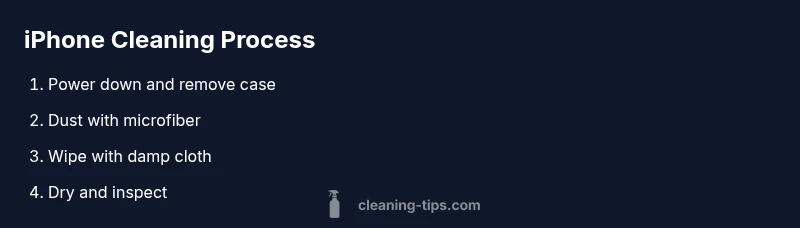
Step 1: Power Down and Prepare
Power down the iPhone completely and disconnect any charging cables or accessories. Remove the case to expose the entire surface, including corners and around buttons. This reduces risk of liquid seeping into openings and helps you reach tight spots. If you have an anti-microbial wipe approved for electronics, you may use a light pass on the exterior only after ensuring the device is off. Allow a moment for any residual heat to dissipate before you begin cleaning.
Step 2: Clean the Screen Properly
Begin with a dry, clean microfiber cloth to remove dust from the screen. If fingerprints persist, lightly dampen the cloth with a solution of distilled water and a drop of isopropyl alcohol. Wipe the screen in gentle, circular motions and avoid applying pressure that could damage coatings or the glass. Do not apply liquid directly to the screen. Finish with a dry pass to remove any remaining moisture and to restore a streak-free surface.
Step 3: Clean the Exterior Surfaces
Wipe the back and sides with the same lightly damp cloth, focusing on areas with oils or grime. For smudges near the Apple logo or side buttons, use a cotton swab lightly moistened with the same solution and roll it along the edges. Avoid excessive moisture and never spray liquid into ports. A brief, diagonal wipe across the body helps prevent water from pooling near seams, and a final dry pass removes any moisture.
Step 4: Clean Ports, Speakers, and Buttons
These areas collect lint and debris that can affect sound quality and charging. Use a soft-bristled brush to gently dislodge particles from the speaker grills and microphone holes. For tight crevices, a dry cotton swab can be used to lift grime. If necessary, dampen the tip lightly and very carefully remove residue, ensuring no liquid enters the device. Let the openings air-dry completely before reassembling.
Step 5: Dry, Inspect, and Reassemble
Inspect the device for any remaining moisture. If you see droplets, blot gently with a dry microfiber cloth and wait a few minutes before powering on. Reattach the case and accessories only after the surface is fully dry. If you used disinfectant, wipe again with a dry cloth to remove any residual moisture. Finally, power on and test touchscreen responsiveness and speakers to confirm everything works smoothly.
Common Mistakes and How to Avoid Them
Common errors include spraying liquids directly onto the device, using paper towels, or applying excessive force on the screen. These missteps can strip coatings, push liquid into ports, or scratch the glass. Always use a dampened cloth, never a soaking-wet cloth, and never spray cleaners into openings. If you’re unsure, practice on a small, inconspicuous area first.
Maintaining Cleanliness Between Cleanings
Create a quick daily habit: wipe the surface with a dry microfiber cloth after handling the phone and keep it in a clean case. Store your device away from food and liquids, and consider a light, periodic wipe-down every 1–2 weeks to prevent grime buildup. A simple routine reduces the need for deeper cleans and helps maintain screen clarity and tactile response over time. Cleaning Tips recommends documenting your cleaning schedule as a reminder to maintain device hygiene.
Tools & Materials
- microfiber cloth(Lint-free; use dry for dust, damp for smudges)
- isopropyl alcohol (70%)(Dampen cloth lightly; avoid direct application to device)
- distilled water(Only for light dampening on cloth)
- soft-bristled brush(Small brush to lift debris from speakers and ports)
- lint-free cotton swabs(For tight spaces; do not leave fibers behind)
- empty spray bottle(Optional if you prepare a tiny amount of cleaner)
- case removal tool or clean fingernail(To remove a case safely and access all surfaces)
Steps
Estimated time: 15-25 minutes
- 1
Power down and prepare
Power off the iPhone completely and unplug any cables. Remove the case to access all surfaces. This minimizes the risk of liquid reaching internal components and makes cleaning easier.
Tip: If you must power down quickly, hold the button until the slider appears; do not force a hard reset. - 2
Dust screen with microfiber
Use a dry microfiber cloth to remove loose dust and fingerprints from the display. Gentle, even strokes prevent scratches and keep coatings intact.
Tip: Use a gentle cross-hatch motion on stubborn smudges rather than heavy pressure. - 3
Dampen cloth, not the device
Lightly dampen the cloth with a distilled water and a drop of isopropyl alcohol mix. Wring out excess moisture before wiping the screen or exterior surfaces.
Tip: Never spray liquid directly on the iPhone; moisture should be controlled and contained in the cloth. - 4
Wipe display and body
Wipe the screen using circular motions, then move to the back and sides. Use a separate dry area of the cloth for the final pass to ensure no moisture remains.
Tip: Keep the cloth flat to avoid pressuring the glass edge. - 5
Tackle ports and speakers
Gently brush debris from ports and grills with a soft brush. For tight areas, use a dampened cotton swab with extreme care to lift residue without forcing liquid inside.
Tip: Work in short bursts with the brush to avoid pushing debris inward. - 6
Rinse and dry
If any area looks moist, wipe with a dry microfiber cloth and allow a moment to air-dry. Ensure no droplets remain near openings before reassembling.
Tip: A small fan on low can speed up drying if you’re in a hurry. - 7
Reassemble and test
Reconnect the case and accessories, then power the device on. Test the touchscreen, speakers, and camera to confirm everything works as expected.
Tip: If you notice moisture, power down again and wait longer before use. - 8
Document and store
Note the cleaning date in your routine and store cleaning supplies out of reach of children and pets. This keeps your process consistent and safe.
Tip: Create a simple calendar reminder for biweekly checks.
Questions & Answers
Can I use water directly on my iPhone screen?
No. Do not spray water or cleaning liquids directly on the screen. Use a barely damp microfiber cloth and keep liquids away from openings to avoid damage.
Avoid spraying liquids on the screen; use a barely damp microfiber cloth instead.
Is it safe to use isopropyl alcohol on an iPhone?
Yes, 70% isopropyl alcohol can be used on exterior surfaces in small amounts. Wipe gently and avoid ports and speakers. Do not use ammonia-based cleaners.
Short answer: 70% isopropyl alcohol is okay for exterior surfaces when used sparingly.
What cleaners should I avoid for an iPhone?
Avoid household cleaners with ammonia, bleach, or strong solvents. These can degrade coatings or damage seals.
Avoid ammonia-based or strong solvent cleaners on the iPhone.
Should I power off the iPhone before cleaning?
Yes. Power down completely and unplug accessories before cleaning to reduce the risk of damage.
Always power off before you start cleaning.
How often should I clean my iPhone?
Clean as needed when you notice smudges or grime. A light wipe every 1–2 weeks can keep it looking clean and functioning well.
Wipe when you see fingerprints or grime, roughly every one to two weeks.
What about cleaning a case separately?
Remove the case and clean it separately using appropriate cleaners. Ensure the case is dry before reattaching.
Take the case off and clean it separately, making sure it dries before reuse.
Can I use a spray bottle to apply cleaner?
Do not spray cleaner directly on the device; if you use a spray bottle, apply to a cloth first and then wipe.
If you use a spray, apply to a cloth first, never directly to the device.
Is it safe to use a hair dryer to dry the iPhone?
No. Do not use heat sources to dry the device. Let it air-dry or use a low fan to speed up evaporation away from openings.
Avoid hair dryers; air-dry or use a gentle breeze away from ports.
Watch Video
The Essentials
- Power down before cleaning to avoid damage
- Use a dampened microfiber cloth, never liquids directly
- Clean ports with care to prevent debris buildup
- Dry thoroughly before reassembly
- Establish a regular cleaning routine