How to Do an App Clean House: A Step-by-Step Guide to Declutter Mobile Apps
Learn how to perform an app clean house by decluttering your mobile app library, clearing caches safely, and organizing remaining apps for faster access and better device performance. Includes practical steps, tools, and expert tips from Cleaning Tips.


You will learn how to do an app clean house by decluttering your mobile app library, clearing cache, offloading unused apps, and organizing storage across iOS and Android. You'll need a phone with enough free space, your latest OS, and a plan to review apps monthly. This quick guide outlines the essential steps and safety tips.
Why a clean app environment matters
According to Cleaning Tips, the way you manage apps affects not just storage but overall device performance and user experience. An organized mobile app library reduces time spent searching for programs, minimizes background activity, and lowers the risk of accidental data loss when you free space. Embracing an app clean house mindset means treating apps like tools you use regularly, and letting go of the rest. When you keep only what you truly rely on, updates install faster, backups run smoother, and battery life improves because less background activity is triggered by unused apps. For renters and homeowners who rely on their devices to manage household tasks, a clean app ecosystem translates into faster recipe searches, quicker reminders, and more reliable access to smart-home controls. Cleaning Tips analysis shows that routine app audits help maintain performance over time, preventing sudden slowdowns that disrupt daily routines. The goal isn’t perfection, but consistency: a monthly or quarterly review that keeps your digital space as tidy as your physical space. This article will guide you through a practical, step-by-step approach to achieving and maintaining an app clean house across iOS and Android.
What 'app clean house' means in practice
In practice, doing an app clean house means evaluating which apps you actually use, reclaiming storage by offloading caches, and setting up routines that keep your libraries lean. It’s not about deleting essential apps; it’s about removing duplicates, clearing stale data, and moving media out of app-specific storage when possible. For example, you might offload rarely used apps on Android, and use iOS offload unused apps to preserve data while freeing space. You’ll also examine app caches and data, balancing the benefit of a faster device with the risk of losing saved preferences. The aim is to have a responsive phone or tablet that helps you accomplish tasks without digging through dozens of icons. By adopting this disciplined approach, you’ll find it easier to locate the apps you actually rely on for daily routines, from shopping lists to home security dashboards. This is a practical way to perform an app clean house without compromising access to essential services.
Tools and preparation
Before you begin, gather the essentials to support a smooth app clean house process. You’ll need a smartphone or tablet (iOS or Android), a reliable backup option, and a storage management tool (built-in or third-party with caution). Keep a notepad handy to record decisions about which apps to keep, offload, or delete. Having a calm workspace—charge indicator visible and notifications silenced—helps you stay focused and reduces the chance of accidentally uninstalling something important. Also ensure you have time allocated for the review; a thorough pass typically takes 60–90 minutes depending on how many apps you use and how large caches are. Remember, the goal is to reclaim space while preserving access to the apps you rely on daily. Cleaning Tips recommends approaching this as a routine rather than a one-off task, so you can maintain a lean, responsive device over time.
Step-by-Step: Decluttering Your App Library
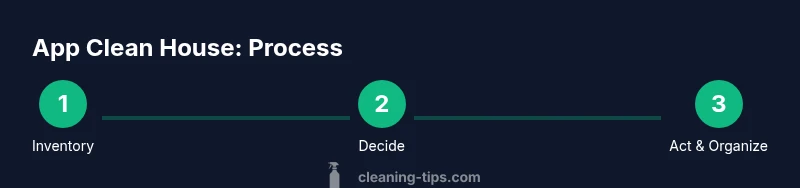
- Inventory your apps by size and usage. Open Settings and sort by size and last used date to identify heavy or dormant apps. This creates a clear list of candidates for keep, offload, or delete. Tip: use a notepad to log decisions for future reference.
- Decide which apps to keep, offload, or delete. Apply criteria such as frequency of use, data relevance, and backup availability. Keep essential tools and remove duplicative or rarely used ones. Tip: offloading preserves app data while freeing space.
- Offload or uninstall to reclaim space. On iOS, enable Offload Unused Apps for automatic cleanup; on Android, use similar features or uninstall voluntarily. Ensure data is backed up if needed before removal. Tip: offloading is safer for data-heavy apps you might reinstall later.
- Clear caches selectively. Access each app’s storage settings to clear cache where it won’t erase login data or saved preferences. This can free substantial space with minimal risk. Tip: avoid clearing data for apps where you rely on local settings.
- Reorganize the app drawer and home screen. Create folders (Productivity, Health, Home, Entertainment) and place frequently used apps within easy reach. Tip: a predictable layout reduces searching time and keeps the app clean house sustainable.
- Reinstall kept apps in a tidy setup. Install the latest versions, customize notifications, and ensure permissions are appropriate. Tip: enable only essential notifications to reduce background activity.
- Schedule a recurring review. Set a calendar reminder for monthly or quarterly audits so the app clean house becomes a habit. Tip: pair with a known date (the 1st of each month) to build consistency.
- Document the process. Maintain a simple checklist to repeat the steps, ensuring you don’t miss caches, data, or new clutter. Tip: review any new apps you install before using them extensively.
Managing Cache and Data Safely
Cache and data are the two biggest recurring culprits of bloated storage. Start by identifying which apps retain large caches and which actually store critical data locally. Clearing cache can reclaim space quickly, but you should avoid clearing data for apps that require login tokens or offline content. Always back up important data before removal, especially for note apps, offline maps, or financial tools. Use built-in OS features when possible, since third-party cleaners can remove settings you rely on or create instability. After clearing caches, reopen key apps to verify they still operate smoothly and re-sync with cloud accounts if needed. The goal is faster load times without sacrificing accessibility to essential information. Cleaning Tips emphasizes that safe data practices protect your information while delivering a cleaner, faster device.
Organizing Remaining Apps: Taxonomy and Folders
With clutter reduced, give your remaining apps a logical organization. Consider taxonomy-based grouping: Productivity, Home automation, Finance, Health, and Entertainment. Use folders or home screen widgets to keep these groups visible and actionable. Rename apps where possible to reflect their purpose (e.g., “Grocery List” instead of “Notes”). This organization makes it faster to locate tools during busy days, which supports a more efficient routine and reinforces the app clean house habit. If you keep smart-home apps, ensure that their permissions are minimized to necessary controls, reducing background activity and further improving performance. A clean taxonomy reduces cognitive load and speeds up task completion during daily routines.
Maintaining a Clean Routine: Habits that Stick
Create a lightweight maintenance routine you can actually keep. Schedule a 10–15 minute monthly audit to review new app installations and evaluate whether any upgrades changed your storage footprint. Enable automatic backups for important data so that deletions don’t cost you information you can’t recover. Keep a running log of decisions to help you refine criteria over time. The ritual should feel like a small, predictable habit rather than a chore. Regular checks reduce the chance of app clutter creeping back and ensure your device remains responsive for important household tasks. Cleaning Tips recommends aligning this routine with your monthly bills or a regular household calendar for consistency.
Troubleshooting Common Issues
If you notice apps behaving unexpectedly after a clean house pass, re-check essential permissions and re-log into accounts where needed. Clearing caches can sometimes sign you out; keep a note of login credentials and recovery options. If an important app was removed by mistake, use your backup to restore it and reconfigure. For persistent storage issues, revisit large media files (photos and videos) stored within apps and consider moving them to cloud storage or your device gallery to reclaim space. If you suspect a misconfigured setting is causing slowdowns, reset app preferences on your device to the default state and perform another prune. Cleaning Tips suggests documenting any fixes you perform so future reviews can be even faster.
iOS vs Android: Practical Differences
iOS and Android handle app data and caches differently. iOS tends to offload unused apps automatically when space is constrained, while Android provides flexible options such as archive or uninstall with data preserved in backups. Users should adapt their approach accordingly: on iOS, enable Offload Unused Apps and review notification settings; on Android, use storage statistics, delete and re-download apps as needed, and manage cache via individual apps or system storage. The core principles remain the same: identify the culprits, preserve essential data, and keep a clear app library. A well-executed app clean house translates to a faster device, less annoyance, and more reliable access to home-management tools.
Tools & Materials
- Smartphone or tablet (iOS or Android)(Ensure device is updated to the latest OS version.)
- Internet connection(Needed for backups and re-downloads.)
- Storage management tool (built-in or OS feature)(Use Settings > Storage to identify large apps and caches.)
- Backup option (iCloud, Google Drive, or PC backup)(Back up before removing or uninstalling apps.)
- List or note of frequently used apps(Helps prioritize what to keep.)
- Notetaking method(Record decisions and keep a quick reference checklist.)
Steps
Estimated time: 60-90 minutes
- 1
Inventory by size and usage
Open the device’s storage settings and sort apps by size and last use. Create a short list of candidates for keep, offload, or delete. This inventory sets the foundation for a lean app ecosystem.
Tip: Sort by size first to identify the heaviest culprits quickly. - 2
Set keep/offload/delete criteria
Define clear rules: keep if you use it weekly; offload if you rarely use it but may need it; delete if it’s a duplicate or unused for months. Apply consistently across both platforms.
Tip: Document criteria to avoid scattered decisions in future reviews. - 3
Offload vs uninstall
Use offloading to preserve data for apps you may reinstall. If data isn’t essential or is backed up, uninstall to reclaim space.
Tip: Offload first for apps you might need later; uninstall only when sure access isn’t compromised. - 4
Clear caches with care
Clear app caches where it won’t erase login credentials or essential preferences. This often yields immediate space savings without data loss.
Tip: Always back up sensitive data before removing app data. - 5
Reorganize your home screen
Create folders and label categories so frequently used apps are easy to reach. A tidy layout speeds up daily tasks.
Tip: Limit the number of home screens to avoid visual clutter. - 6
Reinstall and configure kept apps
Install kept apps with the latest versions and review notification settings. Enable only essential notifications to reduce background activity.
Tip: Review permissions to minimize data collection and background processes. - 7
Schedule the next review
Set a monthly or quarterly reminder to repeat the process. A regular cadence prevents clutter from rebounding.
Tip: Link the review to a recurring household task for consistency. - 8
Document the process
Keep a simple checklist and notes of what was kept, offloaded, or deleted. This makes future reviews faster and more accurate.
Tip: Store the checklist in your preferred note app for easy access.
Questions & Answers
What is an app clean house and why should I do it?
An app clean house is a deliberate process of decluttering your mobile app library, clearing caches, and organizing remaining apps for faster access and better device performance. It helps reduce storage waste and makes daily tasks smoother.
An app clean house is about cleaning up apps and caches so your phone runs faster and is easier to use.
Will clearing an app's cache delete my data?
Clearing an app cache typically removes temporary files and can free space without deleting essential data. Some apps may require you to re-login or re-download content, but your important data is usually preserved in the cloud or the app’s server.
Clearing cache usually frees space and doesn’t erase important data, though you may need to sign back in for some apps.
Is offloading better than uninstalling apps?
Offloading keeps the app’s data on your device, making a re-install quicker if you need the app again. Uninstall removes the app entirely, which frees more space but requires reinstalling to use the app later.
Offloading preserves data; uninstalling removes it entirely, so choose based on whether you anticipate needing the app soon.
How often should I review my apps?
A monthly or quarterly review is recommended. Regular reviews prevent clutter from building up and help maintain device performance.
Most people find a quick monthly check convenient, with a deeper quarterly audit for in-depth cleanups.
What should I do with photos and media stored in apps?
Move important photos and videos to cloud storage or your device gallery to reclaim space within apps. This reduces app sizes while keeping your memories accessible.
Move media out of apps to free space and keep memories safely backed up.
Are there any tools to help with app decluttering?
Use built-in OS features for storage and de-cluttering rather than third-party cleaners. Built-in tools are safer and maintain app data integrity.
Stick to the device’s built-in tools for decluttering to protect data and performance.
Watch Video
The Essentials
- Audit your apps by size and usage to identify clutter.
- Offload caches and uninstall nonessential apps to reclaim space.
- Organize remaining apps with clear categories for quick access.
- Back up data before removing apps and maintain a regular review habit.