How to Get Rid of Clean My Phone App: A Practical Uninstall Guide
Learn how to safely remove the Clean My Phone app from iOS and Android, revoke device admin, and clean up leftover data with a clear, practical checklist.


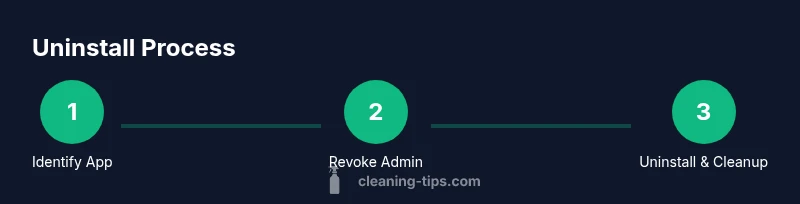
This guide covers how to get rid of clean my phone app on both iOS and Android. You will learn how to uninstall, revoke device admin rights if needed, and clean up leftover data. By following these steps, you can reclaim storage and improve device performance. This article also highlights safe practices and common pitfalls to avoid.
Why removing the Clean My Phone app might be helpful
If your phone feels slower, drains battery faster, or you notice unfamiliar permissions, removing the Clean My Phone app can be worth considering. According to Cleaning Tips, many so-called optimization apps run in the background, monitor usage, and push notifications that can clutter your device. In some cases, these apps misuse permissions or leave behind residual files after uninstallation. This section explains the signs that a cleanup app is not helping and how removing it can improve performance, privacy, and storage space. Before you take action, know that every device behaves differently, and the benefits depend on your app version and OS. If you're unsure, start with a quick backup and a quick scan of your installed apps to confirm whether this particular app is the culprit. The goal is to simplify your device, not strip away essential features.
Before you uninstall: prep steps
Preparation reduces risk. Start with a quick backup of your data, then confirm the exact app name and version. Check if the app has device admin rights or a profile installed, which can block uninstallation on some devices. The Cleaning Tips team also recommends collecting the model and OS version so you can follow OS-specific steps accurately. If you rely on cloud backups, ensure that your account is accessible and that you can restore data if needed. Finally, note any unusual permissions the app requested—these are clues about why you might want to remove it.
How to uninstall on iPhone (iOS)
On iOS, most apps uninstall from the Home screen by long-pressing the app icon and selecting Remove App or Delete App. If the app is managed via a configuration profile or device management (MDM), you may need to remove the profile first under Settings > General > Profiles & Device Management. Ensure you’re signed into the correct Apple ID and that you understand the implications of removing a profile. After deletion, restart your iPhone to finalize the removal and to clear any temporary caches. If you’re unsure whether the app was truly removed, search for it in Settings > General > iPhone Storage and in the App Library. The goal is to have no residual entries left behind.
How to uninstall on Android
Android uninstall paths vary by manufacturer and OS version, but the standard route is Settings > Apps > Clean My Phone > Uninstall. If the app refuses to uninstall, first revoke any Device Admin rights in Settings > Security > Device Admin Apps, then attempt removal again. Some devices require you to disable battery optimization or to clear storage permissions before uninstalling. If the app installed a profile or used a device administrator, you must deactivate that admin status before uninstall. A restart after removal can help ensure all components are cleared.
Clean up leftover data and permissions
Uninstalling an app doesn’t always erase its traces. Look for folders named CleanMyPhone, cache, or data in your internal storage. Use a file manager to delete residual files, but avoid deleting folders that might belong to other apps. On Android, go through Settings > Storage to identify large app caches and clear them if needed. Review app permissions post-uninstall and revoke any lingering permissions that the app had before removal. Finally, check notification settings to ensure you won’t receive reminders about a non-existent app.
Verify removal and troubleshoot
After uninstalling, verify that the app isn’t appearing in your app drawer (iOS) or app list (Android). If you still see lingering prompts, power cycle the device and recheck. If the device was enmeshed with a profile or administrator privileges, double-check that those are fully removed. If issues persist, run a trusted malware or security check from the official app store, and consider contacting customer support for your device. The aim is to confirm clean removal and to prevent future reinstallation without your consent.
Privacy and data considerations after uninstall
Removing the app reduces ongoing data collection, but some data may still reside in cloud backups or secondary accounts. Review connected services and revoke access to any third-party permissions that were granted to the app. If you use cloud backup, inspect backup contents for any remnants and delete them if safe. Consider tightening privacy settings on your device and enabling app installation prompts that require explicit consent. Maintaining awareness of what apps can access helps protect your information.
Alternatives to cleaning apps and safer optimization
Sometimes, manual cleaning offers better results than an all-in-one cleaner. Instead of relying on a single app, periodically review installed apps, clear caches from individual apps, and offload rarely used applications. Use built-in tools like Storage Management, Battery Health, and Free Up Space features provided by your device. Regular maintenance—such as deleting unused photos, large videos, and unused downloads—often yields the best performance without third-party risks. The Cleaning Tips team recommends prioritizing transparency and control over automated cleaners.
Common mistakes and troubleshooting
One common mistake is deleting a system utility or security tool by accident. Always verify the app’s role before removal and avoid tampering with device admin settings unless necessary. Another pitfall is assuming the uninstall completes all cleanup; residual caches can remain. If you encounter unexpected behavior after removal, reset app preferences or perform a soft reset of your device. Finally, never install unknown apps from untrusted sources; stick to official stores to reduce risk.
Tools & Materials
- Phone (iPhone or Android)(Identify OS version to select the correct steps)
- Account credentials(Apple ID / Google account for ownership verification)
- Backup option(iCloud/Google Drive or local backup to preserve data)
- Stable internet access(Needed for backup and app store access)
Steps
Estimated time: 15-25 minutes
- 1
Identify the app and confirm legitimacy
Locate Clean My Phone in your app list. Verify the developer and review recent permissions to ensure you’re targeting the correct app before proceeding.
Tip: Cross-check icons and developer name to avoid removing a similarly named utility. - 2
Back up your data
Back up critical data to your preferred service so you can restore if needed. This protects photos, contacts, and app-generated data.
Tip: If the app stored backups in its own cloud, back those up before uninstalling. - 3
Disable device admin or profiles
For Android, revoke Device Admin rights in Settings > Security > Device Admin Apps. For iOS, remove any Profile/MDM under Settings > General > Profiles & Device Management.
Tip: Admin rights are often what prevents uninstallation; removing them first is usually required. - 4
Uninstall the app
Delete the app from the home screen (iOS) or Apps list (Android) and confirm. If prompted for a final confirmation, accept it.
Tip: If you don’t see Uninstall, check Settings > Apps for a Remove/Uninstall option. - 5
Remove residual data
Search for leftover folders and clear caches associated with Clean My Phone. Use a trusted file manager to avoid deleting essential files.
Tip: Delete only files you recognize to avoid impacting other apps. - 6
Review permissions and notifications
After removal, review remaining app permissions and notification settings to ensure nothing unexpected remains active.
Tip: Revoke permissions that the app previously used to protect your privacy. - 7
Restart and verify
Restart your device to ensure all components are cleared. Reopen the app list to confirm no traces remain.
Tip: A reboot helps Windows-like caches clear on some devices too. - 8
Consider alternatives
If you still want device optimization, choose manual maintenance or trusted built-in tools instead of third-party cleaners.
Tip: Prioritize apps with transparent permissions and solid reviews.
Questions & Answers
Why can't I uninstall Clean My Phone right away?
Some apps request device admin rights or install profiles that block uninstallation. Disable these rights or profiles first, then try removing the app again.
Uninstalling may be blocked by device admin rights or a profile, so disable those first and retry.
Is it safe to remove this app?
If you don’t rely on it for essential functions, removing it is generally safe. Always back up data and review permissions before uninstalling.
Yes, as long as you’ve backed up data and aren’t removing essential tools.
What should I do if I still see traces after uninstall?
Check for leftover files or caches in storage, and remove any named CleanMyPhone or related folders. Restart the device to clear caches.
Look for leftover files and restart to clear caches.
Can I reinstall Clean My Phone later?
Yes, you can reinstall from the official app store if you decide you want it again. Review permissions carefully during reinstallation.
Yes, you can reinstall from the official store any time.
What if the app was pre-installed by the manufacturer?
Some devices ship with pre-installed cleaner apps. If so, you may not be able to fully uninstall, but you can disable notifications and clear data. Consider a factory reset only if you understand the consequences.
If it’s pre-installed, you may not fully uninstall it, but you can disable it and clear data.
Does uninstalling improve device performance?
Uninstalling unnecessary cleaning apps can reduce background activity and improve performance, but actual gains vary by device and usage.
It can help, but gains depend on your device and how you use it.
Watch Video
The Essentials
- Identify and verify the app before removing it
- Back up data to prevent loss
- Revoke admin rights and profiles when needed
- Uninstall from the OS, then clear leftovers
- Review privacy settings and avoid unnecessary cleaners