Clean Storage on Phone: A Practical Step-by-Step Guide
Learn practical methods to clean storage on your phone. Back up data, trim apps, offload media, and maintain space with expert guidance from Cleaning Tips. A safe, detailed workflow for homeowners and renters.


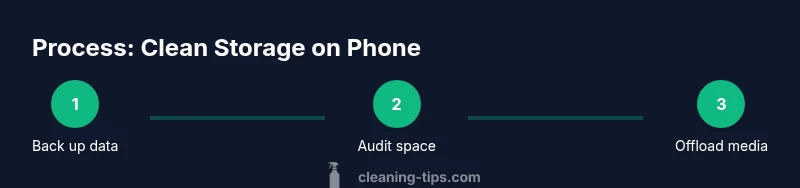
You can clean storage on your phone by backing up first, then trimming apps, photos, and media. Review downloaded files, clear cache, remove duplicates, offload unused apps, and move photos and videos to cloud or a computer. Finish with a quick device restart and recheck available space. This approach avoids data loss and keeps critical apps intact.
Why cleaning storage on phone matters for health and performance
According to Cleaning Tips, clean storage on phone is essential for performance, privacy, and battery life. When storage is cluttered, apps slow down, updates may fail, and you risk data loss during backups. A tidy device reduces crashes, improves app launch times, and makes it easier to find what you need. The Cleaning Tips team found that many users treat caches or downloads as free space, which leads to confusion and ineffective cleaning. In this guide, you’ll learn a practical, safe workflow to reclaim space without erasing what you actually rely on. We’ll cover how to audit space, back up data, separate what to delete from what to keep, and establish simple maintenance habits that prevent reaccumulation. By following these steps, you’ll enjoy a healthier phone with faster performance and less stress when managing apps and media.
Auditing space usage: identify biggest culprits
A thorough audit helps you target the items that truly eat storage. Start with a quick look at installed apps and their data sizes, then review photos, videos, and audio files. Don’t forget downloads, offline maps, and messaging attachments that linger. A useful approach is to categorize by app, media type, and file type, listing candidates for deletion or offloading. Keep in mind that some apps store data in the cloud; you can often remove local copies to free space while preserving access. The Cleaning Tips team emphasizes documenting what you remove, so you can restore it if you hadn’t intended to delete something important. By identifying the top offenders, you’ll know where to focus your cleanup and avoid tinkering aimlessly.
Back up first before you clean
Before touching any data, back up your device. The safest path is to create a recent backup to a cloud service or a computer, then verify the backup contents. This reduces the risk of data loss if you delete something you later need. If you’re on iOS, enable iCloud Backup or a local backup; on Android, use Google Drive or a desktop backup. The Cleaning Tips team notes that backups should include essential files, contacts, photos, and app data where possible. With a reliable backup, you can proceed confidently through each step of the storage clean without fear of irreversible mistakes.
Built-in tools vs third-party cleaners: which to trust
Rely on built-in storage management tools first. They’re designed to work with your device’s file system and typically offer safer, more transparent options than third-party cleaners. For many users, built-in features such as offload unused apps, clear cache, and review large files meet most needs. If you consider third-party apps, choose reputable options from official app stores, review permissions, and avoid cleaners that promise drastic space gains with questionable privacy practices. Remember that trust and data privacy come first; no tool can recreate lost data or undo careless deletions.
Large media: move to cloud or computer
Photos and videos often dominate storage. A practical strategy is to offload or back up your media to cloud storage or a computer, then remove local copies. Start with recent files, then work backward until you reach a comfortable free space threshold. If you shoot in high resolution or 4K, consider converting to optimized formats for ongoing access. Many devices offer settings to automatically back up new media; enabling this can save you time, reduce manual effort, and ensure new captures don’t pummel storage again. After relocating media, verify you can still access files from the cloud or computer when needed.
App management: offload or delete
Unneeded apps and their data can quietly consume space. Decide whether to offload or delete each app based on usage. Offloading preserves app data and settings while removing the app binary, freeing space. If you rely on an app only occasionally or don’t use it, offload it; otherwise, delete. Repeat for messaging apps that retain large attachments, game apps with large caches, and productivity tools with local documents. After you clean, launch each app to confirm it still works if you’ve offloaded; you may need to re-download from the store. Offloading is especially useful on devices with limited storage.
Cache and data clearance: how and when
Clearing app caches can reclaim space without deleting essential data, but you should do it thoughtfully. Start with apps that generate large caches, like browsers and media apps. Go to each app’s settings and clear cache or data as appropriate. Note that clearing data resets preferences and may require re-logging in. If an app relies heavily on local data for offline use, weigh the benefit of cache cleanup against potential friction. The aim is to reduce redundant stored information while preserving core content.
Downloads and offline content: streaming apps
Streaming apps often store offline playlists, movies, or podcasts that consume substantial space. Review each streaming service’s download settings and remove items you no longer need. Consider re-downloading essential content only when you’re connected to Wi-Fi and have ample space. For music and podcasts, enable auto-delete of played episodes or set a fixed expiration date for offline files. Keeping offline content lean helps prevent future storage pressure while still keeping your favorite media accessible.
Privacy and security during cleanup
As you delete files and offload apps, you may expose sensitive data if backups aren’t protected. Ensure you enable device encryption, use strong passwords, and verify backup privacy settings. If you’re handing the device to someone else, perform a thorough sign-out from accounts and remove offline content. Cleaning Tips notes that your data must be secure during the cleanup process; use trusted networks and avoid public Wi-Fi for backups. After cleanup, review app permissions and revoke access for unused apps.
Maintenance habits to keep storage lean
Prevention beats cleanup, so adopt simple habits to maintain free space. Schedule a monthly audit to review large files and unused apps. Enable automatic backups for media, and set up cloud storage with predictable syncing. Regularly clear caches in browsers and apps that accumulate data quickly. Create a small, repeatable workflow so you don’t revert to clutter. With consistent habits, you’ll enjoy a consistently clean storage on phone and less downtime looking for space.
Troubleshooting: space not freeing up after cleanup
If space remains tight after a cleanup, re-check backups and hidden folders. Sometimes system caches or hidden app data reappear after updates. Verify you haven’t left app data in your cloud twice, and examine app-specific folders in your file manager. If in doubt, reset network settings and re-run selective cleanup. In persistent cases, consult your device’s support resources or perform a factory reset as last resort after verifying backups.
Final checklist before closing
Before you finish, confirm you have a recent backup, a clear list of what was deleted or offloaded, and a plan for ongoing maintenance. Reboot the device and check that apps open normally and you can access media via cloud or local storage as expected. Record any exceptions or items you chose to keep in the cloud for easy retrieval. A final pass can help lock in the gains and prevent reaccumulation in the coming weeks.
Tools & Materials
- Smartphone(Device to manage storage)
- Microfiber cleaning cloth(For screen and camera lenses)
- Backup method(Cloud backup or computer backup before changes)
- Backup solution(Ensure backup is current)
- Stable internet connection(Needed for cloud backups and app updates)
Steps
Estimated time: 60-90 minutes
- 1
Back up your data
Create a recent backup to the cloud or a computer, then verify the backup contents. This protects your information if you delete something important. Ensure essential files, contacts, and photos are included.
Tip: Use a secondary backup if possible (both cloud and local) for extra safety. - 2
Audit before you delete
Survey apps and files by size and usage. List candidates for removal or offloading, focusing on those with large caches or little recent activity. Document decisions so you can revert if needed.
Tip: Start with largest space users first to gain the biggest wins quickly. - 3
Review large media files
Sort photos and videos by date and size. Move recent media to cloud or computer, then delete local copies. Consider compressing high-res files if you need ongoing access.
Tip: Back up before compressing to avoid quality loss you might regret. - 4
Offload or delete unused apps
Offload apps you rarely use to keep data intact while freeing space. Delete apps you no longer need while preserving cloud data where possible.
Tip: Test offloading a few apps first to ensure you didn’t rely on offline data. - 5
Clear caches strategically
Clear cache for apps with large cached data (browsers, social apps) while avoiding data-critical apps. Understand that clearing cache may require re-logging into services.
Tip: Only clear cache for apps you’re comfortable re-authenticating. - 6
Manage offline content
Review downloads in streaming apps and remove items you won’t need. Re-download later if necessary when connected to Wi-Fi and space is available.
Tip: Enable auto-delete for played items when supported. - 7
Protect your privacy
Ensure backups are encrypted and devices are secured. Sign out of accounts before giving the device to others and remove sensitive offline content.
Tip: Use a strong device passcode or biometric lock. - 8
Set maintenance reminders
Schedule monthly or bi-weekly cleanups to prevent reaccumulation. Keep a running list of what’s stored in the cloud vs locally.
Tip: Use calendar reminders or a cleaning checklist app. - 9
Test after cleanup
Restart the device and open a few key apps to confirm they work. Check that media can be accessed from cloud/recent backups.
Tip: If an app fails, re-download from the store and verify login details. - 10
Last resort: factory reset
Only perform a factory reset if space is severely constrained and backups are verified. This should be your final option after careful consideration.
Tip: This will erase all data; ensure you truly have everything backed up before proceeding.
Questions & Answers
What does 'clean storage on phone' mean?
Cleaning storage means reclaiming space by removing or moving unneeded apps, files, and data while preserving essential information. It involves a safe backup, targeted deletions, and regular maintenance.
Cleaning storage on a phone means reclaiming space by removing unneeded data after backing up, then maintaining it with regular checks.
Will cleaning storage delete apps?
Cleaning storage may involve uninstalling or offloading apps you don’t use often. Offloading keeps data and settings, while uninstalling removes the app entirely. Always back up first.
You may offload or delete apps you don’t use, but back up first to avoid data loss.
How often should I clean storage on my phone?
Aim for a monthly or bi-monthly check, especially if you frequently download media or install new apps. Set reminders to run a quick audit and maintain space.
Monthly checks help you keep storage at healthy levels without last-minute scrambles.
Is it safe to use third-party cleaners?
Use reputable apps if you choose third-party cleaners, and limit permissions. Prefer built-in tools first, as they are typically safer and more transparent.
Stick to trusted apps and prefer built-in tools for safety and privacy.
Should I factory reset to clean storage?
Factory reset is a last resort if space remains unavailable after a thorough backup and cleanup. It erases all data, so verify backups carefully.
Only consider a factory reset if you’ve exhausted other options and have a verified backup.
How can I back up data before cleaning?
Back up to cloud storage and/or a computer. Verify that key files, contacts, and photos are included and accessible after the backup.
Back up to both cloud and computer if possible, then confirm the backup contents.
Watch Video
The Essentials
- Back up first, then clean with purpose.
- Move media off-device to free the most space.
- Offload before deletion to preserve data.
- Clear caches thoughtfully to avoid repeat work.
- Establish recurring cleanups for ongoing space control.