How to Remove Cleaning Apps on Android: Quick Guide
Learn practical steps to remove cleaning apps on Android, uninstall or disable bloatware, reclaim storage, and protect your privacy with a safe, step-by-step approach.


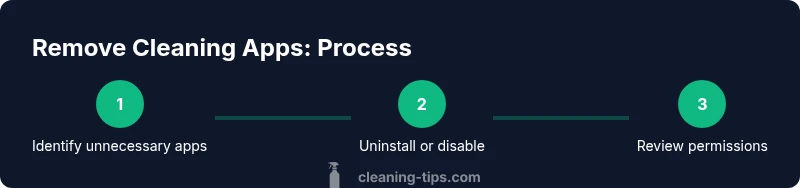
By the end of this guide, you’ll confidently remove unwanted cleaning apps from your Android device, reclaim storage, and prevent re-installation. You’ll learn how to uninstall, disable, and manage preinstalled bloatware, plus privacy and battery considerations. Follow the step-by-step process to complete the cleanup quickly and safely. Whether you’re dealing with space shortages, performance issues, or privacy concerns, this guide equips you with practical, tested methods and safety tips.
Why Cleaning Apps Drain Device Performance
Android devices manage apps by constantly running background services, monitoring storage, and syncing data. Cleaning apps, in particular, can paradoxically clutter your system: they may schedule frequent scans, create persistent notifications, and keep aggressive auto-clean routines that run even when you’re not using them. Over time, these processes consume CPU cycles, memory, and battery life. The Cleaning Tips analysis shows that many users notice slower performance, longer startup times, and unexpected data usage after installing several cleaning apps. The goal of this section is to help you recognize signs that these apps are affecting your device, so you can make informed decisions about uninstalling or disabling them. You don’t need to remove every utility—focus on those that offer real value and that you actually use. In short, unnecessary cleaning apps are often more harmful than helpful.
According to Cleaning Tips, such apps are frequently installed during app recommendations or bundled with other utilities. Keeping only essential tools helps your device stay fast and your data private.
Quick Path: Uninstall vs Disable
When you’re cleaning up space, you’ll typically face two options for each app: uninstall or disable. Uninstall removes the app, its data, and its updates (where supported). Disable hides the app from your launcher and prevents it from running in the background, but the software may still receive updates or reinstall automatically after major OS changes. For system apps, uninstalling is often not possible without root or special tools, so disabling is the safer long-term option. In some cases, clearing the app’s data and cache can also free space without removing the app entirely. The key is to choose the option that aligns with how often you use the tool and whether you rely on its functionality.
How to Uninstall Cleaning Apps
The simplest path is to use the Android Settings app: go to Settings > Apps & notifications > See all apps, select the cleaning app, and tap Uninstall. If Uninstall is grayed out, try force stopping, then Clear cache and Clear data before attempting removal again. Some devices require you to first remove device administrator rights or to navigate to a separate Admin apps screen. Always back up important data before removing, since some apps can store preferences or saved configurations.
Managing Preinstalled Apps and Bloatware
Preinstalled or OEM-apps can feel like mandatory guests on your device. The long-term strategy is to disable rather than attempt to delete them. Disabling prevents updates and hides the app from your app drawer, reducing clutter without risking system stability. If an app refuses to disable, look for a software update or a factory reset option that’s appropriate for your device. Some manufacturers allow removal via a dedicated 'Uninstall updates' option that reverts the app to its factory state before you can disable it.
Freeing Storage Without Removing Useful Apps
Before you remove anything, consider light, reversible actions that reclaim space. Clear the caches of the cleaning apps you’re keeping (or all apps, if you like), delete unnecessary files, and review large downloads or offline data stored by apps. Use Android’s built-in Storage settings to see which apps consume the most space and remove large cache directories. If you rely on certain tools, you can switch to lighter alternatives and reduce background activities. This approach minimizes risk while still freeing up valuable storage.
Privacy, Permissions, and Battery After Cleanup
Uninstalling or disabling cleaning apps can improve privacy and battery life, but it’s worth auditing remaining apps’ permissions. Review which apps still have location, contacts, or microphone access, and revoke unnecessary permissions. Also consider enabling system-wide privacy and security features, such as Google Play Protect and app permission reminders. Regularly updating your OS and apps helps prevent security vulnerabilities that cleaners might exploit. A clean device is safer and speeds up daily use.
Troubleshooting and When to Seek Help
If cleanup causes unexpected behavior—like apps reappearing after a reboot or during OS updates—start by checking if any app is listed as a device administrator and revoke that privilege. If issues persist, boot into Safe Mode to determine whether third-party apps are triggering problems and perform a targeted uninstall from there. When in doubt, seek help from the device manufacturer’s support resources or trusted community forums. Restoring to factory settings is a last resort, but it can resolve stubborn software conflicts when carefully planned.
Tools & Materials
- Android smartphone(Any modern model; ensure it’s charged)
- Backup method(Google account backup or local backup for data)
- Internet connection(For OS/app updates and verification)
- USB cable or computer (optional)(If you plan to use a computer for management)
Steps
Estimated time: 20-40 minutes
- 1
Identify target apps
Open Settings > Apps & notifications to review installed apps. Note those related to cleaning or optimization and decide which ones are truly unused or unnecessary.
Tip: Take a quick screenshot of each app’s details for reference before removing. - 2
Uninstall user-installed cleaning apps
Select the app from the list and tap Uninstall. If prompted, confirm removal and allow the system to finish the process.
Tip: If Uninstall is unavailable, move to Step 3 instead of forcing removal. - 3
Disable non-removable apps
For apps that can’t be uninstalled, tap Disable to stop all activity and hide the app from the launcher.
Tip: Disable updates for these apps if possible to prevent reactivation. - 4
Clear data and cache for the ones you keep
Go to each app’s storage settings and clear cache and data where appropriate. This can reclaim space without deleting the app’s future settings.
Tip: Clearing data may reset preferences; back up if needed. - 5
Review device admin rights
Check Settings > Security > Device admin apps and revoke rights if you no longer need them for any app.
Tip: Device admin rights can prevent removal; disabling them is often the key step. - 6
Reassess remaining apps
Open Storage settings and recheck the space freed. Consider replacing heavy cleaners with lightweight alternatives.
Tip: Keep a watchlist of apps you intend to avoid reinstalling.
Questions & Answers
Can I remove any cleaning app on Android?
Most user-installed cleaning apps can be uninstalled via Settings, but some preinstalled or system apps may require disabling or special steps.
Most cleaning apps can be uninstalled, but some built-ins may require disabling.
What should I do if uninstall is greyed out?
If uninstall isn’t available, disable the app and clear its data. You may also need to revoke device admin rights or seek a OEM-specific method.
If uninstall isn’t available, disable and clear data, then recheck admin rights.
Is it safe to disable preinstalled apps?
Disabling reduces activity and hides the app without removing system components. It’s generally safe, but avoid disabling critical system services.
Disabling is safe for non-critical apps; avoid touching core system services.
Will removing cleaning apps improve battery life?
Yes, removing or disabling background cleaners reduces CPU usage and background scans, which can extend battery life.
Removing these apps can help battery life by reducing background activity.
Do I need a Google account to uninstall apps?
A Google account is not required to uninstall apps; it’s only needed for backups and app purchases. You can remove apps without one.
No account needed to uninstall; use Settings to remove apps.
Can I reinstall a cleaned app later?
Yes, you can reinstall any app later from the Google Play Store if you changed your mind.
You can always reinstall apps from the Play Store if needed.
Watch Video
The Essentials
- Uninstall unused cleaning apps to reclaim space
- Disable apps when uninstall isn’t possible
- Clear cache and data to maximize storage gains
- Review app permissions for privacy and security
- Regularly reassess after OS updates