How to Clean a Phone Virus: A Practical How-To for Smartphones
Learn to clean a phone virus on Android and iPhone using trusted scanners, OS updates, and safe resets. This practical Cleaning Tips guide covers steps, tools, and prevention.


You can remove a clean phone virus by scanning with reputable security software, updating the OS, and removing suspicious apps. This guide shows step-by-step actions to clean Android or iPhone viruses and offers prevention tips to minimize future infections. It also explains when you should back up data and how to verify the safety of each app before install.
How phone viruses happen and how they spread
Phone viruses can slip onto devices through apps from unofficial sources, malicious links, or insecure public networks. They often masquerade as legitimate apps or system updates, then quietly harvest data, display ads, or reroute traffic. The Cleaning Tips team notes that many infections start with user behavior—sideloading apps, granting excessive permissions, or connecting to untrusted Wi-Fi. For iOS, spyware can ride in seemingly legitimate apps or configuration profiles; for Android, malware frequently hides in disguised APKs or misbehaving background services. The best defense is a combination of skepticism and layered protection: avoid sources you don’t trust, keep software updated, and minimize permissions granted to each app. Regular checks of installed apps, battery usage, and data consumption can reveal anomalies early. A monthly audit of your device can prevent many infections and make subsequent removal easier. If you’re unsure about a newly installed app, pause its use and research its legitimacy before continuing.
Signs your phone is infected and how to verify
Infection indicators vary, but there are common signals you should not ignore. Unexplained data usage, sudden ads that pop up outside apps, unexpected device heat, slower performance, and frequent app crashes can all point to malware. Also watch for unfamiliar screen overlays, new icons you didn’t install, and apps you don’t remember granting permission to. If you notice these symptoms, run a malware scan with a trusted security app from the official store. Check for recently installed apps and revoke permissions for anything suspicious. On iOS, review profile and device management settings; on Android, inspect device administrators. Based on Cleaning Tips analysis, pairs of unusual behavior plus new app activity are strong red flags. After scanning, delete any detected threats and restart the device to ensure changes take effect.
Essential tools and apps you should have
A clean phone virus response starts with the right tools. Keep a reputable security app installed from the official app store, and enable automatic updates so you always have the latest protections. Maintain a backup storage option, either cloud-based or on a computer, so you can restore data if a reset becomes necessary. Use a password manager to keep accounts secure, and configure your browser with privacy features to reduce tracking and risky sites. Finally, have a trusted, offline map of your installed apps so you can spot anything unfamiliar quickly.
Step-by-step overview of the cleaning flow
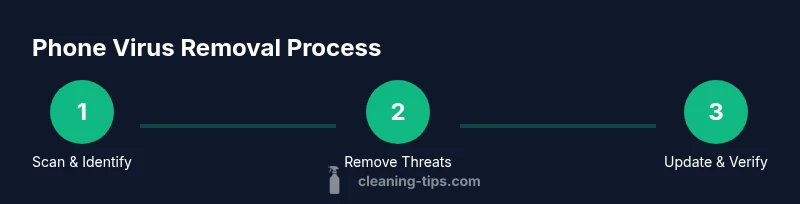
Although the detailed steps are listed in the dedicated STEP-BY-STEP section, here’s the high-level flow you’ll follow: detect suspicious activity and isolate the device from networks; run a malware scan and review results; remove malicious apps and revoke questionable permissions; update the OS and apps; back up data; if necessary, perform a factory reset and reinstall only verified apps; verify the device is clean after restoration and monitor for signs of reinfection.
Scanning and removing suspicious apps
Start with a full-security scan using a trusted mobile security app. If threats are detected, review each item carefully: some legitimate apps may be flagged incorrectly, so verify the source, developer, and permissions before uninstalling. Uninstall all apps that are unfamiliar, newly installed, or requesting unusual permissions. After removal, reboot the device to apply changes and re-run a scan to confirm the device is clean. Revoke permissions granted to any app you don’t recognize during the audit.
Keeping your OS and apps up to date
OS and app updates patch known vulnerabilities. Enable automatic updates where possible and periodically check for updates if you disable auto-updates. Update all installed apps from the official store, and review app permissions after each update since fresh versions sometimes request new access. Keeping your devices current dramatically reduces the window of opportunity for malicious software to operate.
Data backup and safe resets: preserving what matters
Before performing any major action like a reset, back up important data to a secure location. Verify your backup integrity by restoring a sample file to ensure it’s retrievable later. If you must reset, choose a factory reset only after confirming the infection persists through other clean-up steps. After a reset, reinstall apps only from official sources and re-enable security measures such as two-factor authentication to reduce future risks.
Prevention strategies to avoid future infections
Establish a habit of avoiding untrusted sources, especially when sideloading apps. Practice safe browsing, disable unknown permission requests, and review app permissions regularly. Turn on device encryption and enable a trusted anti-malware shield. Consider enabling a privacy-focused browser and using a password manager to minimize credential leakage. Regularly revisit your security settings to adapt to new threats.
Final verification and next steps
After completing cleaning steps, perform a final scan and monitor the device for several days to confirm stability. The Cleaning Tips team recommends documenting the steps you took for future reference and maintaining a routine of monthly device audits. If issues recur, seek professional help and avoid reintroducing risky apps. Ongoing vigilance is the best defense against phone viruses.
Tools & Materials
- Trusted mobile security app(Choose a reputable scanner from the official app store; avoid credential-stealing or dubious tools.)
- Backup storage (cloud or computer)(Back up photos, contacts, and essential data before major changes.)
- Password manager(Store and generate strong passwords; enable two-factor authentication where available.)
- Official OS and app updates(Enable automatic updates to close security gaps.)
- Uninstaller tool or access to official app store(Use when you need to forcefully remove stubborn or suspicious apps.)
Steps
Estimated time: 45-90 minutes
- 1
Run a malware scan
Launch a reputable security app and run a full device scan. Review detected items carefully and record any actions you take. If a threat is detected, note its name and source before removing it.
Tip: If the scan flags legitimate apps, verify their source before deletion to avoid removing essential software. - 2
Review recently installed apps
Go through the list of recently added apps and uninstall anything you don’t recognize or that requested unusual permissions. Pay attention to apps installed around the time you started noticing issues.
Tip: Research unfamiliar apps quickly—many legitimate apps have similar-sounding names or icons. - 3
Update OS and apps
Install the latest OS and app updates to patch vulnerabilities. Enable automatic updates so future patches install without delay.
Tip: After updates, restart the device to ensure changes take effect. - 4
Clear data and revoke permissions
Clear browser data, reset default search engines if needed, and revoke suspicious permissions granted to unfamiliar apps. This reduces hidden access points for malware.
Tip: Only re-grant permissions to apps you trust and primarily need them for function. - 5
Back up data before major changes
Back up critical data to a secure location. Verify some files can be restored later before proceeding with a reset.
Tip: Test restore of a few files to ensure your backup works as expected. - 6
Factory reset if issues persist
If infection remains after prior steps, perform a factory reset. This is a last resort and should be followed by clean reinstall of only trusted apps.
Tip: Do not restore apps from backup if you suspect infection; reinstall from official sources. - 7
Reinstall and verify
Reinstall apps from official stores and re-run a security scan. Confirm the device behaves normally before resuming typical use.
Tip: Keep security software active and monitor device behavior for several days.
Questions & Answers
What counts as a phone virus?
A phone virus is malware that secretly runs on your device to steal data, show ads, or control functions. It often arrives via malicious apps, phishing links, or insecure networks. Detecting it usually requires a security scan and analyzing abnormal device behavior.
A phone virus is malware on your device that steals data or shows unwanted ads; use a security app to detect it.
How can I tell if my phone is infected?
Look for signs like sudden data spikes, excessive pop-ups, faster battery drain, or laggy performance. Unfamiliar apps or device behavior can also indicate infection. Run a trusted security scan and review recently installed apps.
Unusual data use, pop-ups, or slow performance can signal an infection; run a scan to confirm.
Can I remove a virus without factory resetting?
Often yes. Start with a malware scan, uninstall suspicious apps, revoke suspicious permissions, and update the OS. If problems persist, a reset may be required, but try all non-destructive steps first.
Yes, usually you can remove malware without resetting, but a reset might be needed if issues continue.
Will antivirus apps slow down my phone?
Most reputable antivirus apps run lightweight background scans without significantly affecting speed. Some heavy scans can temporarily impact performance, especially on older devices.
Most antivirus apps are lightweight, but a full scan may slow your device briefly.
Should I reset network settings after cleaning?
Resetting network settings can help remove malicious configurations, especially after infections. Reconnect to secure networks and re-enter passwords carefully.
Resetting network settings can help fix lingering configuration issues after cleaning.
Watch Video
The Essentials
- Back up data before major changes.
- Update OS and apps regularly to close gaps.
- Remove suspicious apps promptly and verify legitimacy.
- Factory reset only as a last resort.
- Practice safe browsing to prevent infections.