Clean the Phone Virus: A Practical DIY Guide
Remove phone malware with a DIY approach from Cleaning Tips: scan, back up, update, review apps, and follow safety guidelines to prevent reinfection.


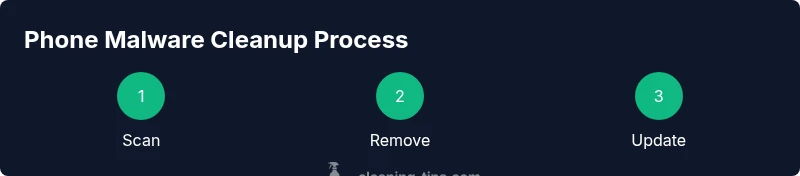
By following this guide, you’ll clean the phone virus and restore control over your device. Start with a complete backup, run a full antivirus scan, review installed apps, clear caches, and update the OS. If malware persists, reset network settings or perform a factory reset as a last resort, using trusted tools.
What is a phone virus and how it behaves
Phone viruses, often called mobile malware, are programs that sneak onto devices through apps, links, or insecure networks. They can steal data, send messages, or hijack resources. Signs include sudden battery drain, unusual data usage, apps crashing, unknown pop-ups, unfamiliar icons, and slow performance. The Cleaning Tips team notes that infections frequently ride on legitimate-looking apps or bundled downloads. To clean the phone virus effectively, you must understand its behavior: it hides in background processes, requests excessive permissions, and may masquerade as system updates or security alerts to avoid detection. Recognizing these patterns helps you identify when cleaning is necessary and reduces the risk of data loss. The goal is to interrupt the malware’s foothold, remove the offending code, and restore trusted functionality. In many cases, a clean-up is possible without a factory reset, but some stubborn strains require deeper action. The following sections outline a structured approach that balances caution with thoroughness. For homeowners and renters, this means treating your mobile device with the same care you give a laptop: regular updates, trusted protective software, and mindful app management are part of daily life. According to Cleaning Tips, proactive maintenance is the best defense against future infections.
Quick-start safety check before cleaning
Before you touch your device, perform a safety-first review to minimize risk. Ensure your phone is charged to at least 50% to prevent shutdowns mid-scan. Back up all important data to a secure location, such as cloud storage or a computer, so you can recover if data is lost during cleanup. Sign out of sensitive apps for extra protection and disable any unknown device profiles or VPNs that you do not recognize. If you share your phone with others, consider enabling a guest mode and limiting app installations until you finish the clean. This stage reduces the chance of spreading malware to backups or misconfiguring settings during cleanup. Cleaning Tips analysis shows that most infections begin from a compromised app or link; taking precautions here limits further damage and makes subsequent steps safer.
Essential tools and safety practices
You will need a few reliable tools to clean the phone virus effectively. A trusted antivirus app designed for mobile devices, installed from official stores, is essential for a comprehensive scan. A secure backup method (cloud or local) protects your data if remediation requires a reset. A stable charging cable, a clean notebook of installed apps, and knowledge of recent downloads help you review the likely culprits. Keep your system and apps up to date; OS updates often patch security gaps that malware exploits. When you test apps, review permissions and avoid reinstalling software that behaved suspiciously. If you suspect firmware-level infection, avoid fidgeting with risky tools and consult professional help. Cleaning Tips analysis shows that the safest approach combines strong protection with careful review of installed apps and permissions.
Post-cleanup verification and prevention
After you finish remediation, verify that the infection is gone and set up safeguards to prevent reinfection. Run another full scan with your antivirus, monitor battery and data usage for a week, and re-check app permissions for anything unusual. Reinstall essential apps from trusted sources only, and consider enabling automatic OS updates to close known security gaps. Clear browser caches and review recently installed extensions or profiles that could reintroduce risk. Keep a log of changes you made during cleanup so you can retrace steps if problems recur. This phase helps ensure long-term cleanliness and reduces the chance of returning malware.
When to seek professional help
If malware persists after following these steps, or you suspect deeper compromise such as firmware-level infection, seek professional help promptly. A technician can perform advanced malware removal, badge checks, and secure factory reset if needed, while preserving user data where possible. If you are unsure about any step, contact the device manufacturer’s support or a trusted service. Early professional intervention can prevent data loss and further exposure. The Cleaning Tips team recommends not forcing a risky repair yourself if you are uncertain about the device’s integrity.
Tools & Materials
- Phone antivirus app (trusted)(Install only from official app stores; keep it updated.)
- Backup method (cloud or local)(Back up before cleaning; verify each file is safe.)
- Charging cable and power source(Keep device charged during scans (at least 50%).)
- List of recently installed apps(Use to identify potential culprits.)
- Secure internet connection(Avoid public Wi-Fi during cleaning; prefer trusted networks.)
Steps
Estimated time: 30-60 minutes
- 1
Back up your data and prepare the device
Create a complete backup to cloud or local storage, then verify accessibility. Ensure the device is charged to at least 50% to prevent interruptions during scanning.
Tip: Back up first to avoid data loss during remediation. - 2
Run a full device scan with a trusted antivirus
Open the antivirus app and run a full device scan, including all apps and files. Allow the scan to detect both malware and unwanted adware that could indicate a compromise.
Tip: Choose a deep or full-scan option for best coverage. - 3
Review and remove suspicious apps
Check recently installed apps and permissions; uninstall anything you don’t recognize or that requests unusual access.
Tip: If in doubt, search the app name online before removing. - 4
Clear caches and data for risky apps
In the phone settings, clear cache/data for apps flagged by your scanner or those with excessive permissions. Reboot after clearing.
Tip: Only clear data for apps you trust to avoid losing important information. - 5
Update OS and apps to latest versions
Check for and install the latest OS and app updates. Updates fix security gaps that malware exploits and reduce reinfection risk.
Tip: Enable automatic updates where possible to maintain protection. - 6
Reset network settings
Reset network settings to remove rogue configurations, VPNs, or tampered certificates. This helps prevent reentry vectors for malware.
Tip: This step does not erase your personal data, but you may need to reconnect networks. - 7
Factory reset as a last resort
If malware persists after all cleanup steps, perform a factory reset and reinstall essential apps from trusted sources. Scan again afterward.
Tip: Back up selectively and restore only essential data after confirming device cleanliness.
Questions & Answers
How can I tell if my phone has a virus?
Common signs include slow performance, unusual data usage, ads, and battery drain. Run a reputable scan to confirm.
Common signs include slow performance and unusual ads; run a scan to confirm.
Is factory reset always necessary?
Factory reset is a last resort if malware persists after other steps. Back up data first.
Only if other steps fail; back up first.
Can I clean a virus without losing data?
Many infections can be cleaned without a reset by removing malicious apps and clearing caches, but some firmware infections may require a reset.
Often yes, but some cases need a reset.
Which apps are safe to trust?
Install antivirus from reputable developers and avoid apps with low ratings or excessive permissions.
Use reputable antivirus and avoid shady apps.
How often should I scan my phone?
Scan after installing new apps, before sharing data, and monthly as part of regular maintenance.
Scan after changes and monthly maintenance.
What should I do if the issue returns?
Revisit the steps, review recent downloads, and consider professional help if reinfection recurs.
If it returns, review steps and consider help.
Watch Video
The Essentials
- Back up data before cleaning
- Scan with trusted antivirus
- Review apps and permissions
- Update OS and apps regularly