How to Check Cleaning Fee on Airbnb: A Step-by-Step Guide
Learn how to locate and understand the cleaning fee on Airbnb listings, so you budget accurately and compare total costs before booking. This step-by-step guide covers desktop and mobile views, plus practical tips to avoid surprises.


By the end of this guide, you will know exactly how to locate and interpret the cleaning fee on any Airbnb listing. You’ll learn where the fee appears in the price breakdown on desktop and mobile, how it differs by listing type and location, and how to compare total costs across similar stays before booking.
What is a cleaning fee on Airbnb and why it exists
According to Cleaning Tips, a cleaning fee is a one-time charge that hosts add to cover the costs of preparing a space for guests after checkout. It helps hosts offset the time, supplies, and turnover tasks involved in cleaning between stays. The fee is typically shown as a separate line in the listing’s price breakdown and is applied per booking rather than per night. Cleaning Tips analysis shows that while many hosts use a modest fee, others set higher amounts for larger spaces or for high-demand periods. The key takeaway is that the cleaning fee is not a hidden extra; it’s a defined portion of the total price intended to reflect the effort of cleaning between guests. Understanding this helps homeowners and renters anticipate what they’ll pay and plan accordingly, especially when comparing multiple listings with different fee structures.
Where you’ll see the cleaning fee on a listing
The cleaning fee appears in the price details section of a listing. On desktop, you’ll typically find it under the price breakdown, labeled clearly as Cleaning fee or Cleaning. On mobile, tap price details or See price breakdown to reveal the same line. Some listings may show the fee only after you click through to the totals in the checkout panel. It’s important to distinguish the cleaning fee from other charges like service fees or taxes, because those line items can affect your overall budget. If you’re comparing several listings, make sure you’re looking at the same date range and the same number of guests; otherwise, the cleaning fee can appear different due to stay length or guest count.
How cleaning fees are calculated and who sets them
Hosts set the cleaning fee in their listing configuration, and it can vary widely even within the same city. The amount is a one-time charge per booking, not per night, and it’s designed to cover post-stay cleaning costs. Fees may vary based on space size, the number of bedrooms, or special cleaning needs (like pet-friendly accommodations). Some hosts include eco-friendly cleaning products or enhanced turnover services in the fee, while others keep it minimal. While there’s no single rule for calculation, the trend is that larger properties or more intensive cleaning requirements tend to have higher fees. As a guest, you should view the fee as part of the overall value proposition of the listing, not an afterthought.
Step-by-step: checking cleaning fee on desktop
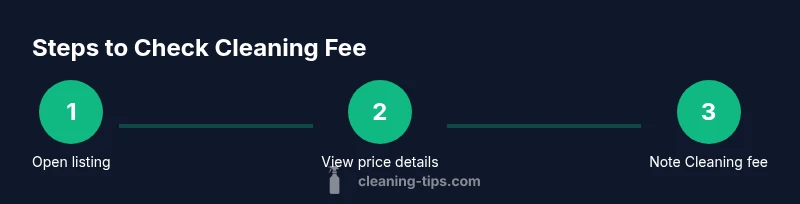
To verify the cleaning fee on a desktop, start by opening the listing page. Scroll to the price details section and click the price breakdown to expand it. Locate the line labeled Cleaning fee or Cleaning and note the amount. If you’re comparing dates, repeat the process for each set of dates you’re considering to see how the fee changes with stay length. Finally, compare the total price across listings, ensuring you’re factoring in the cleaning fee alongside nightly rates and any service charges. By taking a few extra minutes to review the breakdown, you’ll avoid surprises at checkout.
Step-by-step: checking cleaning fee on mobile
On a mobile device, begin by opening the listing and selecting the date range. Tap on the price, then choose Price detail or See price details to reveal the breakdown. Find the Cleaning fee line and record the amount for your dates. Repeat this on a few similar listings to compare total costs. If the fee is not visible immediately, look for an expandable section labeled price details, or check the Trip Summary during checkout. Mobile layouts can sometimes fold lines, so expanding the detailed view is essential for accurate comparison.
How to compare cleaning fees across listings
Comparing cleaning fees across listings requires you to treat the fee as part of the total cost, not in isolation. Start by listing the total price for a fixed date range and the same number of guests for each listing. Then, subtract or ignore the nightly rate to isolate the cleaning fee, or simply compare the overall totals when evaluating value. Consider space quality, amenities, and location alongside the fee; a higher cleaning fee might be reasonable if it accompanies better cleaning standards or more included services. If you notice inconsistent reporting (for example, a higher fee without a corresponding increase in quality), use that insight to inform your booking choice.
Hidden fees to watch for beyond the cleaning fee
Be aware that the total price can include more than the nightly rate and the cleaning fee. Look for service fees, occupancy taxes, and any additional charges that may appear later in the checkout flow. Sometimes hosts adjust per-stay costs by offering nonrefundable cleaning promotions or bundling fees with other services. If a listing shows a high cleaning fee but low nightly rate, verify what’s included and whether any discounts apply for longer stays. Reading the host policies and the cancellation terms can prevent misinterpretation of total costs.
Tips for budgeting and planning your Airbnb stay
Plan with a clear budget by listing every line item you expect to pay: nightly rate, cleaning fee, service fee, taxes, and any add-ons. Use a simple comparison table to track total costs across listings for your chosen dates. Consider the value you get for the fee—cleanliness, supplies, and turnover service quality can justify a higher cleaning fee. If you’re price-sensitive, filter or sort listings by total price and take the time to view the price details for each option. Remember that a lower fee doesn’t always mean a better deal if it compromises cleanliness or amenities.
Quick checklist before booking
- Confirm the cleaning fee for your exact dates and party size
- Compare total price across listings, including all charges
- Review what the cleaning fee covers (supplies, turnover, eco-friendly products)
- Check host policies on refunds or changes to cleaning charges
- Read guest reviews about cleanliness and turnover quality
What to do if the fee is unclear or inconsistent
If you encounter discrepancies in cleaning fees between similar listings, contact the host for clarification before booking. Use Airbnb’s Help Center or the messaging system to request a breakdown of what the fee covers for your dates. If a host is unresponsive or the listing lacks a clear breakdown, consider choosing another option and report the listing if you suspect misleading pricing. Keeping a record of price details helps you compare accurately and protects you against unexpected charges at checkout.
Tools & Materials
- Smartphone or computer with internet access(For checking listings on the go or from home)
- Airbnb account(Needed to view price details and messages)
- Notebook or notes app(Record fee amounts and totals from multiple listings)
- Pen(Useful for quick jot-downs during comparison)
- Stable internet connection(Avoids interrupted price breakdown view)
Steps
Estimated time: 10-15 minutes
- 1
Open the listing page
Navigate to the Airbnb listing you’re interested in and ensure you have the correct dates and guest count entered. This ensures the price breakdown reflects your exact stay. If you’re comparing several listings, keep each listing open in separate tabs for easy reference.
Tip: Double-check that the date range matches your intended stay to avoid mismatched fees. - 2
Access the price details
Click or tap the price to expand the price details panel. Look for a line item labeled Cleaning fee or Cleaning. This is the one-time charge applied per booking, not per night.
Tip: If you don’t see it, look for a disclosure or expandable section labeled price details. - 3
Note the cleaning fee amount
Record the cleaning fee amount for your dates. Some listings show the fee as a fixed amount; others may adjust based on stay length or additional guests. Keep a clear note of how this varies across listings you’re comparing.
Tip: Take a screenshot or copy the figures to your comparison notes for accuracy. - 4
Check per-stay applicability
Confirm that the fee is per stay, not per night. This distinction can dramatically affect the total when staying multiple nights. If in doubt, reread the listing details or ask the host directly.
Tip: Ask the host directly if you’re planning a long stay and want a breakdown by night vs stay. - 5
Compare across listings
Repeat the steps for each listing you’re evaluating. Compare the total price and then the cleaning fee in context with the nightly rate and any service charges. This helps you determine true value, not just the lowest per-night price.
Tip: Create a simple table listing nightly rate, cleaning fee, service fee, taxes, and total price. - 6
Review additional charges
Look for other charges such as service fees or taxes that may appear later in checkout. These can offset savings from a lower cleaning fee. Document how each listing handles these items to compare fairly.
Tip: If the total feels off, re-check the dates and guest count to ensure you’re comparing like with like. - 7
Decide and book
After compiling your comparisons, choose the listing that offers the best value for the total cost and quality of stay. Proceed to checkout with confidence, knowing you’ve verified the cleaning fee details.
Tip: If you’re torn between two options, favor the listing with better reviews on cleanliness and turnover.
Questions & Answers
Is the cleaning fee charged per stay or per night?
Cleaning fees are typically charged per stay, not per night, and are intended to cover turnover costs between guests. The fee is a one-time charge for the booking.
Cleaning fees are usually a one-time charge for the booking, not charged per night.
Where can I find the cleaning fee on the listing page?
Look at the price breakdown on desktop or mobile. The line labeled Cleaning fee or Cleaning shows the amount and is part of the total price for your stay.
On the listing, check the price breakdown for the Cleaning fee line to see the amount.
Can I avoid paying cleaning fees?
Some listings may offer no cleaning fee or include it in the nightly rate, but this varies by host. It’s not always possible to avoid the fee entirely.
Some listings may not have a separate cleaning fee, but it depends on the host.
Do cleaning fees vary by location or listing type?
Yes, fees vary by listing type and location, and sometimes by season or special accommodations. Always verify for your specific dates.
Yes, fees can vary by location and listing type.
What should I do if the cleaning fee is not clearly shown?
Ask the host for a clear breakdown or contact Airbnb support before booking. Document the price details for accurate comparison.
If the fee isn’t clear, ask the host or contact support before booking.
Watch Video
The Essentials
- Check the price breakdown for every listing
- Treat cleaning fee as part of total cost, not separate
- Compare total price rather than nightly rate alone
- Ask for clarification if any fee appears unclear