How to Get Rid of Easy Clean App: A Practical Uninstall Guide
Learn how to safely remove the Easy Clean app from Windows or Mac, locate leftover files, and verify a clean system. Follow this step-by-step guide from Cleaning Tips for a privacy-conscious uninstall.


To remove the Easy Clean app, follow a clear, safety-first uninstall on Windows or Mac. This guide covers locating the program, uninstalling it, and removing leftover files to prevent reinstallation or data exposure. By the end, your device should run smoothly again, with improved privacy and performance, according to Cleaning Tips.
Why removing Easy Clean matters
If you’ve noticed slower performance, unexpected pop-ups, or unfamiliar permission requests after installing Easy Clean, it may be time to remove the app. According to Cleaning Tips, persistent cleaners can leave behind residual files that take up space and collect data. Even if an uninstall seems successful, traces can remain in caches, registries, or user folders, creating opportunities for privacy leakage or reinstallation prompts. This section explains why a thorough removal matters for device performance, privacy, and peace of mind. You’ll learn to distinguish legitimate cleaning utilities from software that behaves like bloatware, and you’ll gain confidence in a complete, risk-aware uninstall process. The ultimate goal is a clean slate where your device operates as intended and your data remains in your control.
Identifying where Easy Clean hides on your device
Easy Clean can hide in several places beyond the visible Programs or Applications list. On Windows, look in the Programs and Features area, the Startup folder, the AppData directories, and the Registry for entries named Easy Clean or similar. On macOS, search the /Applications folder, the user Library and System Library caches, and any launch agents. Some apps create helper processes or background services that reappear after a quick uninstall. A thorough search helps prevent silent reinstallation prompts and keeps files from occupying space.
Backups and safety planning before you start
Before making changes, back up important data and create a system restore point if available. This protects you if you accidentally remove a file needed by other software. Consider turning off automatic sync temporarily if the app stored data in the cloud, then verify you can re-link accounts later. Clean device backups also help you compare before/after states, which makes it easier to confirm that Easy Clean and its leftovers are truly gone. While working, avoid downloading new tools from untrusted sources; rely on built-in uninstall features first and only use reputable third-party tools if necessary.
Step-by-step uninstall: Windows overview
Windows users should start by closing all instances of the Easy Clean app and saving work. Open Settings > Apps, find Easy Clean in the list, and click Uninstall. If prompted, choose to remove user data associated with the app. After uninstall completes, check the Start-up tab in Task Manager to ensure no Easy Clean processes auto-launch. This reduces the chance of reactivation on startup. If a standard uninstall fails, use the Windows Control Panel or a reputable uninstaller tool as a fallback, then rerun the uninstall.
Step-by-step uninstall: macOS overview
Mac users begin by quitting Easy Clean if it’s running, then dragging the app from the Applications folder to the Trash. Empty the Trash and consider removing related support files in the Library folders (~/Library and /Library) under Application Support, Caches, and Preferences. If you used a launcher or launcher app, disable any associated launch agents or daemons in ~/Library/LaunchAgents and /Library/LaunchDaemons. Restart your Mac to ensure all processes terminate and help finalize the removal.
Cleaning up leftovers: folders, caches, and startup items
Leftover files can live in several common locations. On Windows, check ProgramData, AppData
oaming and AppData\local, plus any registry entries tied to Easy Clean. On macOS, search Library/Application Support, Library/Caches, Library/Preferences, and Library/LaunchAgents. Deleting these items helps prevent reappearance and reduces clutter. After cleanup, run a trusted malware scan to ensure there’s no malicious component linked to the app. This helps protect your privacy and system integrity long-term.
Verification and maintenance after removal
Once removal and cleanup are complete, verify that Easy Clean is no longer installed by rechecking Settings/Applications or the Applications folder. Run a quick disk cleanup and refresh the system’s index so you don’t see stale shortcuts. Reboot the device and inspect for any lingering reminders to install Easy Clean. Finally, monitor performance for a few days; if you notice unusual behavior, revisit the leftover search steps or run an anti-malware scan. Cleaning Tips recommends maintaining routine privacy hygiene to prevent unwanted software creep.
Tools & Materials
- Administrative access on your device(You’ll need admin rights to uninstall software.)
- Backup storage (cloud or external drive)(Back up important data before removing apps.)
- Uninstaller tool (optional)(Choose a reputable tool if built-in uninstaller fails.)
- Disk cleanup utility (built-in or third-party)(Use to remove leftover caches safely.)
- Anti-malware/antivirus scan(Run after removal to ensure no remnants remain.)
- Access to a second device (optional)(For cross-checks or account re-linking if needed.)
Steps
Estimated time: 45-90 minutes
- 1
Open the uninstaller location
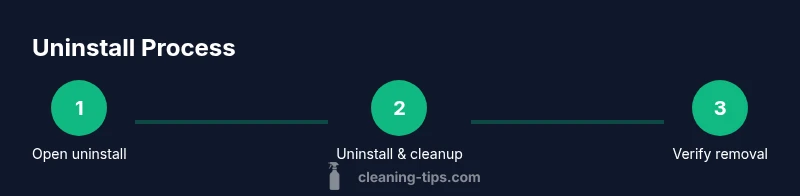
Access the built-in uninstaller via Settings > Apps (Windows) or the Applications folder (Mac). Locate Easy Clean in the list and prepare to uninstall. This initial step confirms the app is still present in the OS inventory.
Tip: If you don’t see Easy Clean, try a search in the OS search bar. - 2
Initiate uninstall
Select Easy Clean and click Uninstall (or Move to Trash on Mac). Confirm removal when prompted, ensuring you choose to delete user data if offered. This action begins the formal removal process.
Tip: Note any prompts requesting permission to remove data; review what will be deleted. - 3
Handle post-uninstall prompts
If the OS asks to remove related components, approve to ensure complete cleanup. Some apps leave services or helpers behind; removing these minimizes the chance of reinstallation prompts.
Tip: Save a screenshot of prompts if you’re uncertain about affected components. - 4
Check startup items
Open Task Manager (Windows) or System Preferences > Users & Groups (Mac) to inspect startup items. Disable any Easy Clean entries to prevent auto-launch on boot.
Tip: Use a search to filter for 'Easy Clean' across startup locations. - 5
Search for leftovers in system folders
Manually inspect known cache and data folders (e.g., ProgramData, AppData on Windows; Library/Caches on Mac). Delete residual folders named Easy Clean or with similar identifiers.
Tip: Do not delete system-critical folders; if unsure, move them to a backup location first. - 6
Run a malware scan
After cleanup, run an updated malware scan to ensure no components remain that could compromise privacy or security.
Tip: Choose a reputable scanner and update signatures before scanning. - 7
Restart and validate removal
Restart your device to finalize changes and confirm Easy Clean no longer appears in the app list or launch agents. Reopen settings or finder/search to verify absence.
Tip: A full restart helps terminate hidden processes. - 8
Reinstate security hygiene
Update OS and apps, re-enable protections, and re-link any accounts affected by the removal. Consider a routine check for newly installed cleaning tools you actually use.
Tip: Establish a monthly privacy audit to catch unwanted software early.
Questions & Answers
Can I remove Easy Clean from my browser or system extensions alone?
No. A complete removal should include uninstalling the app from your system and deleting leftover files and startup entries. Browser or extension removal may leave traces that cause reappearances or data leaks.
You should remove the app from your system and clean leftover files to ensure full removal.
What if Easy Clean reappears after restart?
Reappearance usually means a leftover component or startup item persisted. Revisit the startup section and perform a deeper search in AppData/Library folders. Ensure any related services are disabled and permanently removed.
If it shows up again, check startup items and hidden folders for leftovers.
Will uninstalling Easy Clean delete data I stored in the app?
Uninstall may remove local data linked to the app. If you backed up data, you can still recover via your backup. Review the uninstall prompts to decide whether to keep or delete local data.
Uninstall might delete data stored by the app; check your prompts and backups.
Do I need to reinstall OS or run a factory reset to remove Easy Clean completely?
Usually not. A thorough manual uninstall plus cleanup of leftovers is sufficient. Only consider OS refresh if you suspect a system-wide compromise, and always back up first.
Factory reset is rarely needed; standard uninstall plus cleanup is usually enough.
How can I prevent Easy Clean from reinstalling itself?
Avoid re-downloading from untrusted sources, monitor new software installations, and keep antivirus enabled. Periodic system scans help catch unwanted software before it becomes a problem.
Be careful with new installs and keep security software on.
Watch Video
The Essentials
- Identify all Easy Clean components across OS locations
- Uninstall with administrator access and remove leftovers
- Verify removal with a restart and a security scan
- Maintain privacy hygiene to prevent reinstallation