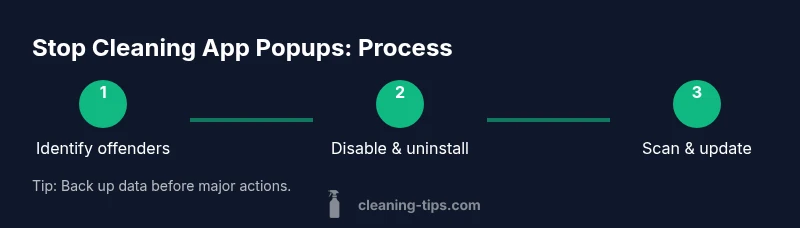
How to Stop Cleaning Apps from Popping Up: A Practical Guide
Discover practical steps to stop cleaning apps from popping up on Android, iOS, and desktop systems. Learn how to identify culprits, adjust notifications, uninstall unwanted apps, and harden settings for a quieter, more focused device experience.


Learn how to stop cleaning apps from popping up on your devices. This step-by-step guide explains why these notifications appear, how to identify culprits, and practical fixes for Android, iOS, and desktop environments. By adjusting settings, uninstalling unwanted apps, and using built-in focus modes, you can regain control of your screen time.
Why cleaning apps pop up and what they’re trying to do
Cleaning apps that promise to optimize storage or speed up devices often rely on push notifications to stay visible. On Android and iOS, these apps can request permissions to show overlays or system alerts, and some may use marketing tactics to nudge you into opening the app. The result is a steady stream of banners, banners, and popups that disrupt regular use. From a user-experience perspective, these alerts can feel intrusive and distracting, especially if they reappear after being dismissed. The Cleaning Tips team notes that many of these popups originate from misconfigured notification settings, bundled marketing in legitimate cleaning tools, or occasionally, low-quality ad-supported software. The goal of this guide is not to ban legitimate maintenance prompts entirely, but to help you reclaim control with clear, actionable steps. By understanding how these alerts work, you can tailor settings to reduce noise while keeping helpful reminders when you need them.
How to identify the culprits quickly
Start by auditing recently installed apps and any that explicitly market cleaning, optimization, or storage space. Check notification permissions for each app and look for overlays (draw over other apps) or permissions to show alerts on top of other content. On most devices you can sort apps by install date, permissions, or notification settings to spot potential offenders. If an app was installed recently and coincides with a spike in popups, it’s a prime suspect. In addition, watch for apps that push aggressive marketing or continuous reminders, which are common traits of nuisance cleaners. According to Cleaning Tips analysis, many popups originate from misconfigured notification settings or bundled marketing in cleaning apps, rather than truly malicious software. Use this as your first pass to triage.
Android fixes that actually work
Android users have several levers to pull. First, review each cleaning app’s notification settings and disable or tailor alerts. If an app draws overlays, revoke the “Draw over other apps” permission. Then consider uninstalling the app or disabling it from startup if possible. Clear the app’s data or reset its preferences to reset defaults that may trigger alerts. Keep your device secured with a reputable security app and ensure OS and apps are up to date. If popups persist, verify there are no extensions or adware installed in your browser, and run a malware scan. Finally, enable Focus or Do Not Disturb modes during troubleshooting so you can test changes without interruption.
iOS fixes that actually work
iOS handles notifications a bit differently, but the core fixes are similar. Go to Settings > Notifications and review each cleaning app’s alert style, disabling banners or turning off notifications entirely for suspicious apps. Some nuisance alerts stem from configuration profiles or device-management settings; if you see an unfamiliar profile, remove it. Clear Safari data if popups surface while browsing and ensure you’re not loading any ad-supported extensions. Always reboot after major changes to confirm the adjustments take effect. If the problem persists, consider resetting all settings (not data) to restore default restrictions.
Windows and macOS: stop popups from cleaning apps
On desktops, start by checking the system notification center and browser extensions. Uninstall any cleaning utilities you don’t recognize or trust, then run a full malware scan using reputable software. Review startup programs and scheduled tasks to ensure nothing unwanted launches at boot. In browsers, disable or remove extensions that resemble cleaner tools or that push cleaning prompts. Keeping the operating system updated reduces vulnerability to popups and improves overall stability. If you must use a cleaner utility, choose well-reviewed software from reputable sources and configure it to minimize intrusive prompts.
Best practices to prevent future popups
Maintain a lean app portfolio by sticking to trusted developers and avoiding freebies with aggressive marketing. Regularly review notification settings across all apps, and enable Do Not Disturb or Focus modes during work or study. Keep your device’s OS and essential apps updated to reduce compatibility issues that lead to spurious alerts. If you’re ever unsure about a prompt, pause and verify the source before acting—don’t click on in-app banners or install offers blindly. Back up important data before making major changes like resets or uninstalls, so you won’t lose essential information if you need to revert.
The Cleaning Tips perspective and next steps
By following these steps, you regain control over your devices and reduce unwanted interruptions from cleaning apps. The Cleaning Tips team emphasizes the importance of systematic troubleshooting over quick fixes, ensuring you only modify what’s necessary. If you encounter persistent popups that resist standard methods, seek professional guidance or consult your device manufacturer’s support resources for device-specific guidance.
Tools & Materials
- Smartphone or tablet (Android or iOS)(The device where popups appear; used for applying fixes.)
- List of suspect cleaning apps(Identify apps to review and potentially uninstall.)
- Access to device settings(Needed to modify notifications, permissions, and permissions.)
- Uninstaller or app management tool(Use built-in tools or system settings to remove apps.)
- Malware scanner (official app)(Scan for adware or harmful components if popups persist.)
- Safe internet source for apps(Avoid sideloading from untrusted sources.)
Steps
Estimated time: 45-90 minutes
- 1
Audit recent installs
Review the list of recently installed cleaning apps and note any that request extensive permissions or overlays. Record dates and permissions to identify likely culprits.
Tip: Sort by install date and check for permissions like draw over other apps. - 2
Disable or tailor notifications
For suspicious apps, go to the notification settings and disable banners, sounds, or all alerts. This reduces interruption while you decide on uninstalling.
Tip: Apply changes one app at a time to isolate effects. - 3
Revoke overlays and sensitive permissions
If an app can draw over other apps, revoke that permission. Similarly, limit access to notifications, usage access, and background activity where possible.
Tip: Don’t grant overlay permissions to unknown apps. - 4
Uninstall problematic apps
Remove apps identified as causing popups. After uninstalling, reboot the device to ensure changes take effect.
Tip: If a built-in tool reappears, disable it from startup or disable the app entirely. - 5
Run a malware scan
Run a trusted malware or adware scan to ensure there’s no hidden software driving popups. Follow prompts to remove any detected threats.
Tip: Keep the scanner updated to catch new threats. - 6
Reset app preferences and settings
Reset app preferences, notification settings, and defaults to remove stubborn configurations. This can restore sane defaults without wiping data.
Tip: Back up before performing resets to avoid data loss. - 7
Update OS and essential apps
Install the latest OS updates and critical app updates to patch vulnerabilities that popups may exploit.
Tip: Enable automatic updates where possible for ongoing protection. - 8
Consider a factory reset as a last resort
If popups persist after all other steps, a factory reset can remove deeply embedded adware. Back up data first and restore only essential apps.
Tip: Only proceed when you’ve exhausted other options and have a verified backup.
Questions & Answers
What causes cleaning apps to pop up?
Popups are often produced by ad-supported or misconfigured apps that request overlays or aggressive notifications. They may also stem from browser extensions or malicious software. Regular audits and safe-practice settings help reduce these interruptions.
Popups usually come from apps that show overlays or pushy ads. Check recent installs and disable or uninstall suspicious apps.
How can I identify which app is causing the popup?
Start by reviewing recently installed apps and their notification permissions. Look for apps that request 'draw over other apps' or have persistent ad banners. Use device settings to track recent activity and revoke permissions as needed.
Review recent installs and their permissions to find the offender, then revoke permissions or uninstall.
Is resetting the device necessary to stop popups?
A reset is rarely required, but it can fix stubborn configurations. Try uninstalling apps, resetting settings, and scanning for malware before considering a factory reset. Always back up data first.
Only reset if all other steps fail; back up your data before doing so.
Will antivirus scans help stop popups?
Yes. A reputable malware or adware scan can detect and remove malicious components driving popups. Keep the scanner updated and follow its remediation steps.
Yes—run a trusted malware scan and remove any detected threats.
Can I stop popups without uninstalling apps?
Absolutely. Disable notifications for the offending apps, revoke overlays, or adjust permissions. Use Focus modes to minimize interruptions while you implement changes.
Yes—adjust notifications and permissions, or use Focus mode to reduce interruptions.
What if the problem comes back after reboot?
If popups reappear after reboot, re-check recent apps and reset settings again. Consider a more thorough cleanup or professional guidance if necessary.
If it returns after reboot, re-check apps and settings; you may need deeper cleanup.
Watch Video
The Essentials
- Audit apps and permissions before changing settings
- Uninstall problematic apps to stop popups
- Disable or tailor notifications to reduce noise
- Keep OS and apps updated for better protection